2 Follow the procedure listed in After working inside your system.
3 To verify if the memory module has been installed properly, press F2 and navigate to System Setup Main Menu > System BIOS >
Memory Settings. In the Memory Settings screen, the System Memory Size must reect the updated capacity of the installed
memory.
4 If the value is incorrect, one or more of the memory modules may not be installed properly. Ensure that the memory module is rmly
seated in the memory module socket.
5 Run the system memory test in system diagnostics.
NVDIMM-N battery
Removing the NVDIMM-N battery
Prerequisites
1 Follow the safety guidelines listed in Safety instructions.
2 Follow the procedure listed in Before working inside your system.
CAUTION: To prevent data loss, ensure that your system and LEDs on NVDIMM-N and NVDIMM-N battery are turned
o before removing the NVDIMM-N battery.
CAUTION: To avoid damage to the battery connector, you must rmly support the connector while installing or
removing a battery.
3 Disconnect the cables from the NVDIMM-N battery.
Steps
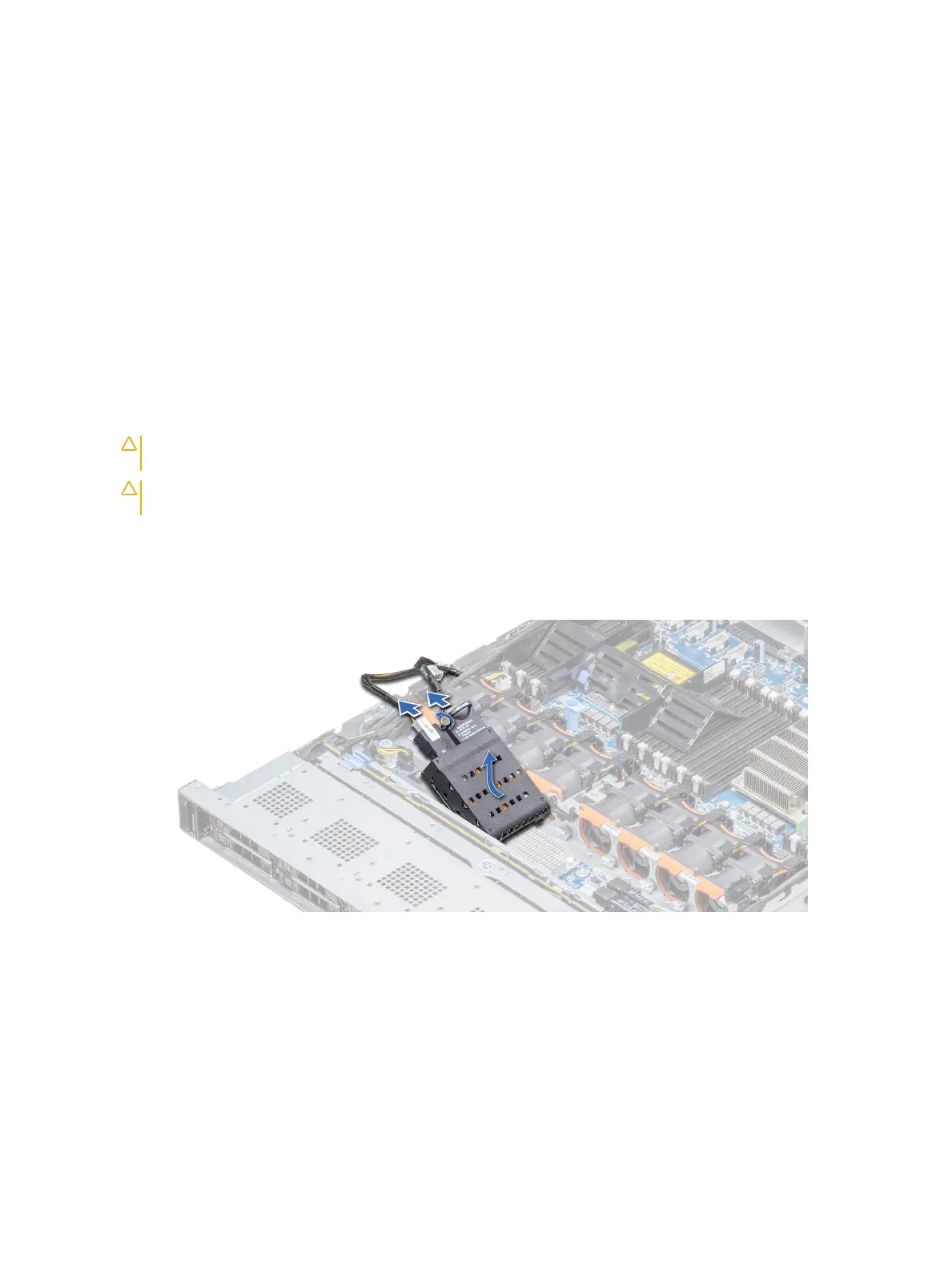
1 Using the Phillips #2 screwdriver, loosen the screw securing the NVDIMM-N battery.
2 Holding the edges, lift the NVDIMM-N battery away from the system.
Figure 36. Removing the NVDIMM-N battery
Next step
1 Install the NVDIMM-N battery.
92
Installing and removing system components





 To Next Page