Mimio Capture Kit
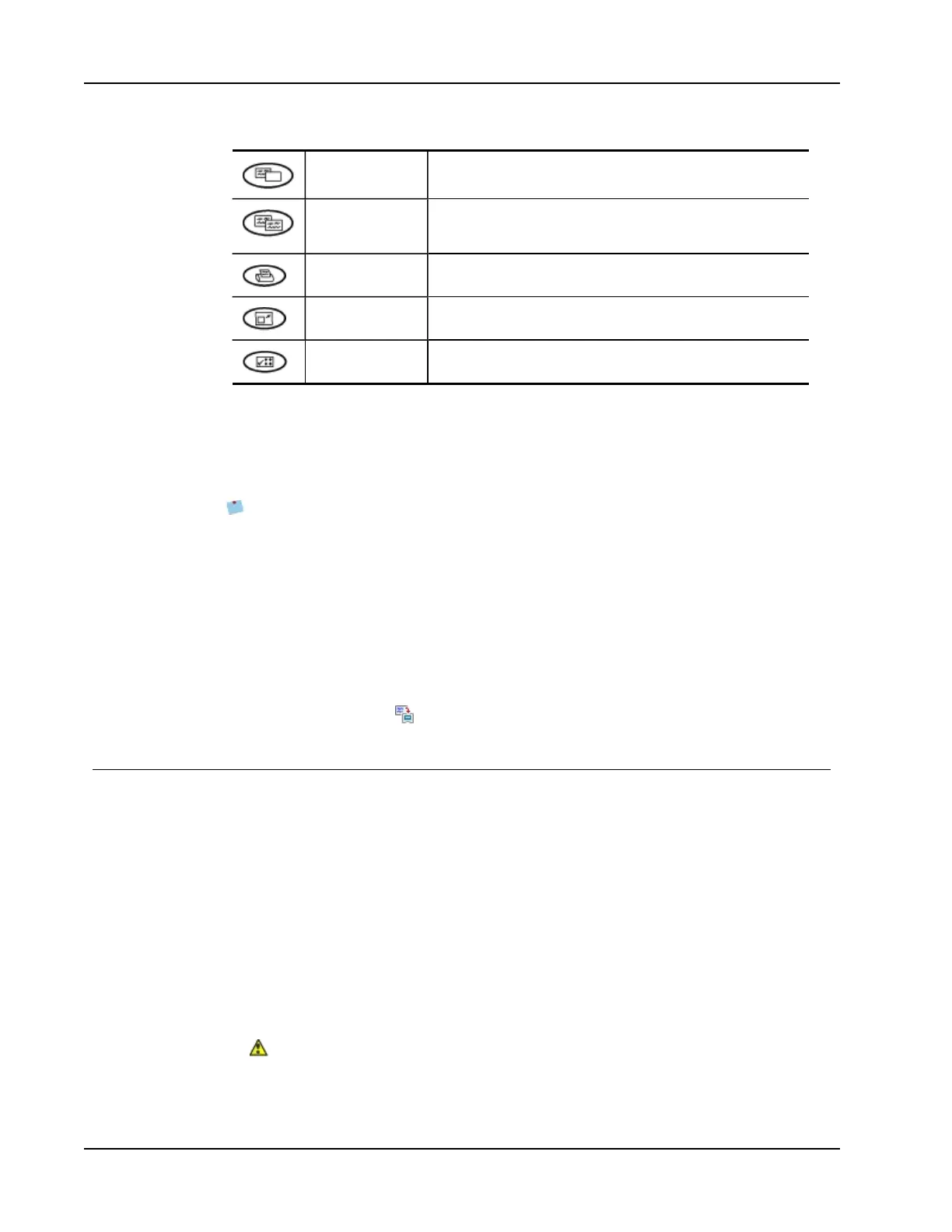
New page Inserts a new page into MimioStudio Notebook.
Copy page Inserts a duplicate of the current page into MimioStudio
Notebook.
Print page Prints the current page.
Resize window Minimizes or Maximizes the MimioStudio Notebook window.
Interactive Exits Ink Capture mode and starts Interactive mode.
Downloading Digital Ink
You can use your Mimio Interactive bar to record and save Digital Ink even when not
connected to your computer. You can then download the Digital Ink to MimioStudio
Notebook for printing, distributing, or editing.
When your Mimio Interactive bar is not connected to your computer through the USB
cable, the Mimio Interactive bar must be powered by batteries or a power adapter.
To download digital ink
1. Connect the Mimio Interactive bar to your computer.
2. Do one of the following:
l If configured to automatically download digital ink (default), open a new
MimioStudio Notebook.
The ink download process begins automatically.
l If configured to manually download digital ink, open a new MimioStudio Notebook
and double-click Download Ink on the status bar.
Caring for Mimio Capture Kit
Review the following topics for information about cleaning, storing, and mounting your
Mimio Capture Kit.
n Cleaning the Mimio Capture Kit
n Mounting the Mimio Capture Kit
Cleaning the Mimio Capture Kit
Mimio Capture Kitis designed to give you long and trouble-free service, while requiring
very little maintenance.
You can easily clean your Mimio Capture Kit using the following items:
n Lint-free cloth.
n Isopropyl alcohol, diluted dishwashing detergent, or diluted glass cleaner.
If you use glass cleaner, make sure it does not contain ammonia.
To clean the Mimio Capture Kit
90



 To Next Page