MimioCapture
Charging the Pens and Eraser
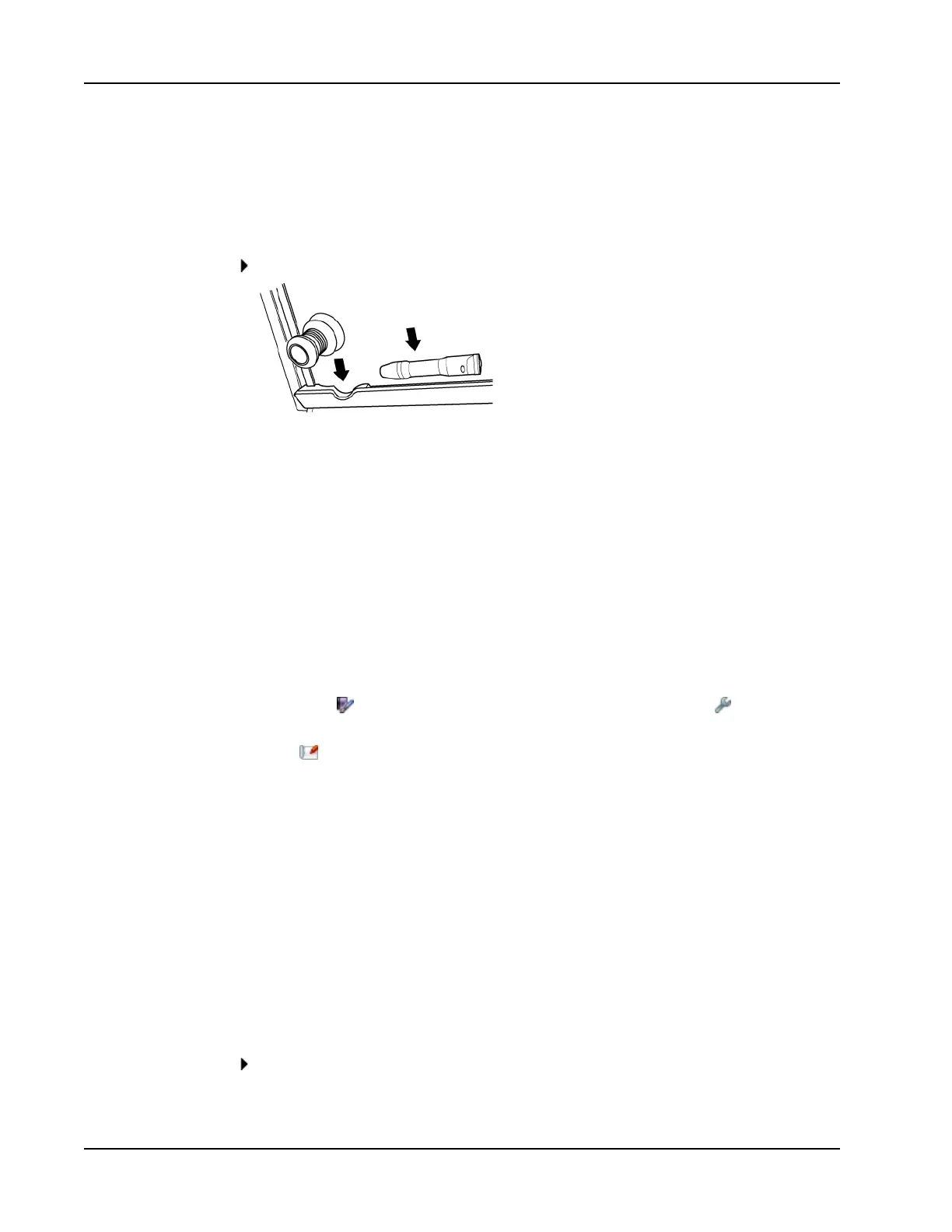
The MimioCapture pens and MimioCapture eraser recharge quickly whenever they are
docked on the MimioCapture tray.
To charge the pens and eraser
Place each pen and the eraser into the appropriate part of the MimioCapture tray.
The status lights turn solid green when the pen or eraser is charging.
Setting Up MimioStudio Notebook for Capture
To begin capturing digital ink, you must first do the following:
n Set the size of your whiteboard in MimioStudio Settings.
n Start MimioStudio Ink Capture mode.
Setting the Whiteboard Size
Before you begin capturing digital ink, you must first set the size of your whiteboard in
MimioStudio Settings. The default size is 96 inches by 48 inches.
To set the whiteboard size for a MimioCapture device
1.
Right-click in the notification area of the taskbar, and then choose Settings.
The MimioStudio Settings dialog box appears.
2.
Click Ink Capture.
3. If you have more than one MimioTeach bar connected to your computer, choose the
device to change the size for from the Device list.
4. Do one of the following:
l Choose a size from the Surface Size list.
l Choose Custom from the Surface Size list and enter the desired values into the
Width and Height boxes.
l Click Auto Size and touch a MimioCapture pen to the whiteboard at the location
shown in the Auto Size dialog box.
Starting Ink Capture Mode
Using MimioStudio Ink Capture mode, you can make notes on your whiteboard and
instantaneously capture them into a MimioStudio Notebook.
To start Ink Capture mode
Touch the tip of any MimioCapture pen to the whiteboard.
A new Notebook opens automatically for capturing your notes.
78



 To Next Page