Using MimioStudio Tools
1.
From MimioStudio Tools, click the Insert File button, .
2. From the Open dialog box, select the file to import.
3. Click Open.
The image or object is displayed on the Notebook page.
You can also copy and paste images from another application, or drag images from
another application into Notebook.
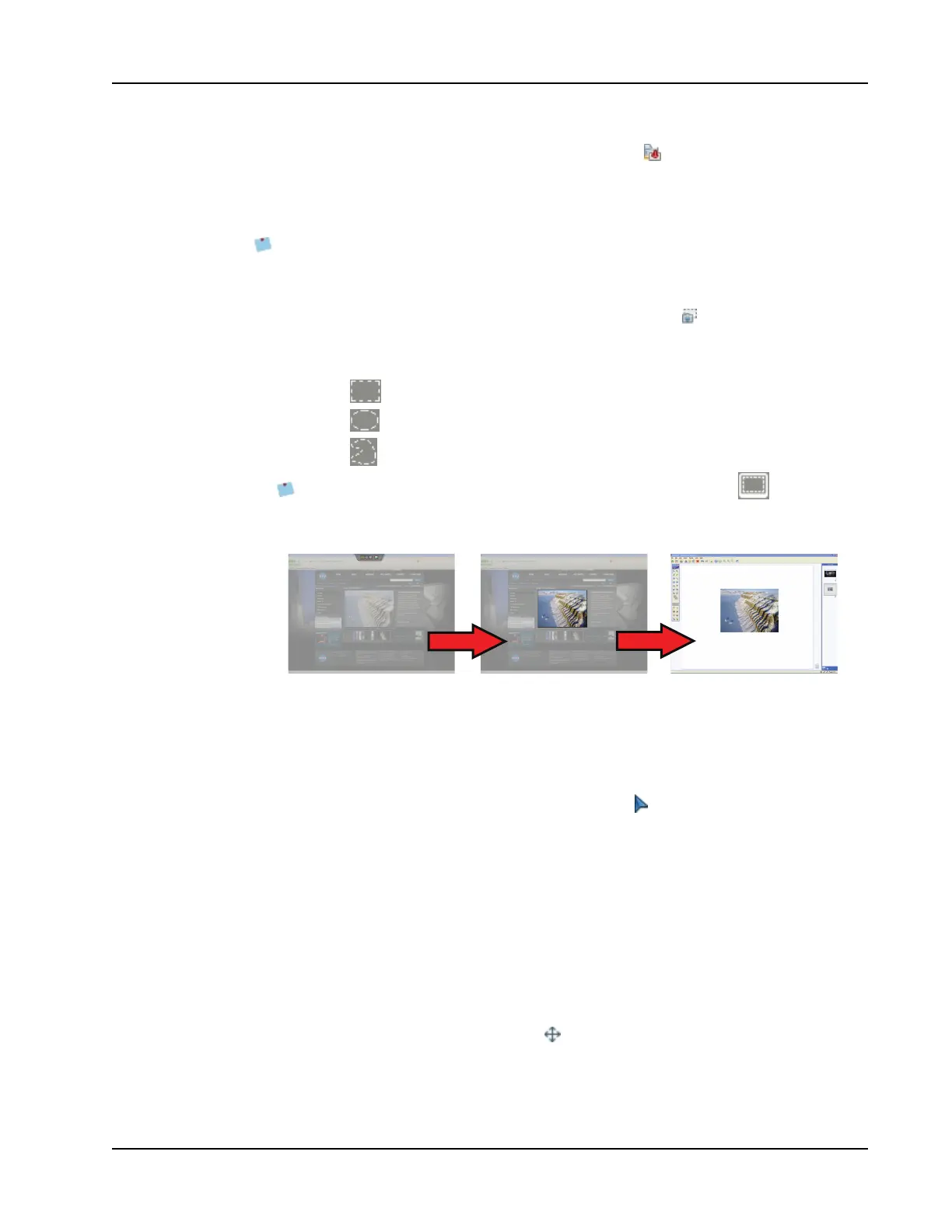
To insert a screen clipping
1.
From MimioStudio Tools, click the Screen Clipping button, .
The desktop is displayed with a transparent mask.
2. Do one of the following:
l
Click to insert a rectangular screen clipping.
l
Click to insert an elliptical screen clipping.
l
Click to insert a free-form screen clipping.
To insert the entire desktop as a new page in the Notebook, click .
3. Drag the cursor to select the area to capture.
The selected area is inserted in the Notebook page.
Manipulating Objects
Objects on a page can be moved, rotated, copied, deleted, locked, and have their properties
adjusted.
To select an object
1.
From MimioStudio Tools, click the Selection button, .
2. Do one of the following:
l Click the object to select.
l To select multiple objects, press CTRL and select each object.
l To select multiple objects that are close to each other, drag a selection rectangle
over the objects to select.
l To select all objects on a page, choose Select All from the Edit menu.
To move an object
1. Select the object to move.
2. Position the cursor over the object.
The cursor changes to the move cursor, .
17



 To Next Page