Using MimioTeach
The following table describes how to use the MimioTeach stylus to control your desktop
from the whiteboard.
To execute Do this
Left mouse click Click in the projected area at the desired location with the tip of the stylus.
Double left mouse click Quickly click twice in the projected area at the desired location with the tip of
the stylus.
Right mouse click
Press the B button on the stylus, and then click in the projected area at the
desired location with the tip of the stylus.
Hover
1. Hold the stylus at the desired location, staying as close to the whiteboard
as possible without touching it.
2. Press the B button on the stylus.
3. Move the stylus to the desired location.
4. Release the B button on the stylus.
To change the functions of the MimioTeach stylus buttons, see Adjusting the Interactive
Settings.
Focusing Attention Using the Reveal and Spotlight Tools
The Reveal tool and the Spotlight tool help you to focus your audience on a specific area of
the screen by keeping parts of the screen hidden.
Using the Reveal Tool
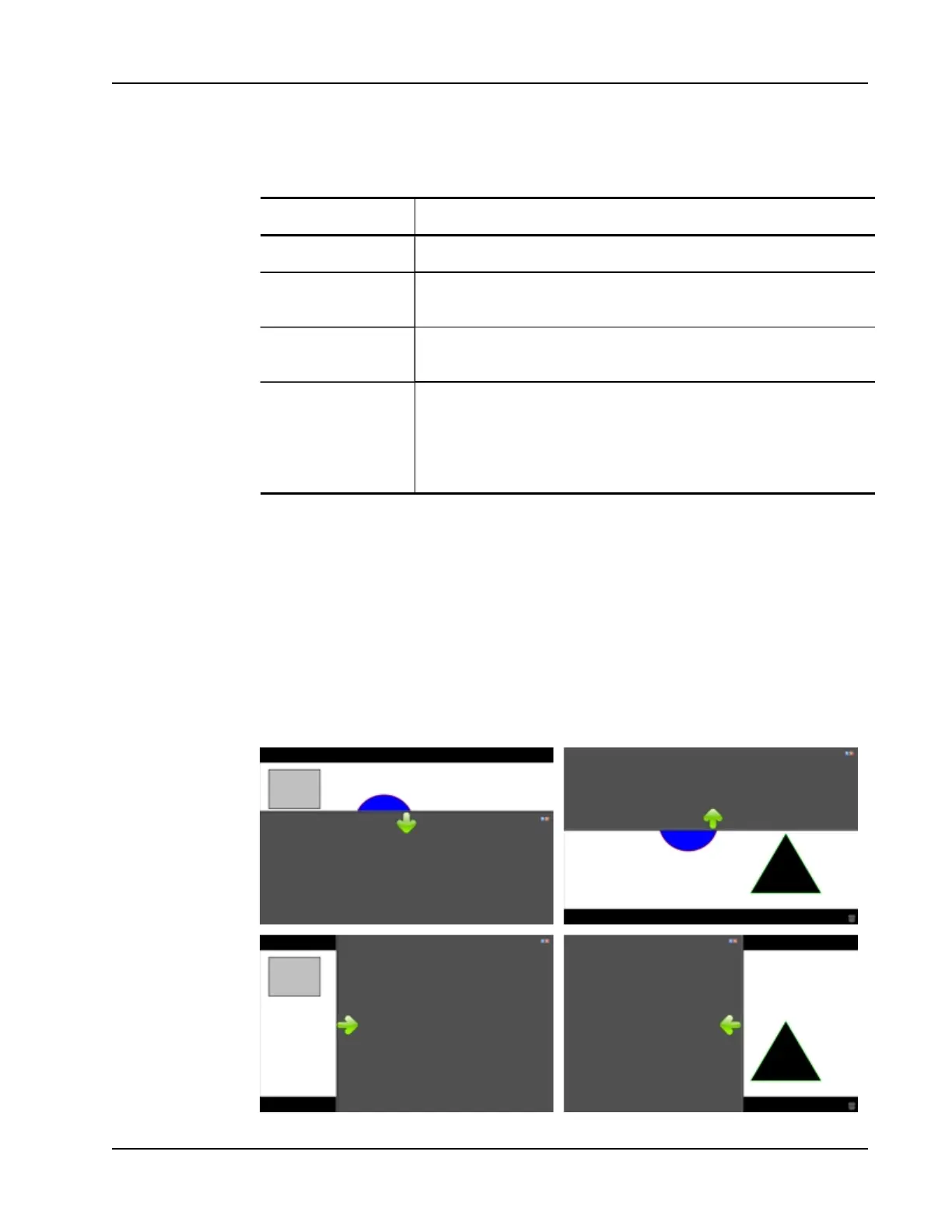
The Reveal tool creates a shade that you can raise, lower, move left, and move right over
the screen image, as if you are moving a shade up, down, or across the screen. You can then
expose bullet points or other information progressively.
37



 To Next Page