Getting Started
About MimioStudio View
The View window displays the image captured by the MimioView camera. From the View
window, you can rotate or zoom the image, mark up the image using MimioStudio Tools,
adjust the contrast and brightness settings, freeze the image, and so on.
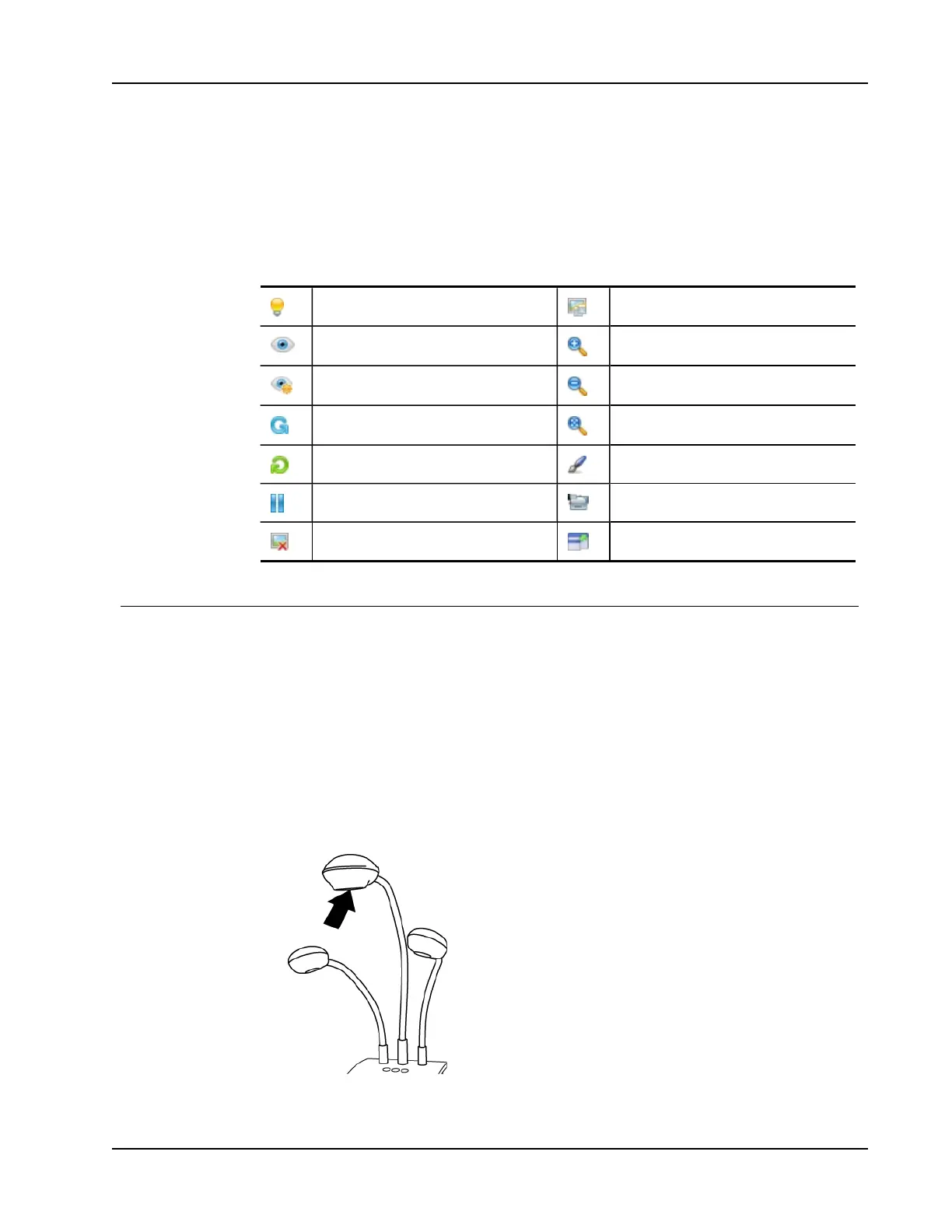
The following table describes the major features of the MimioStudio View window.
Lamps on/off
Copy image
Auto tune Zoom in
Adjust brightness, contrast, and focus Zoom out
Rotate counter-clockwise 90 degrees Zoom to fit window
Rotate clockwise 90 degrees Open MimioStudio Tools
Freeze image Record live image
Clear all markups View full screen
Getting Started
Review the following topics to install and start using MimioView.
n Installing MimioView
n Opening the View Window
n Closing the View Window
Installing MimioView
Once you have installed the MimioStudio software on your computer, you can quickly
install MimioView.
To install MimioView
1. Remove the protective covering from the MimioView camera lens.
2. Plug the USB cable into the Micro-B USB port on the back of the camera base.
115



 To Next Page