Using Mimio Pad
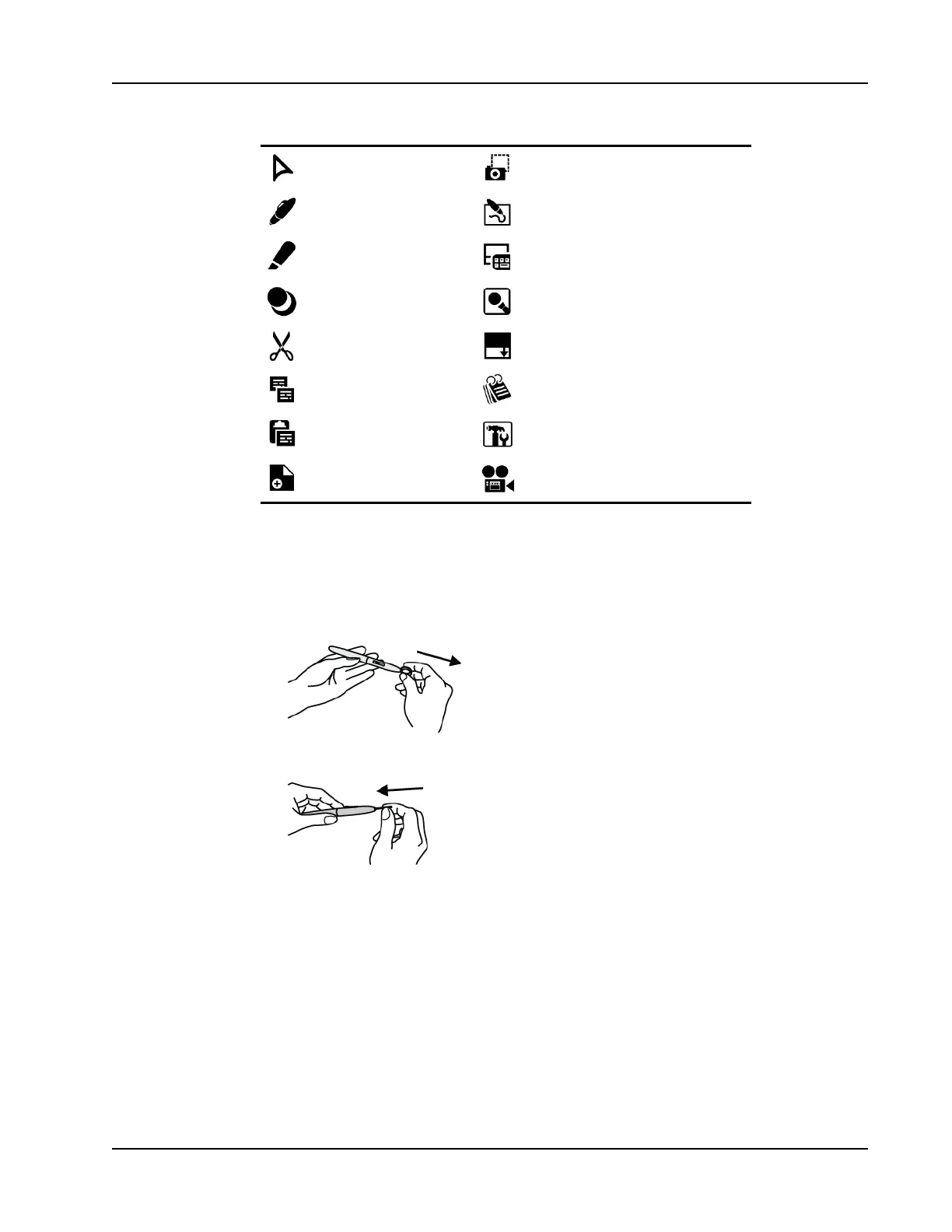
Selection Tool Screen Clipping
Pen Screen Annotation
Highlighter Text Tool
Eraser Spotlight Tool
Cut Reveal Tool
Copy Notebook
Paste Tools
New Page Recorder
Changing the Pen Tip
After a period of use, you may need to replace the pen tip. Extra pen tips and a pen tip
extractor are located inside the pad battery compartment.
To change the pen tip
1. Squeeze the pen tip with the tip extractor, and then pull out to remove the tip.
2. Push the new tip into the pen, and then press the pen tip down on a hard surface to
secure.
Pairing an Additional Mimio Pad with the Wireless Receiver
To pair and additional Mimio Pad with the wireless receiver
1. Plug the wireless receiver into a USB port on your computer.
2. Turn on the power to the Mimio Pad.
3. Simultaneously, press the learning button on the back of the Mimio Pad and the
learning button on the wireless receiver.
The LCD screen on the Mimio Pad and the LED light on the wireless receiver will blink
during the process. When the learning process is complete, the number on the LCD will
show the number assigned to the additional pad (001 or greater).
127



 To Next Page