MimioTeach
Using Writing Pad
With Writing Pad you can enter text through a small on-screen writing pad using the
MimioTeach stylus while in Interactive mode. You can also use Writing Pad with your
mouse or other input device from your computer.
To use Writing Pad
1. Start Writing Pad.
The on-screen writing pad appears.
2. Click in the text-entry box or on the page where you want to enter the text.
3. Using your mouse or MimioTeach stylus, write within the yellow space of the on-
screen writing pad.
Your handwriting is automatically converted to text and entered into the text-
entry box or on the page that you selected.
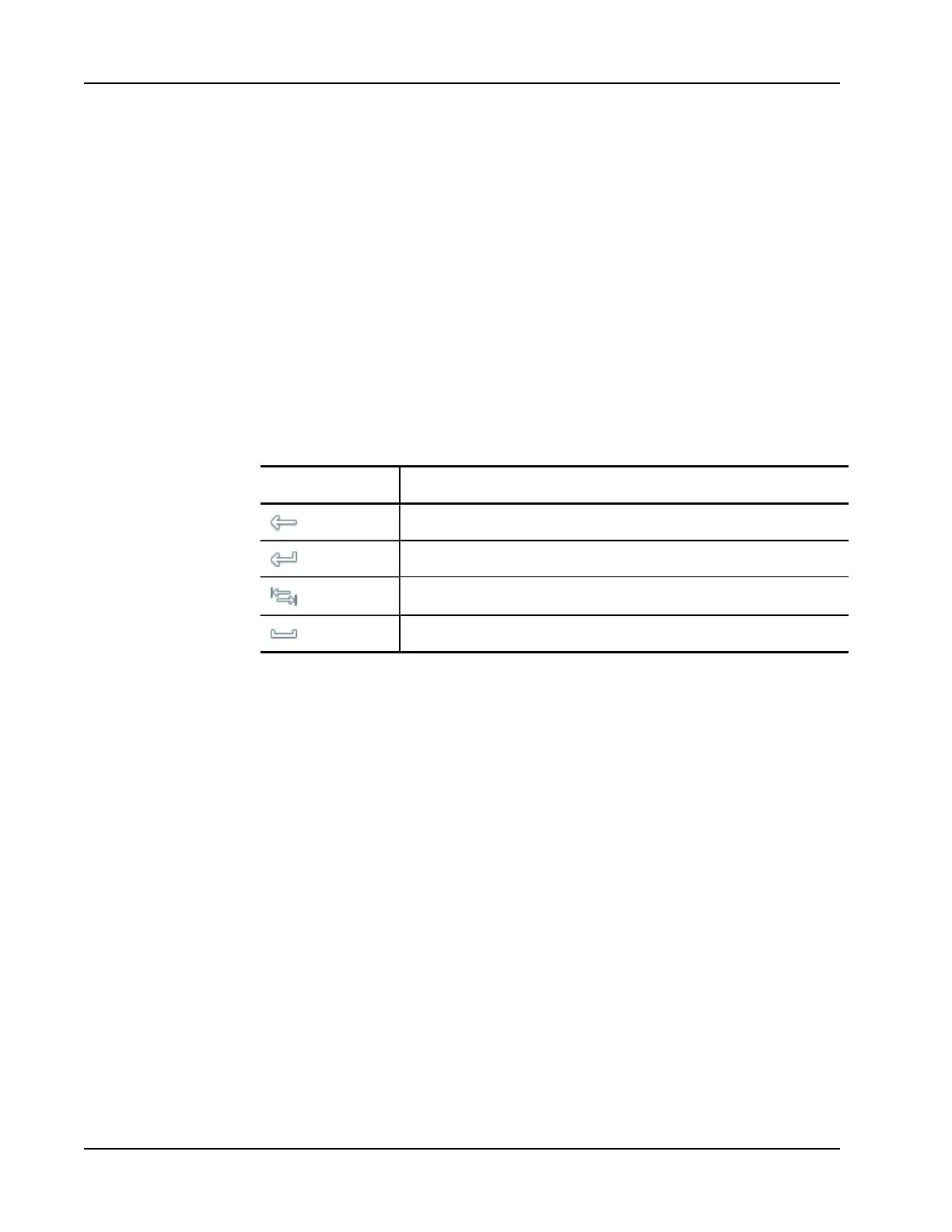
4. Use the on-screen buttons for commonly used keys.
Button Description
Backspace
Enter
Tab
Space
Writing Pad also supports gesture recognition for commonly used keys. See Using Gesture
Recognition.
Using Gesture Recognition
With gesture recognition, handwritten shortcuts are automatically recognized as commonly
used keys. Both Write Anywhere and Writing Pad support gesture recognition.
The following table describes how to use gestures to perform common functions.
44



 To Next Page