MimioView
About MimioView
You can use the MimioView camera to display documents, three-dimensional objects, and
microscope slides.
The MimioView camera and lamps are each attached to the MimioView base by a flexible,
gooseneck. This allows you to precisely position the camera and each lamp for the best
possible view of the object you are displaying.
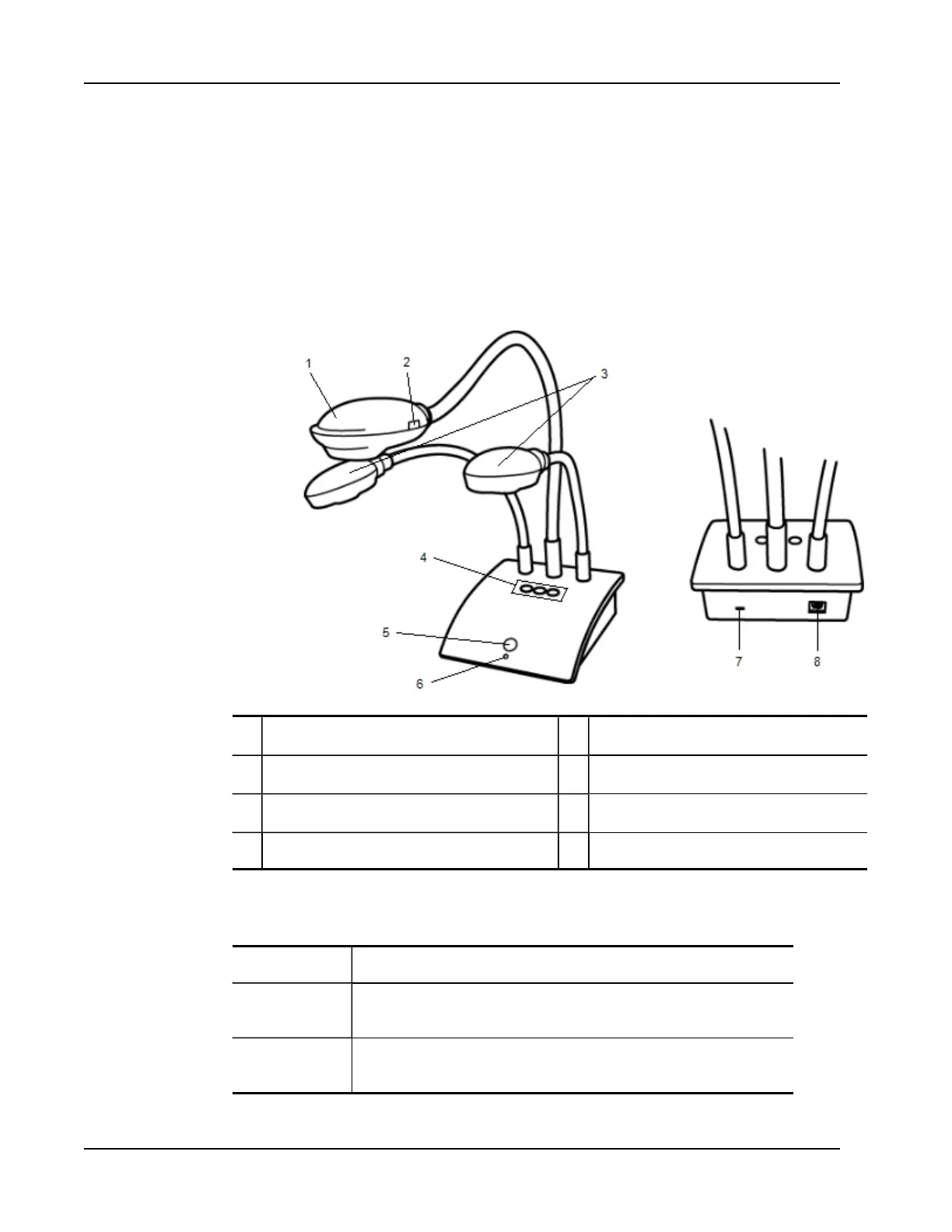
The following figure shows the major components of the MimioView camera.
1 Camera head 5
View button
2 Auto focus 6
Status light
3
LED lamps
7 Kennsington lock slot
4 Auto tune, Rotate, and Freeze buttons 8 Micro-B USB port
Status Lights
The status light visually shows the status of the MimioView camera.
Off Not receiving power; USBcable is not connected or computer is turned off.
Solid Green MimioView is connected and receiving power; MimioStudio software is
running.
Flashing Green
MimioView is connected and receiving power; MimioStudio software is not
running.
114



 To Next Page