MimioCapture
Adding, Copying, and Printing Notebook Pages
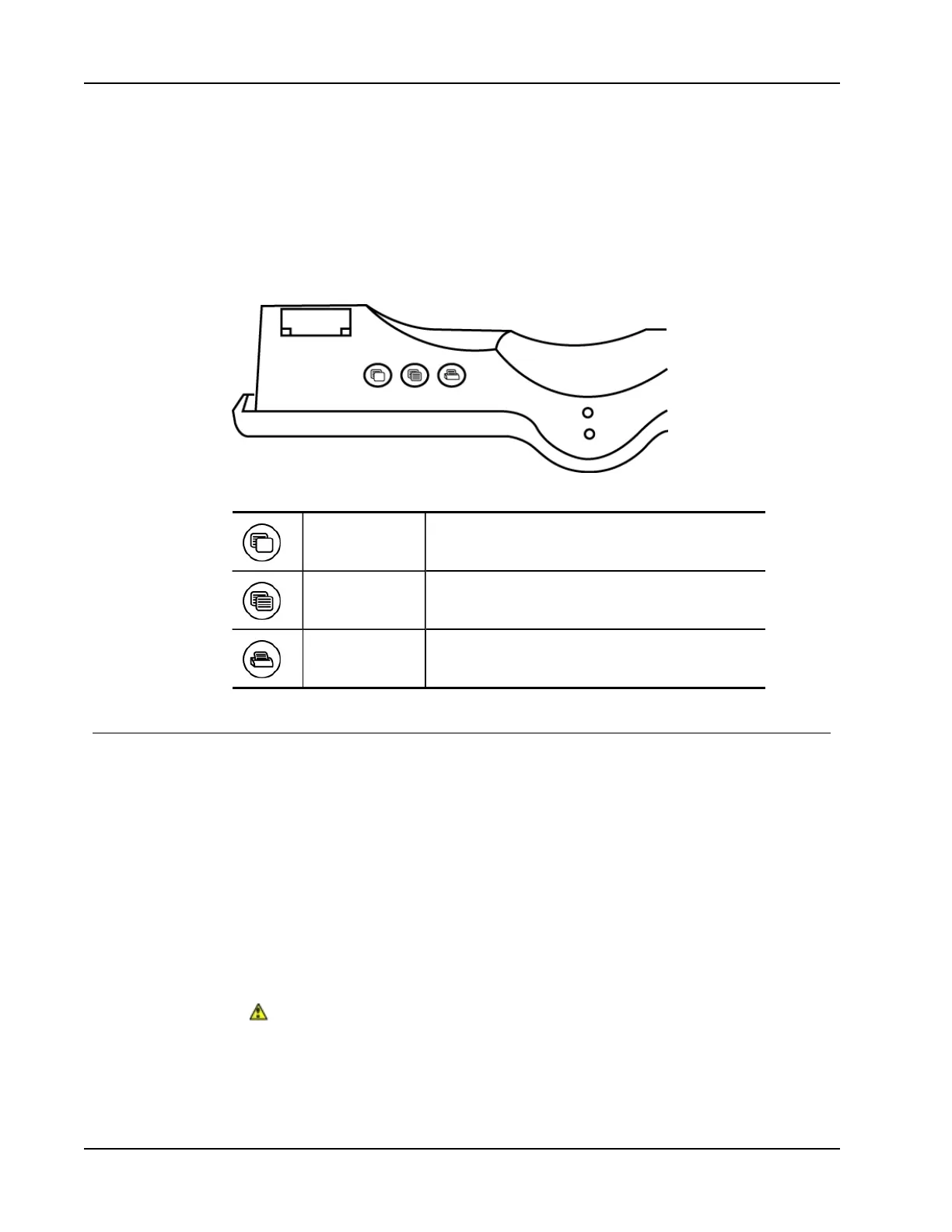
The buttons on the MimioCapture tray can be used to easily access features directly from
your whiteboard. Using the buttons on the MimioCapture tray, you can insert a new
Notebook page, insert a copy of the current page into Notebook, or print the current
Notebook page.
The following figure shows the MimioCapture traybuttons.
The following table describes the functions of the MimioCapture tray buttons.
New page Inserts a new page into MimioStudio Notebook.
Copy page Inserts a duplicate of the current page into MimioStudio
Notebook.
Print page Prints the current page.
Caring for MimioCapture
Review the following topics for information about cleaning, storing, and mounting your
MimioCapture to a non-magnetic whiteboard.
n Cleaning MimioCapture
n Mounting MimioCapture to a Non-Magnetic Whiteboard
Cleaning MimioCapture
MimioCapture is designed to give you long and trouble-free service, while requiring very
little maintenance.
You can easily clean your MimioCapture using the following items:
n Lint-free cloth.
n Isopropyl alcohol, diluted dishwashing detergent, or diluted glass cleaner.
If you use glass cleaner, make sure it does not contain ammonia.
To clean the MimioCapture
1. Disconnect the power cable and the connector bar.
2. Use the lint-free cloth to wipe the exterior of the MimioCapture tray, pens, and eraser.
80



 To Next Page