MimioCapture
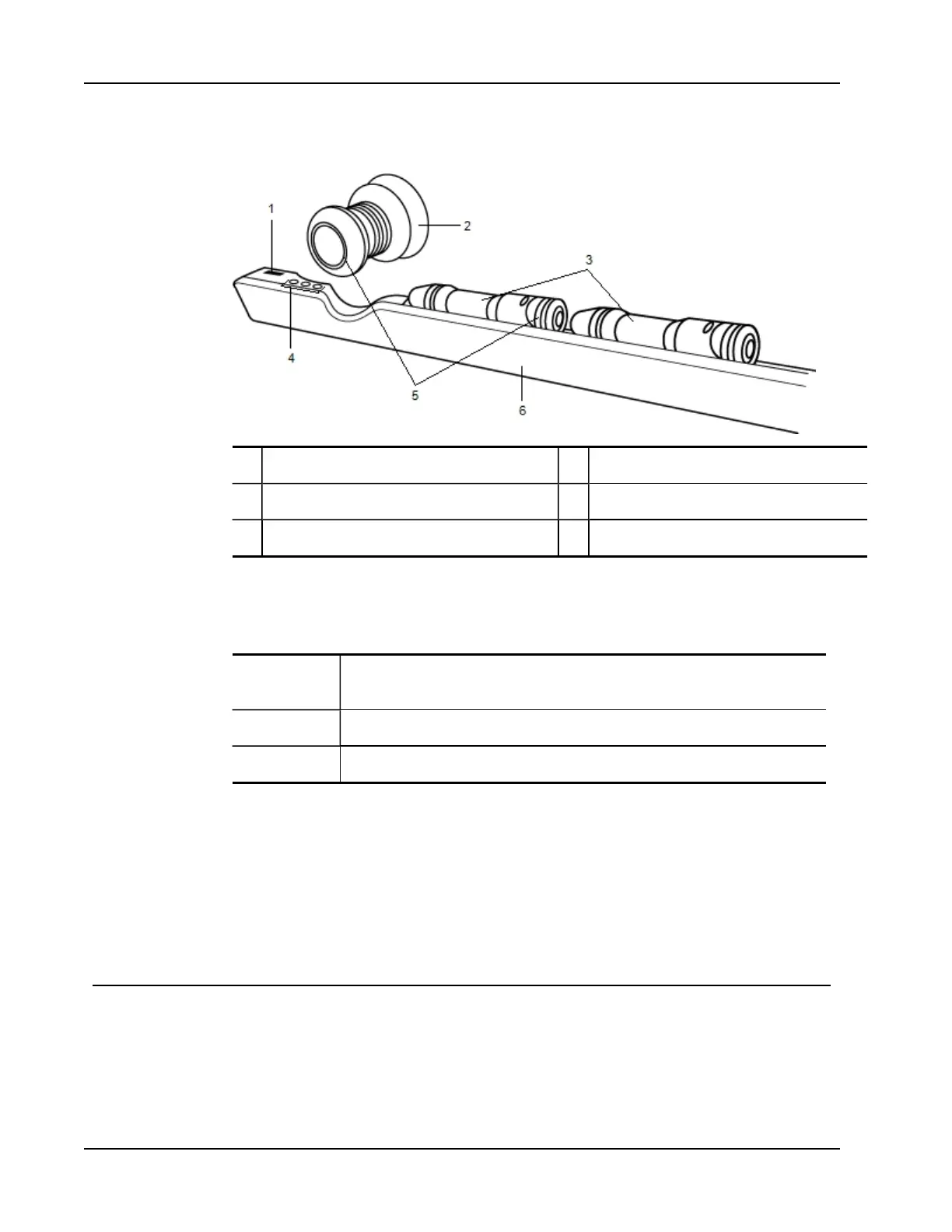
The following figure shows the major components of MimioCapture.
1 Connector bar port 4 Capture buttons
2 MimioCapture eraser 5 Status lights
3 MimioCapture pens 6 Charging tray
Status Lights
The status lights visually show the status of each MimioCapture pen and the MimioCapture
eraser.
Off The MimioCapture pen or eraser is not receiving power. The status light is off when
the pen or eraser is in use.
Amber The MimioCapture pen or eraser has a low battery. The battery should be recharged.
Solid Green The MimioCapture pen or eraser is charging.
About MimioStudio Notebook
As you make notes on your whiteboard using MimioCapture, you can automatically save
those notes into MimioStudio Notebook. Once the information is in Notebook, you can
save the Notebook as a MimioStudio INK file or a variety of other formats.
For more information about using MimioStudio Notebook, see Working with MimioStudio
Notebook.
Getting Started
MimioCapture links directly to your MimioTeach for seamless integration with
MimioStudio software. Before you can begin capturing digital ink, you must first set up
your MimioCapture tray, MimioCapture pens, MimioCapture eraser, and MimioStudio
Notebook.
74



 To Next Page