Mimio Interactive
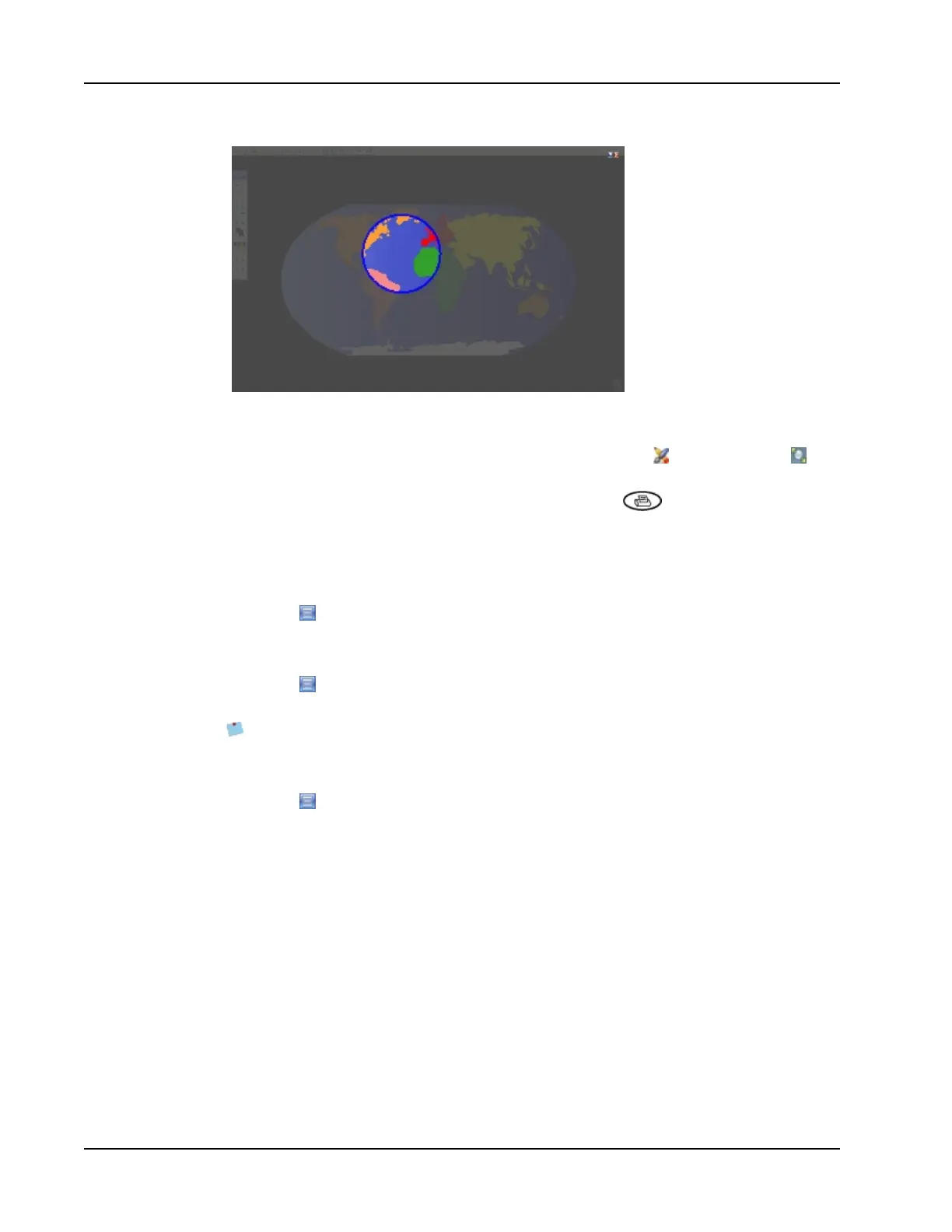
To use the Spotlight tool
1. Do one of the following:
l
From MimioStudio Tools, click the Applications button, , and then choose
Spotlight.
l
(Interactive mode only) Press the Print page button, , on the Mimio Interactive
bar.
2. Click the shaded area outside of the spotlight border and drag the spotlight to
the desired location.
To adjust the shape of the spotlight
1.
Click , and then point to Shape.
2. From the Shape list, choose a shape for the spotlight.
To resize the spotlight
1.
Click , and then point to Size.
2. From the Size list, choose a spotlight size.
You can also resize the spotlight by dragging the colored border of the spotlight until
the spotlight is the desired size.
To adjust the spotlight transparency
1.
Click , and then point to Transparent.
2. From the Transparent list, choose a transparency percentage.
A transparency of 0% means that the shaded area will be completely opaque.
Marking Up the Display Using Screen Annotations
Screen Annotation mode allows you to annotate applications, web pages, and images. When
in Annotation mode, a green border with a faded edge appears around your desktop.
When you exit from Screen Annotation mode, all annotations are cleared from the
whiteboard and automatically archived in the Screen Annotations folder in MimioStudio
Gallery.
Enabling Screen Annotation Mode
To enable Screen Annotation mode
62



 To Next Page