Getting Started
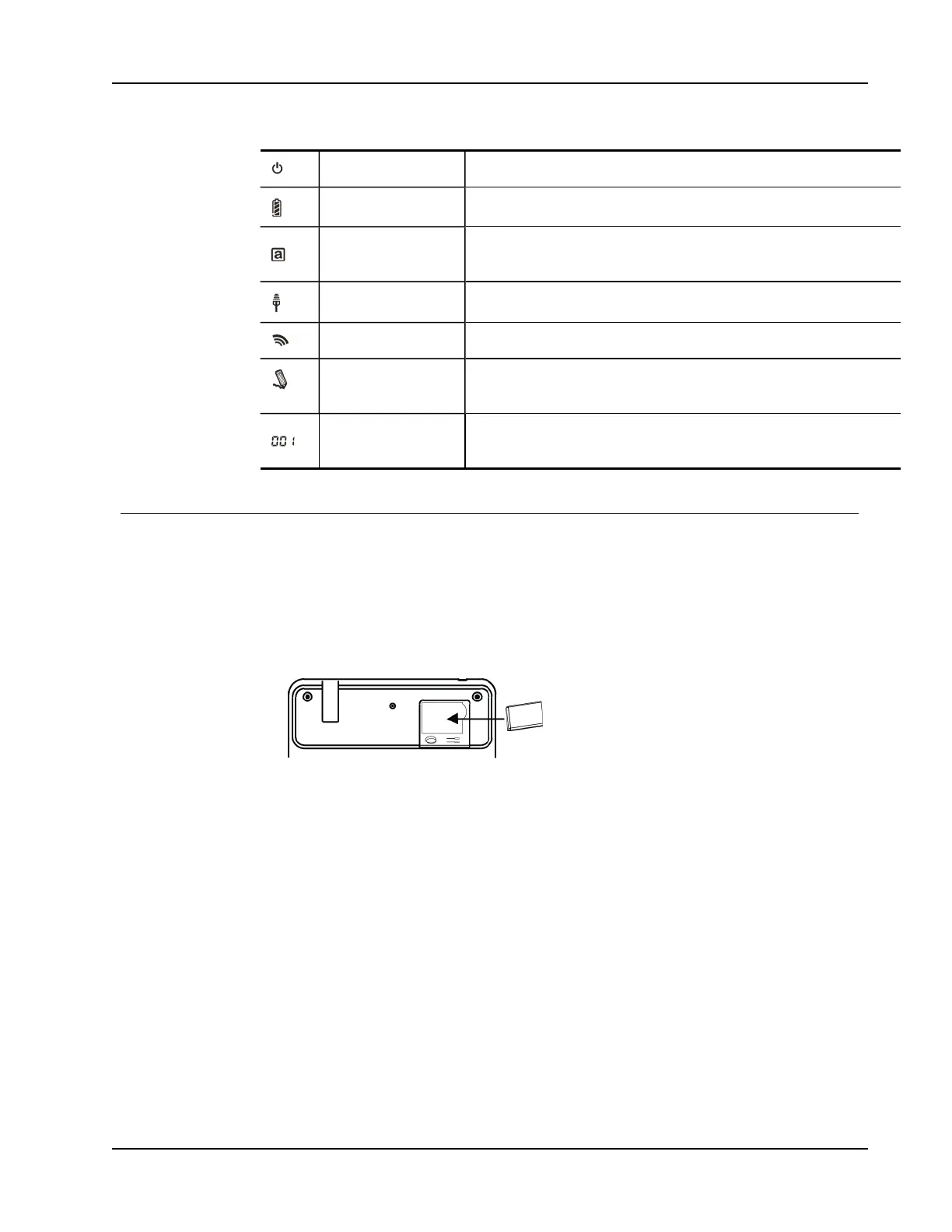
Power The power is on.
Battery Indicator Shows how much charge is left in the Mimio Pad battery.
Power Saving Mode
Power saving mode is on. The Mimio Pad enters power saving mode
when the pen is away from the active area for three seconds.
Connected The Mimio Pad is connected to your computer.
Wireless Activity The wireless receiver is active.
Pen Sensor Blinking: Pen tip is in range of active area; indicates hover mode. Solid:
Pen tip is touching active area; indicates left-click.
Pad Number
When more than one Mimio Pad is connected to a receiver, shows the
number of the connected Mimio Pad.
Getting Started
Setting Up the Mimio Pad
Your Mimio Pad is installed at the same time you install the MimioStudio software. Follow
these instructions to begin using your Mimio Pad.
To insert the battery
1. Press down and slide off battery compartment cover.
2. Insert the battery.
3. Replace the battery compartment cover.
Charging the Battery
The Mimio Pad battery is charged using the included USB cable. The Li-ion Mimio Pad
battery may contain some charge right out of the box. However, for best results, completely
charge the battery before using the Mimio Pad. The first time you charge the battery may
take up to 10 hours. After the initial charge, recharging of the battery will take
approximately two hours.
To charge the battery
1. Plug the USB cable into the pad and into your computer.
2. When the battery is fully charged, unplug the USB cable from the pad and your
computer.
Setting Up the Pen
The pen uses one AAA battery.
125



 To Next Page