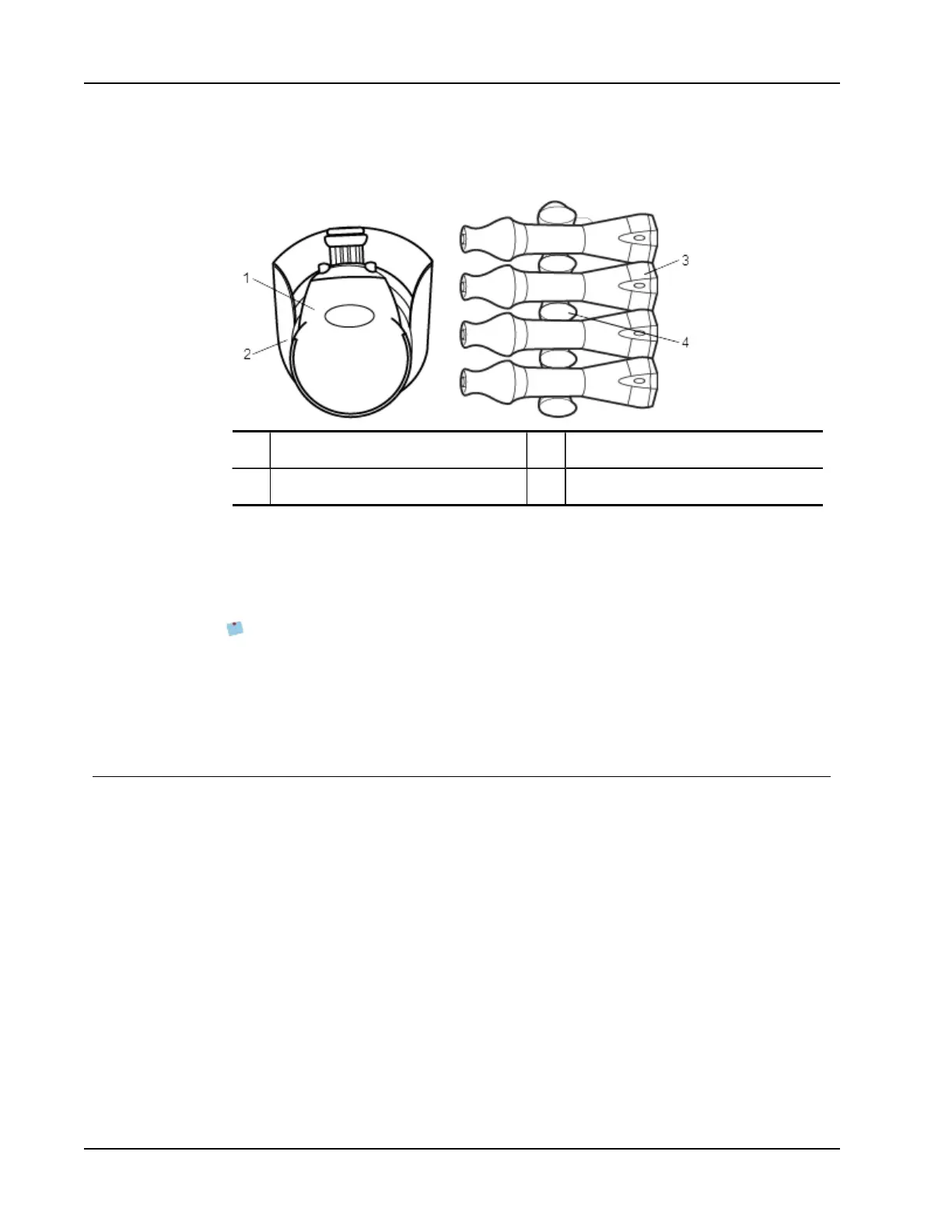
Mimio Capture Kit
and eraser.
The following figure shows the major components of Mimio Capture Kit.
1 Mimio Capture Kit eraser 3 Mimio Capture Kit pens
2 Mimio Capture Kit eraser holder 4 Mimio Capture Kit pen holder
About MimioStudio Notebook
As you make notes on your whiteboard using Mimio Capture Kit, you can automatically
save those notes into MimioStudio Notebook. Once the information is in Notebook, you
can save the Notebook as a MimioStudio INK file or a variety of other formats.
Your Mimio Interactive bar can capture and store ink while disconnected from your
computer. See Downloading Digital Ink for more information about capturing and
downloading digital ink for an offline session.
For more information about using MimioStudio Notebook, see Working with MimioStudio
Notebook.
Getting Started
Mimio Capture Kit links directly to your Mimio Interactive for seamless integration with
MimioStudio software. Before you can begin capturing digital ink, you must first set up
your Mimio Capture Kit pens, Mimio Capture Kit eraser, and MimioStudio Notebook.
Setting Up the Mimio Capture Kit Pens
Mimio Capture Kit comes with four Mimio Capture Kit pens, four Expo
®
dry erase markers,
and eight color caps. Before you can start using Mimio Capture Kit, you must first set up
your Mimio Capture Kit pens.
The Mimio Capture Kit pens are each powered by one N-cell battery.
To set up the Mimio Capture Kit pens
1. Gently turn and pull the top part of the Mimio Capture Kit pen to separate the top part
of the pen from the pen body.
84



 To Next Page