Mimio Interactive
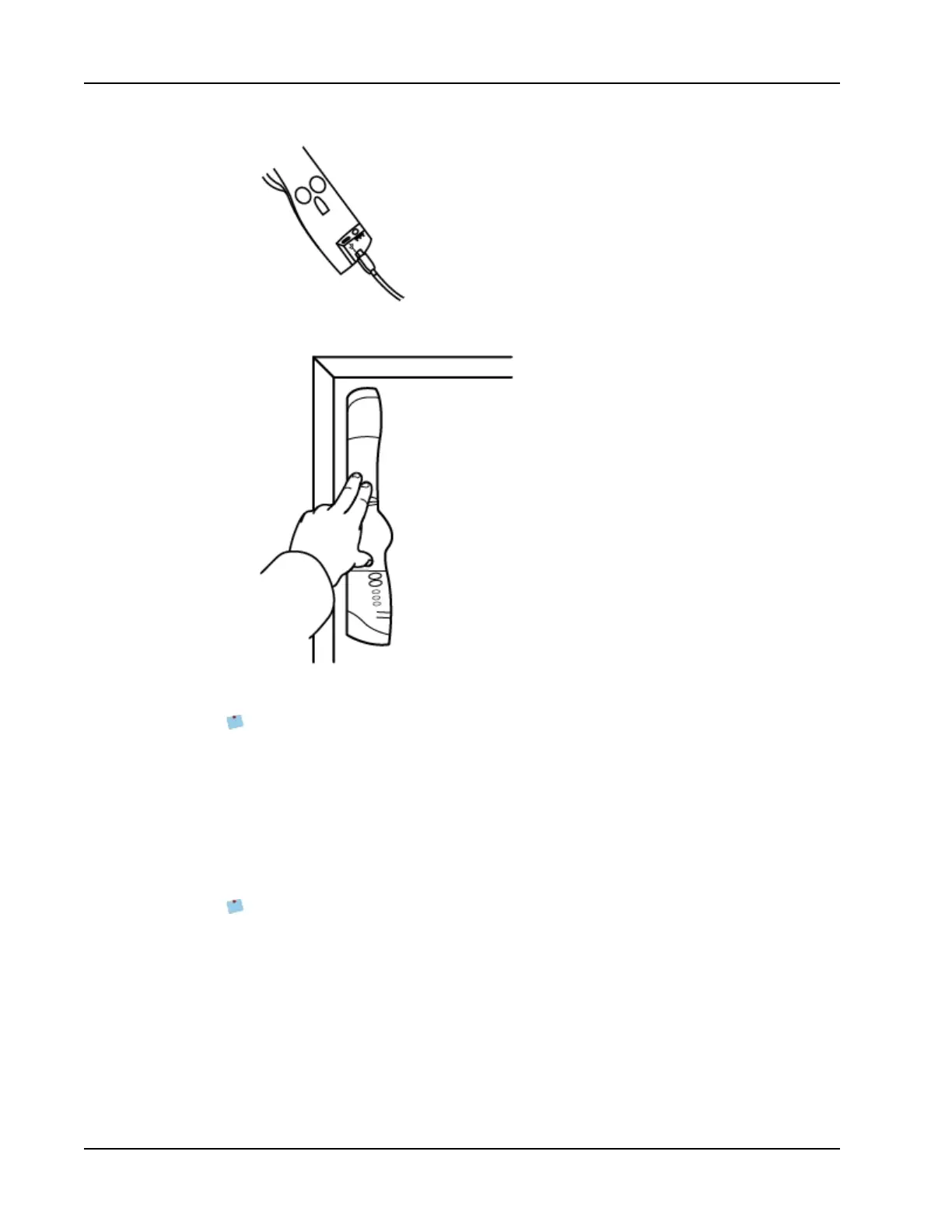
3. Plug the other end of the USB cable into an available USB port on your computer.
4. Place the Mimio Interactive bar along the left edge of the whiteboard as shown.
The Mimio Interactive bar attaches to any whiteboard using the suction cups on the
back of the bar.
If the Mimio Interactive bar will be used for extended periods of time or will be used
repeatedly in any one location, you should mount the bar using the included brackets.
See Mounting the Mimio Capture Kit for information about mounting the bar using the
brackets.
Setting Up Mimio Wireless
The Mimio Wireless module comes pre-linked to the included wireless receiver.
Mimio Interactive bar is powered using the included power adapter.
Optionally, Mimio Interactive can be powered using four AA batteries. For information
about using batteries to power the Mimio Interactive bar, see Inserting the Batteries.
To set up Mimio Wireless
1. Press the release button on the back of the Mimio Interactive bar, and then slide the
linkUSB module down to remove.
56



 To Next Page