MimioStudio Recorder
MimioStudio Recorder can capture a live desktop, synchronized with audio, as a video file.
You can save the file in two formats: Mimio and Microsoft. Both are AVI files, however,
the Mimio format can only be played back using Mimio software. The Microsoft formatted
AVI file can be played back in most Windows media players.
To import a video file you have already created elsewhere into MimioStudio Notebook, see
Customizing the Content of the Gallery and Importing Gallery Items into a MimioStudio
Notebook.
Using MimioStudio Recorder
MimioStudio Recorder allows you to record your Mimio interactions as an AVI movie file
with the option to record audio as well.
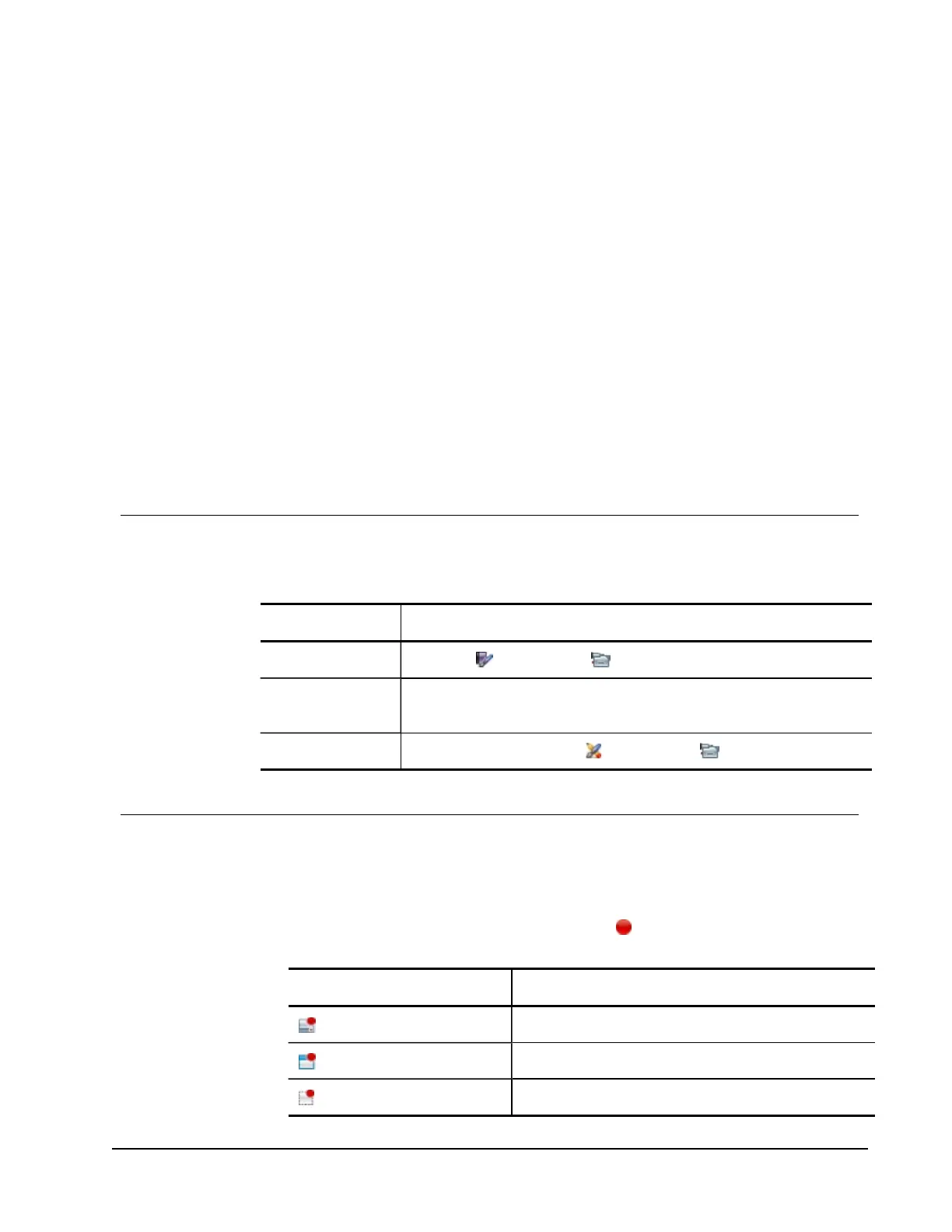
The following table shows several ways to access MimioStudio Recorder.
To start from Do this
Taskbar
Right-click , and then choose Recorder.
Start Menu Point to Programs, MimioStudio, Tools, and then choose MimioStudio
Recorder.
MimioStudio Tools
Click the Applications button, , and then choose Recorder.
Recording a Presentation
MimioStudio Recorder can be used to easily record presentations using the standard record,
pause, stop, and play features.
To start recording
1. Start MimioStudio Recorder.
2.
Click the arrow to the right of the Record button, , and then choose a recording
option from the list.
Option Description
Record Desktop
Records the entire desktop. (Default)
Record Window
Records a specific window.
Record Area
Records a selected area of the screen.
129
Chapter 10


 To Next Page