Mimio Interactive
Interactive with Mimio Capture Kit, see Mimio Capture Kit.
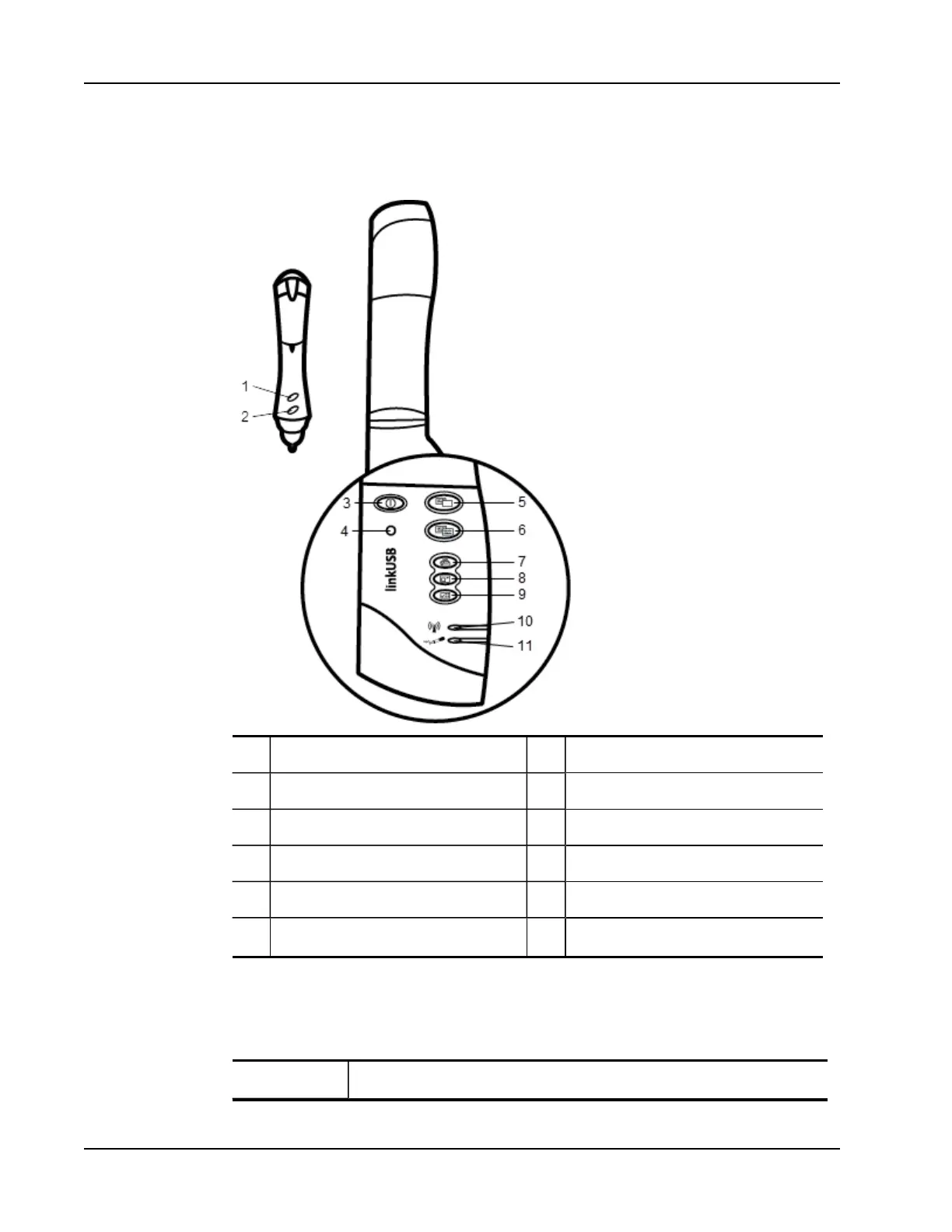
The following figure shows the major components of Mimio Interactive.
1 A button (right-click) 7 Print page (Spotlight tool)
2 B button (hover) 8 Resize window (Reveal tool)
3 Power button/status light 9 Interactive
4 Learning button 10 Data transmission status light
5 New page (MimioStudio Tools) 11 Memory status light
6
Copy page (Annotation mode)
Status Lights
The status lights visually show the status of the Mimio Interactive bar.
Power Status Lights
Off Not receiving power; USB/powercable is not connected, batteries need replaced,
50



 To Next Page