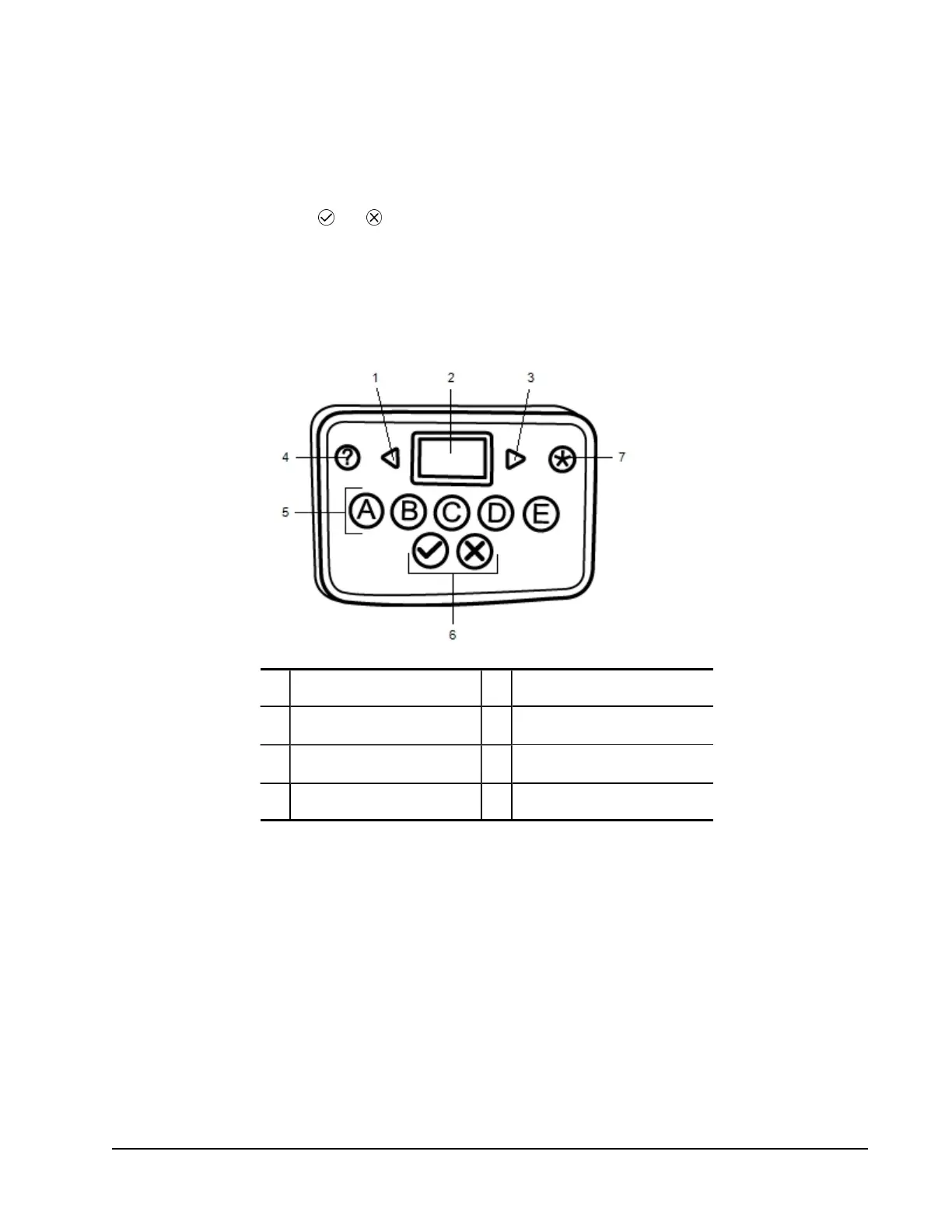
When conducting activities, the buttons on the MimioVote unit light up depending on
what answers are available to the student. The available answers are determined by the
teacher when the question is created. For example, if the question is a True/False question,
only the and buttons are illuminated on the MimioVote unit. The A, B, C, D, and E
buttons will not light up and will not register a response if pressed.
By default, each button on the MimioVote unit is illuminated with a different color light.
You can choose to turn off the colors and have all the buttons illuminated with a white
light. For information about changing the button colors, see Adjusting the Vote Settings.
The following figure shows the major components of the MimioVote unit.
1 Previous 5 Multiple choice buttons
2 Display 5
True/False buttons
3
Next
7 Submit
4 Help
About the Software
MimioStudio software includes several features especially for use with your MimioVote
system. MimioStudio Notebook and Gallery include everything you need to create activities
to conduct with your students. The MimioStudio Vote Toolbar and MimioStudio Quick
Vote include all the tools you need for conducting activities and gathering student
responses. And, the MimioStudio Gradebook stores the information and results for all of
your class activities.
About MimioStudio Notebook
You can use MimioStudio Notebook to create any type of MimioVote activity. Activities
are created by adding question objects to Notebook pages. The Questions and Results folder
in MimioStudio Gallery includes a wide variety of pre-designed question objects to make
95



 To Next Page