MimioTeach
To use the Reveal tool
Do one of the following:
l
From MimioStudio Tools, click the Applications button, , and then choose
Reveal.
l
(Interactive mode only) Press the Launch button, , on the MimioTeach bar, and
then click Reveal in the Launch window.
To adjust the revealed area
Click inside the shaded area and drag down, up, left, or right to reveal more or less of
the displayed area.
To adjust the transparency of the Reveal tool
1.
Click , and then point to Transparent.
2. From the Transparent list, choose a percentage.
A transparency of 0% means that the shaded area will be completely opaque.
Using the Spotlight Tool
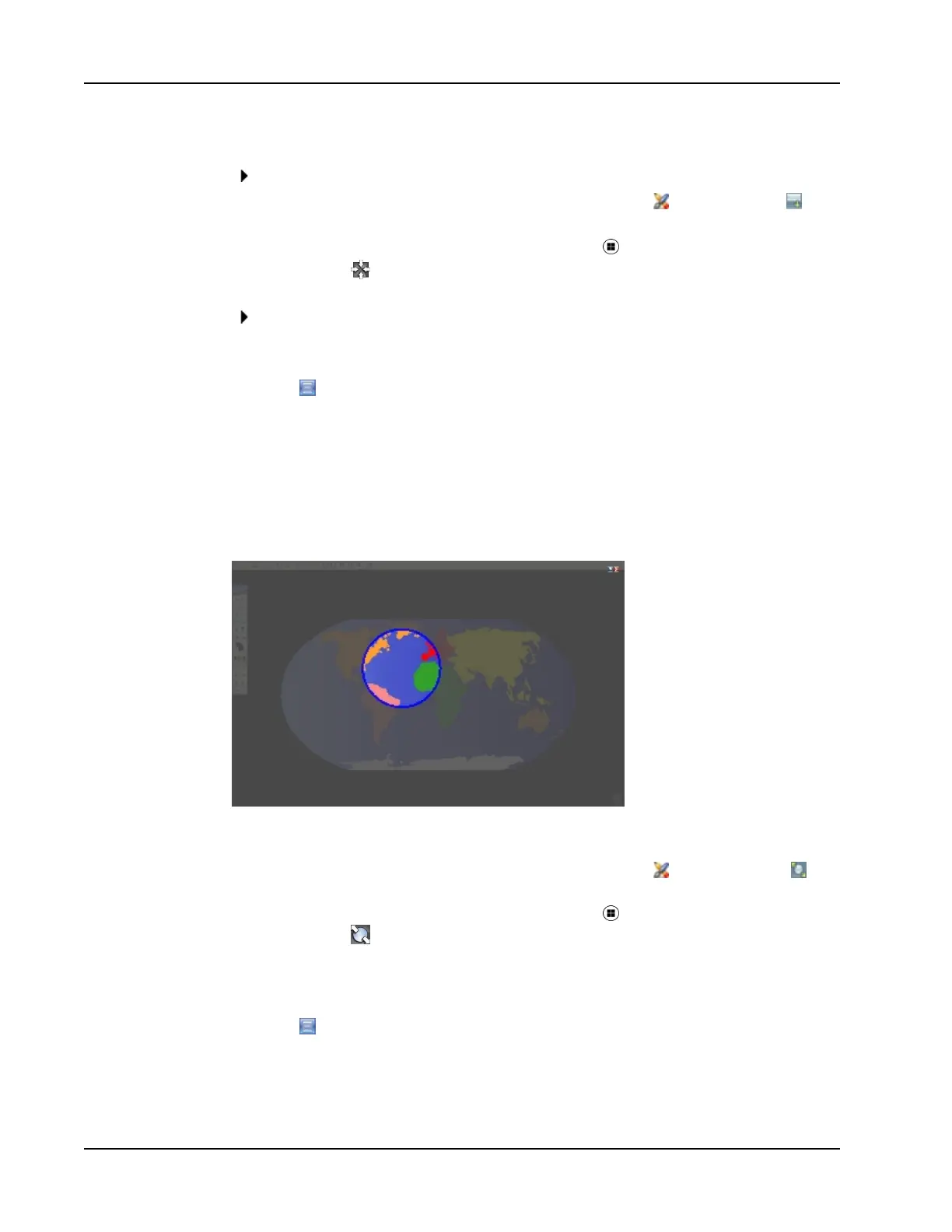
The Spotlight tool masks the entire screen except for a small area, the spotlight. You can
then focus audience attention on a specific area of the screen. The spotlight area can be
reshaped, resized, and moved around the screen.
To use the Spotlight tool
1. Do one of the following:
l
From MimioStudio Tools, click the Applications button, , and then choose
Spotlight.
l
(Interactive mode only) Press the Launch button, , on the MimioTeach bar, and
then click Spotlight in the Launch window.
2. Click the shaded area outside of the spotlight border and drag the spotlight to
the desired location.
To adjust the shape of the spotlight
1.
Click , and then point to Shape.
2. From the Shape list, choose a shape for the spotlight.
To resize the spotlight
38



 To Next Page