Caring for MimioTeach
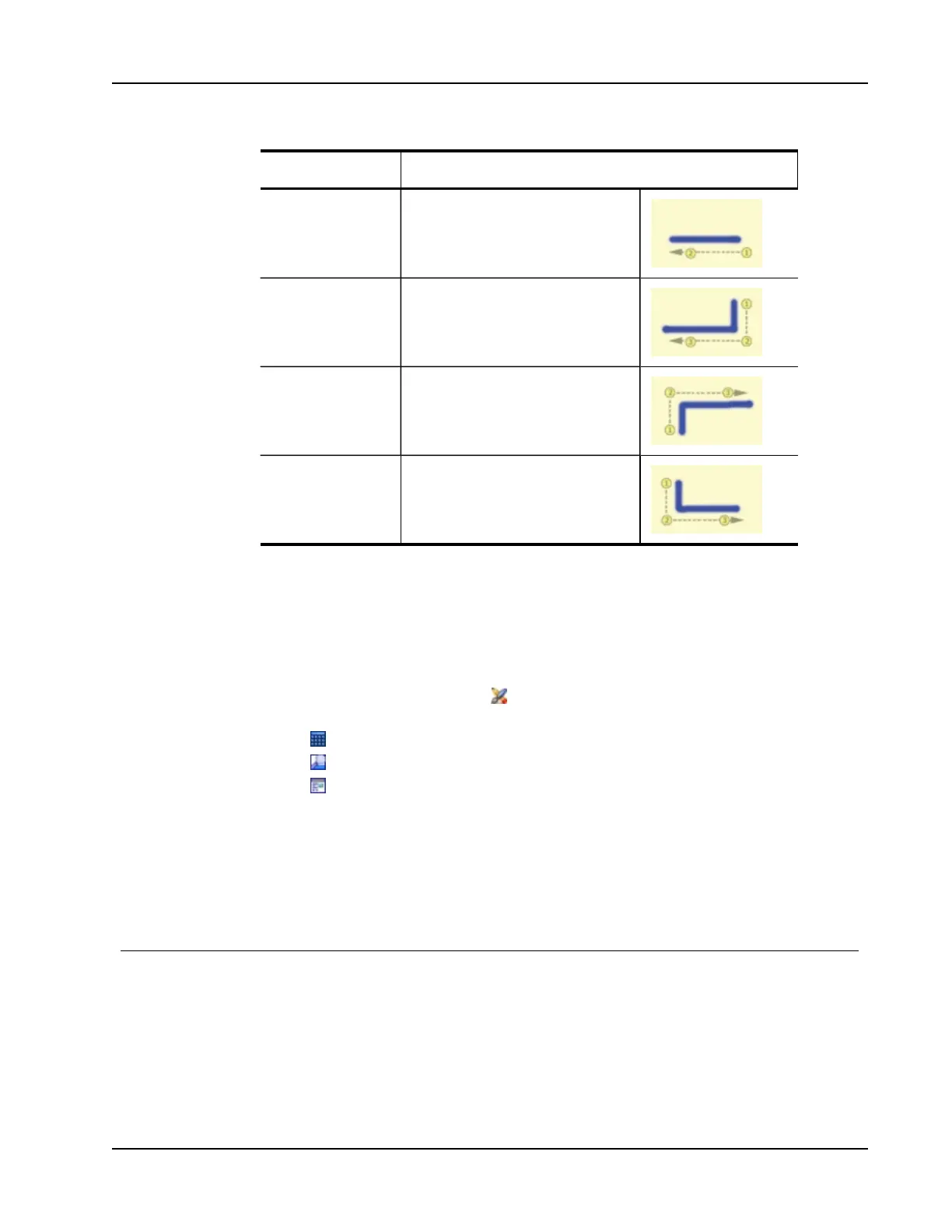
To press Do this
Backspace
Draw a line from right to left.
Enter
Draw a connected line from top to bottom
and then from right to left.
Tab
Draw a connected line from bottom to top
and then from left to right.
Space bar
Draw a connected line from top to bottom
and then from left to right.
Using the Web Browser, Calculator, and Magnify Tools
MimioStudio Tools includes shortcuts for accessing a Web browser, a calculator, and a
magnifier.
To use the tools
1. Start MimioStudio Tools.
2.
Click the Applications button, , choose More Tools, and then choose one of the
following tools:
l
Calculator
l
Magnify
l
Web Browser
Recording Desktop Actions and Audio in Interactive Mode
Using MimioStudio Recorder, you can record your interactions into an AVI movie file, with
or without audio. See Using MimioStudio Recorder for more information on how to use
MimioStudio Recorder.
Caring for MimioTeach
Review the following topics for information about cleaning, inserting the batteries, and
permanently mounting your MimioTeach.
n Cleaning MimioTeach
n Inserting the Batteries
n Mounting MimioTeach to a Non-Magnetic Whiteboard
45



 To Next Page