Getting Started
The MimioTeach bar attaches securely to any magnetic whiteboard. See Mounting
MimioTeach to a Non-Magnetic Whiteboard for information about mounting the bar to
a non-magnetic whiteboard.
5. Plug the MimioHub into an available USBport on your computer.
If you do not want to connect the MimioTeach bar to your computer wirelessly, you
can link the bar to your computer using the included USB cable without the power
adapter. The bar will be powered by USB through your computer.
Setting Up Interactive Mode
Using MimioStudio Interactive mode, you can deliver lessons and presentations directly
from your whiteboard.
To use Interactive mode you need a projector, a MimioTeach-enabled whiteboard, and a
MimioTeach stylus. Combined, these devices make for a powerful tool for delivering lessons
and presentations.
Projecting Your Desktop
If you are presenting from a MimioStudio Notebook or another application, such as a
PowerPoint presentation, you can open the application before or after Interactive mode is
enabled and calibrated.
To set up for Interactive mode
1. Project your desktop image onto your whiteboard.
Refer to your projector’s documentation for instructions on how to project your desktop
image.
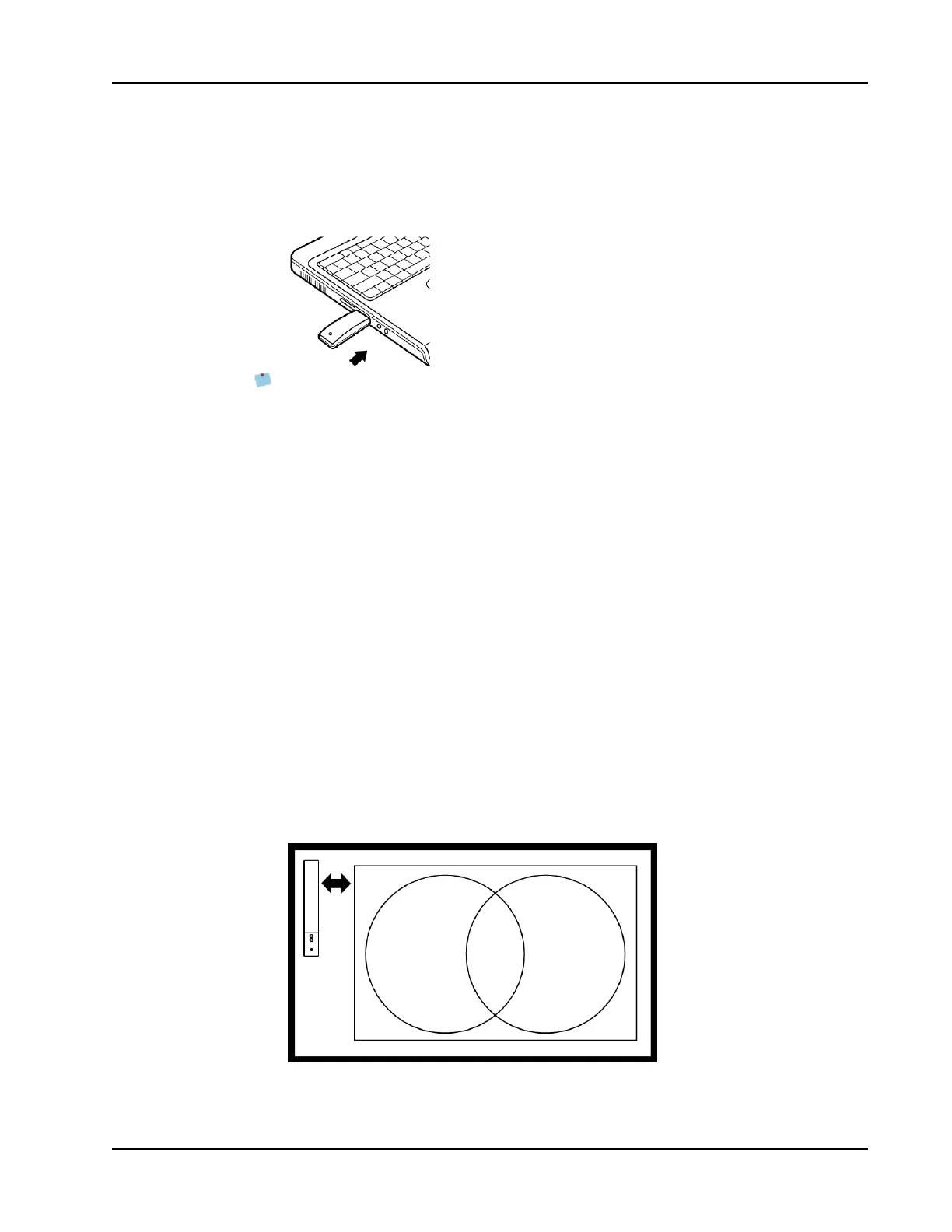
2. Adjust the projected image to have a 2-inch to 3-inch buffer between the edge of your
projection and your MimioTeach.
35



 To Next Page