Document ID: OMM-00148 Rev. B
33
2. Select the Settings menu in the upper left corner of the window and select the default image folder. This opens the folder contain-
ing the pre-ripped .bco files.
3. From the default image folder, select the desired file. The PCU
window displays the following (if the information is contained in the
file):
• Image information
• Ink
estimate information
4. Use the Copies Control on the PCU window to adjus
t the number of copies to be printed.
5. Click the Print button in the lower right hand corner of
the PCU window to print the selected image.
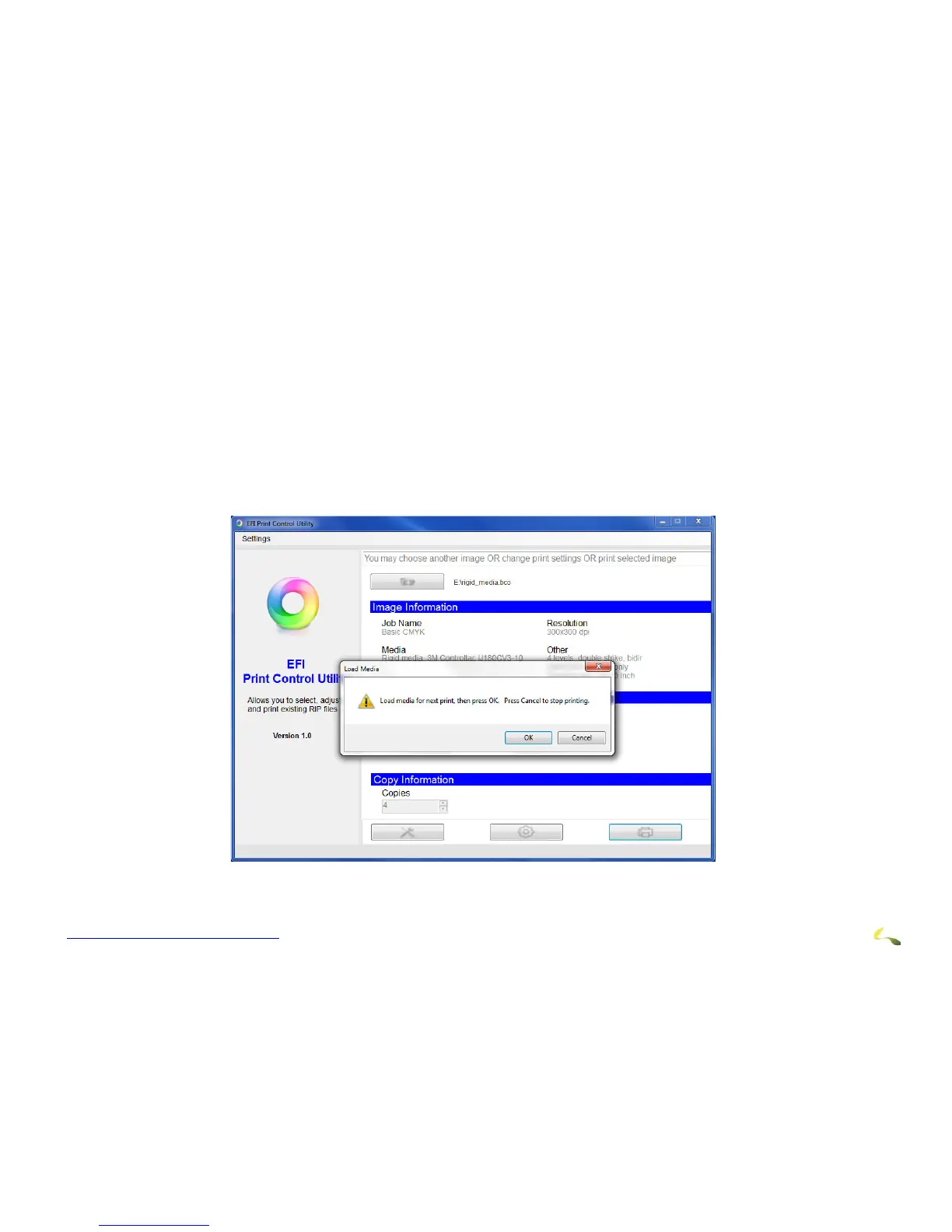
6. The Load Media prompt appears, instructing the operator to load t
he media. This prompt appears for every copy of the print. The
operator must acknowledge the prompt each time, signaling that the media has been loaded
.
Figure 4-4: “Load Media” Window



 To Next Page