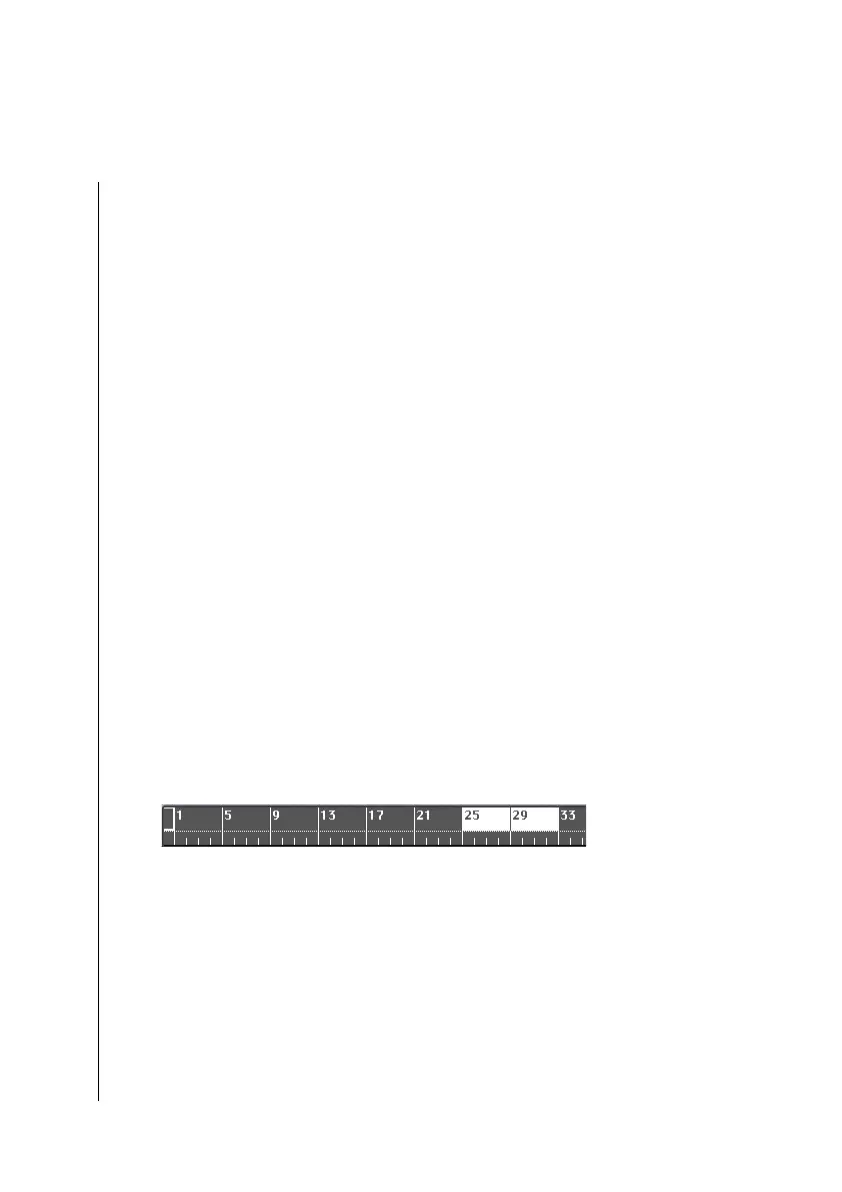
Bar Ruler
101
User Guide
Version 4.1
r
Select the Port you wish the metronime to send to. Click-hold
the Port parameter, to open a flip menu. Under Bar, set the
parameters for the note that the metronome will send on beat
one of each measure. You may also set a velocity for the note.
Under Beat, set the note and velocity you want for the other
beats in each measure.
1. Click on the bar and beat buttons to activate them.
2. Click on the record button in the transport window or press
* on the numeric keypad.
Logic fun will begin recording. You will hear the metronome
clicks from your MIDI sound module.
3. Here is a review of the parameters that you can set for the
MIDI Metronome:.
Cha MIDI channel.
Note Note and, with it, the drum instrument (e.g.
Cowbell, Woodblock).
Vel Velocity value. Usually, you will set the velocity
for the Bar a bit higher than the Beat, to accent
the downbeat of each measure.
6.2 Bar Ruler
You will find the bar ruler in all Logic fun windows, except for
the Event list. The bar ruler helps you visually locate the posi-
tion of sequences (Arrange window), note bars (Matrix editor)
and notes (Score editor).
The bar ruler is not just a visual display. You can carry out the
following functions on it with the mouse:
•
Song—Set the start and end measures;



 To Next Page