40
Chapter 3
Getting Started
Emagic
Logic fun
Testing the MIDI Connection
You should now make sure that the connection between Logic
fun and your MIDI system is working properly.
1. Launch Logic fun.
First, test to see if your MIDI keyboard transmits.
2. Open the Transport Window by selecting Open Transport in
the window menu, or press C7
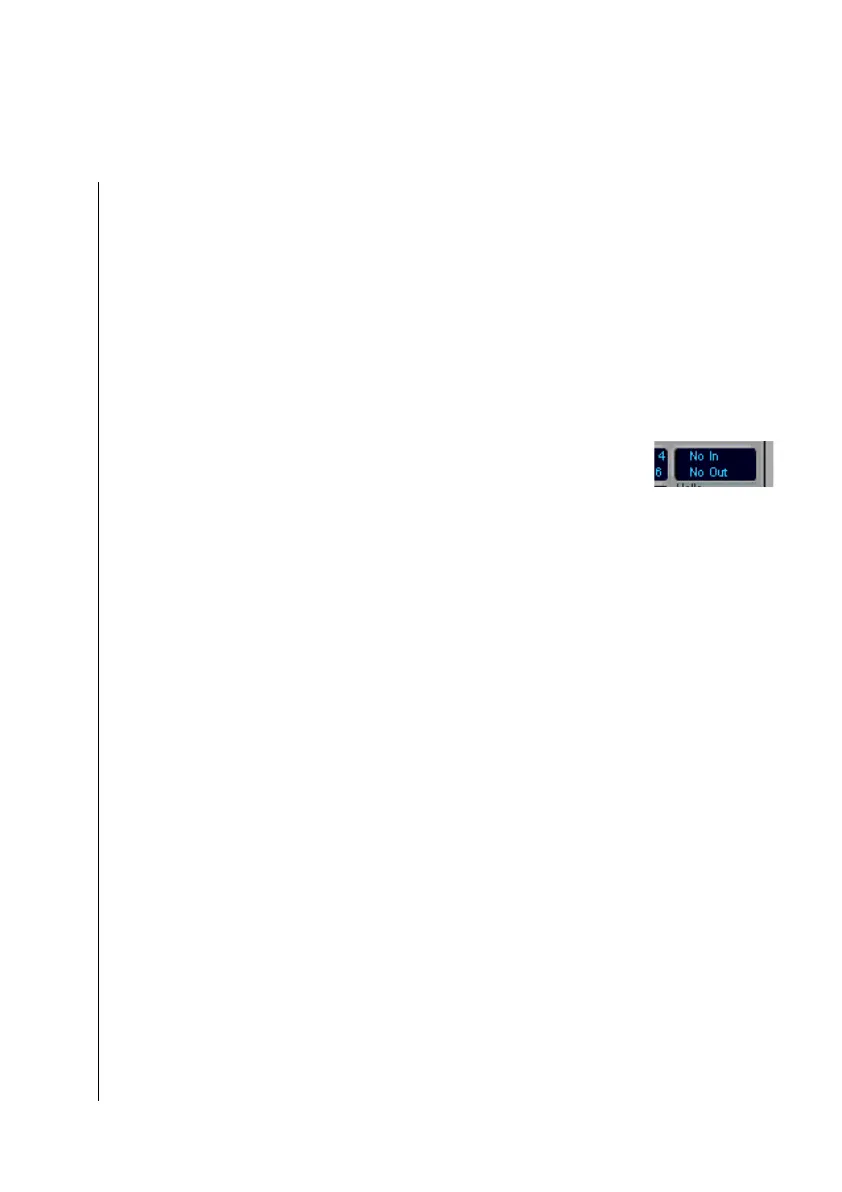
You can see the MIDI indicator in the upper right-hand corner
of the Transport Window.
If there is no activity, the display will show “No In/ No Out”.
3. Now play a couple of notes on your MIDI keyboard.
In place of “No In”, the received events should now be
displayed.
If this is not the case, test the following:
4. Is the MIDI-Out connection of the keyboard connected
correctly with the MIDI-In of your computer?
•
Is the cable working properly?
•
Did you choose the correct port in Global Preferences?
Test the MIDI-Out
Now test to see if Logic fun is sending MIDI events to your
tone generators.
1. Choose File> Open, and select the tutorial song in the file-
selection box.
It is loaded and displayed on the screen.
2. Click on the PLAY button in the Transport Window, or
press 0 on the computer’s numeric keypad.
The tutorial will run, and the second line of the MIDI indicator
should show the sent events.



 To Next Page