Editing Notes
191
User Guide
Version 4.1
r
Changing Several Selected Objects
Simultaneously in
the Event Parameter Box
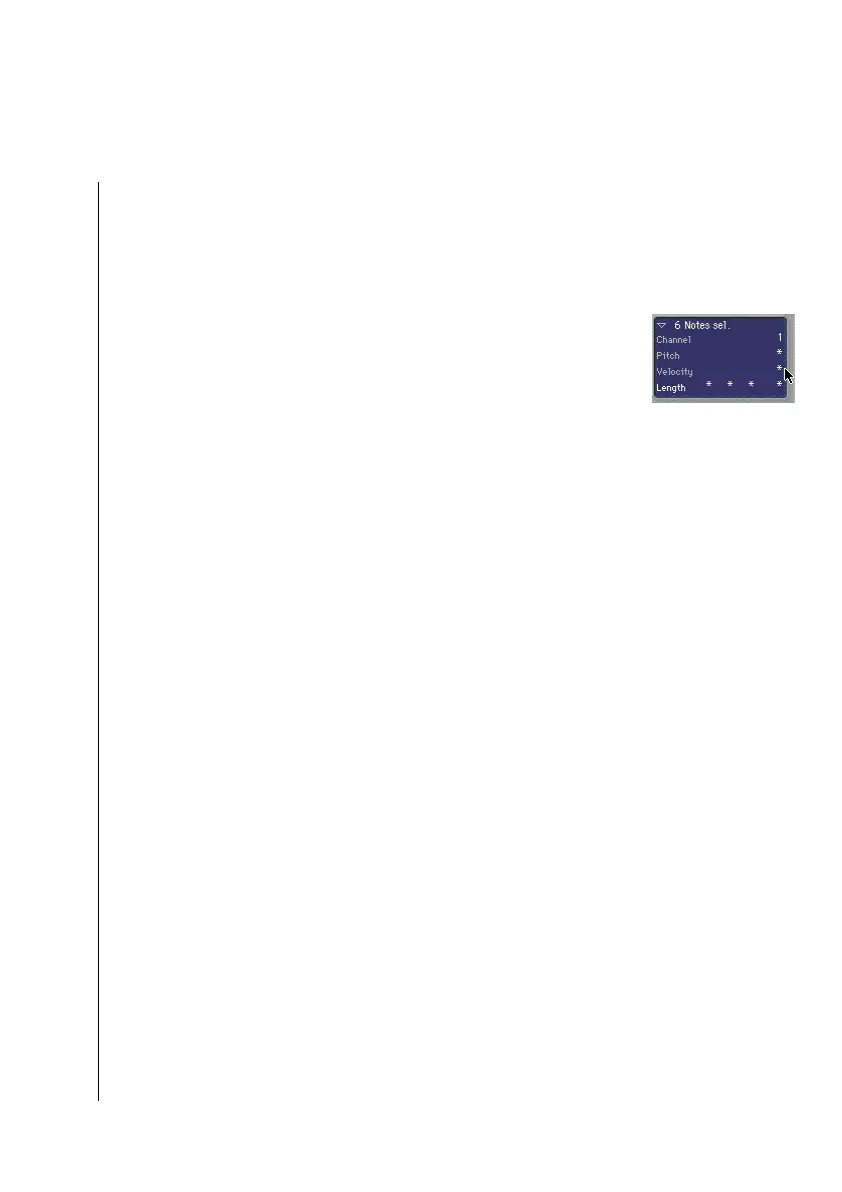
If several objects are selected, this is indicated in the Event
Parameter Box’ title line by X Notes/Events/Texts selected. (X
being the number of selected objects). The terms Notes, and
Texts are used only if the current selection contains objects of
that one particular type.
While multiple events are selected, each displayed parameter
can be edited for all objects at once. “*“ as a value means that
the selected objects have different values for that particular
parameter. There are different options for changing these
values:
Relative Change (Preserving Differences):
Grab the “*“ with the mouse and use the mouse as a slider.
The value shown during this process belongs to the first of the
selected objects. The other objects are altered by the same
amount. You can also double click the value and insert the
desired change (a number with a plus or minus in front of it)
into the resulting entry field (see above).
Absolute Change (All Values Set Equal):
Press O (Mac), or ç (Windows) during the above described
procedure: As soon as you move the mouse while holding the
modifier key, the parameter is set to the same value for all
selected objects.This way you can set all notes of a chord to the
same length or velocity, or set all selected text objects to the
same height (vert.pos).
Deleting Objects in the Score Window
Here is a short overview of the methods available to delete
objects in the Score window:
•
With the Eraser tool (works for all objects)



 To Next Page