184
Chapter 13
The Score Editor
Emagic
Logic fun
Input
For mouse input, you first have to select a note in the Partbox,
and then drag it to the desired position in a staff. As a position-
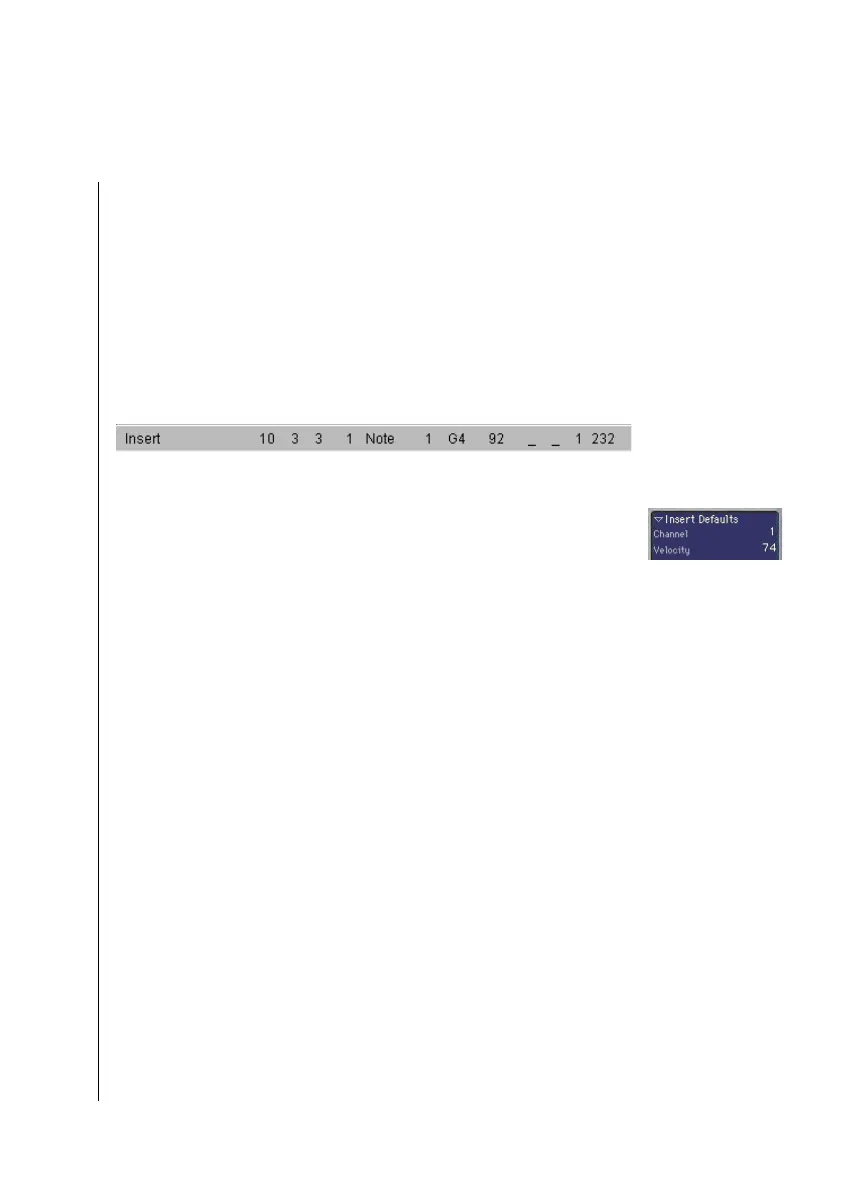
ing aid, you will see an Info Line while you are “holding“ the
note with the mouse. Now move the mouse with the button
pressed, until the desired position is shown in the Info Line.
Release the mouse button. It is especially important to use the
Info Line to help you find the correct position when you are
working in a small zoom level.
MIDI Channel and Velocity of Inserted Notes
The MIDI channel and velocity of notes inserted with the
mouse are determined by the Insert Defaults settings in the
Event Parameter Box. These Insert Defaults are visible (and can
be edited), whenever no object is selected. Click anywhere in
the working area, except on an object, to display this status.
Make sure that “Insert Defaults” is displayed in the top line of
the Event Parameter Box.
Insert Quantization
To make positioning of notes and symbols easier, objects can be
inserted only at certain bar positions:
•
For positioning of notes there is an invisible grid. You can
imagine its resolution as if the whole bar—beginning on
one—were filled with notes of the chosen value. For exam-
ple: In an empty 4/4 measure, half notes can only be inserted
on beats one and three, eighth note triplets only on the first,
second or third eighth note triplet of every beat, and so on.
•
Also, all binary and dotted values can be inserted at any po-
sition of an automatically displayed rest, i.e., if there is an
eighth note on one, you can insert a quarter or a dotted quar-
ter note at the second eighth’s position.



 To Next Page