Transport Functions
53
User Guide
Version 4.1
r
that mark the left and right boundary of a loop. They are found
directly to the right of the bottom row of transport control
buttons.
First, turn on the cycle mode. To do this, click on the cycle
button in the Transport window. It is now displayed blue.
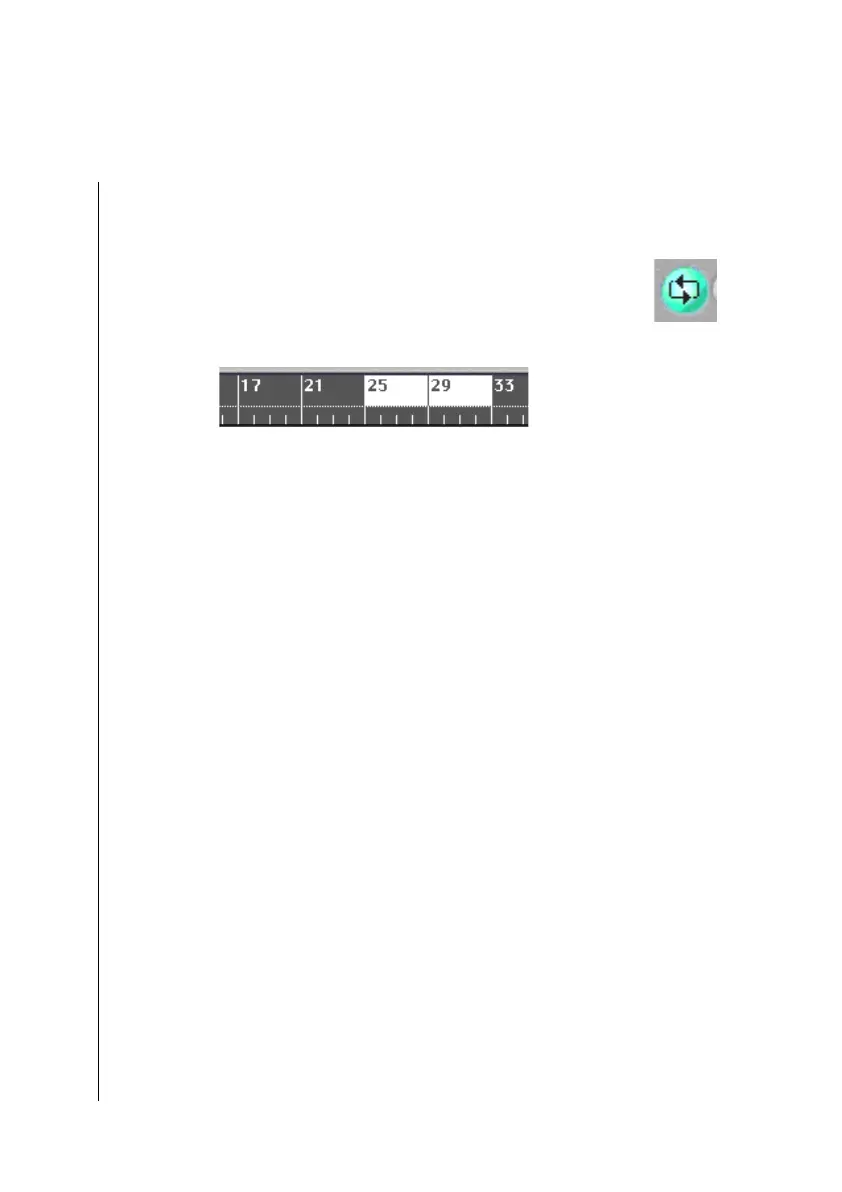
Pay attention to the cycle bars in the measure ruler:
You can move this by grabbing it in the middle. The right and
left boarders can be changed bygrabbing one of the bottom
corners of the bar, and moving it. When Cycle is engaged,
pressing Stop twice will take the SPL to the beginning of the
cycle zone, rather than the beginning of the song..
Selection
Let’s become more familiar with the selection options. In order
to edit objects in Logic fun—be it sequences or notes—we
have to first select them. All functions and operations are
carried out only on those items that are highlighted or
“selected”.
•
Click on a sequence. The sequence will highlight, indicating
it is selected. Let’s go one step further by selecting several
sequences.
•
Hold S down, and click on Anwältin: second sequence.
This is additionally selected.
•
While pressing the S button, click on the gray area, keep
the mouse button pressed and drag a “lasso” over some other
sequences.
•
The selection is now reversed—all sequences except for those
previously selected are now selected.



 To Next Page