Using the Sample Editor
211
User Guide
Version 4.1
r
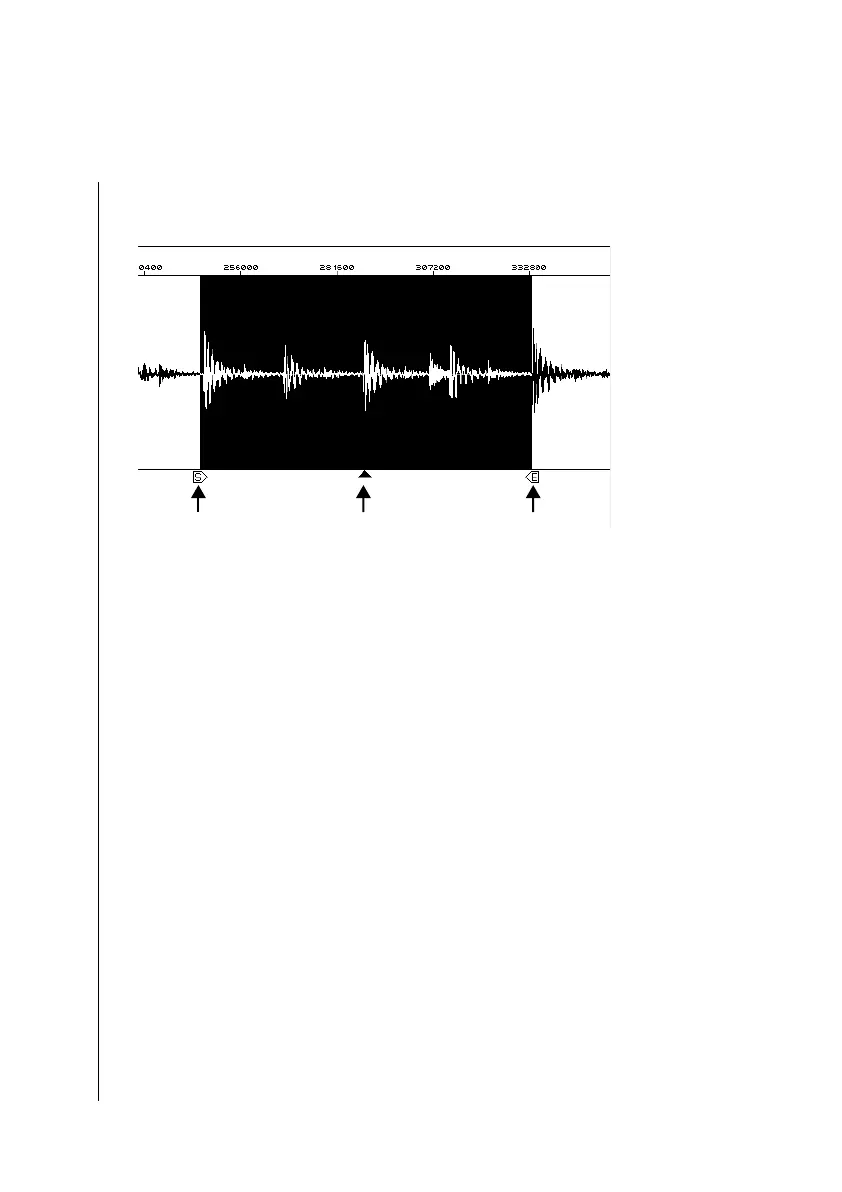
display.Therse can be moved by click-dragging them with the
mouse.
1
Region Start
2
Region End
3
Anchor
Maintaining Anchor Position
Changing the anchor position will shift the position of the
region in the Arrange window along the time axis. This is not
always what you want.
You can prevent the anchor from moving when you drag the
start or end gadgets by holding down the ç key (PC) or O
key (Mac) key while dragging them. Keep in mind that the
anchor can never be before the start point. If you drag the start
point to the right, you will not be allowed to go past the anchor,
if you use the modifier key to protect the anchor’s position. If
you releasee the key, then both the start point and the anchor
can be dragged to the right together.
Edit Commands
The usual edit commands are available in the Sample Editor
menu bar under Edit: Cut, Copy, Paste, Clear, and Undo, or
13 2



 To Next Page