28
Chapter 2
Sound Cards and MIDI
Emagic
Logic fun
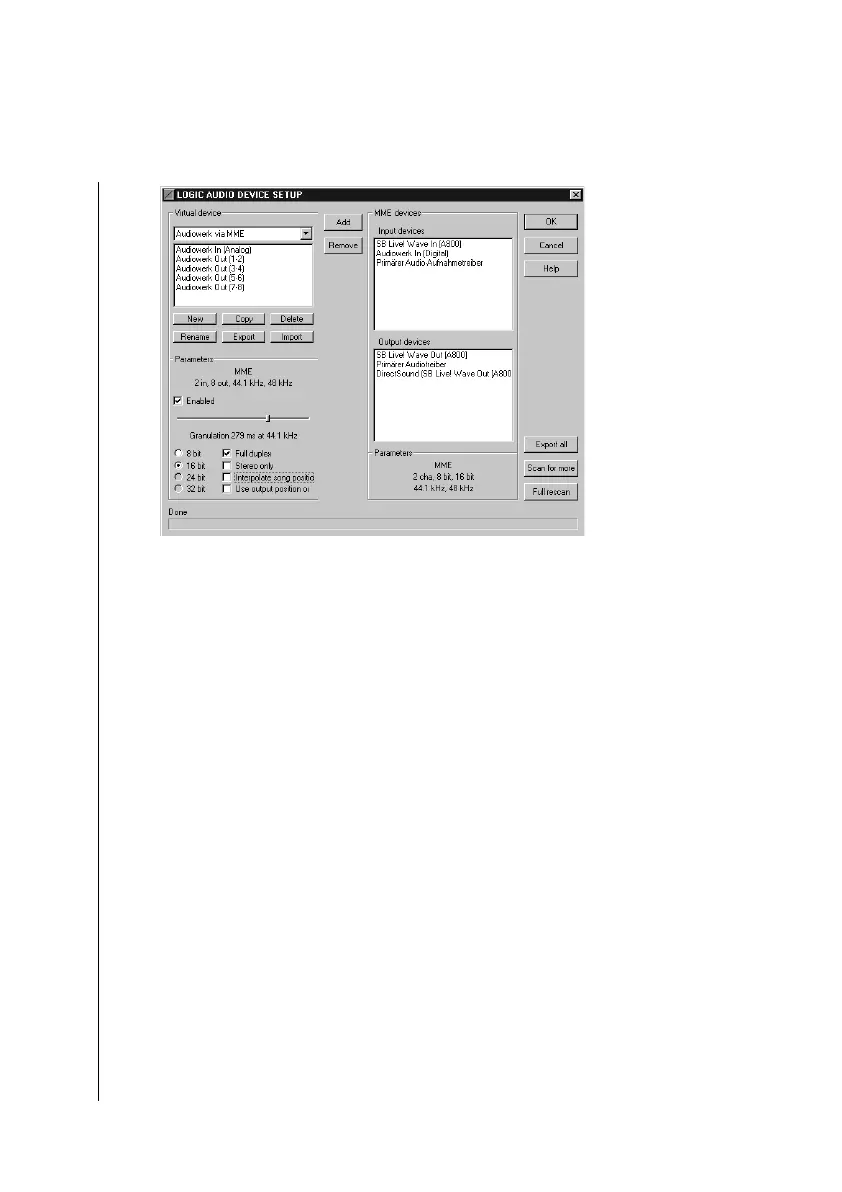
LADS’ user interface is divided into two areas: The “System
devices” list contains all system drivers which are currently
enabled in Windows’ audio setup. In the area Parameters of the
system devices (directly below the “System Device” area) you
can see some of the properties of the driver, such as number of
channels, bit depth and sampling rate.
You cannot add a driver containing zero channels to a Virtual Device.
On the left side there is the “Virtual Devices” list, which lists
those drivers that are available for use in Logic fun. A double-
click on a driver name or choosing “Add” after highlighting it
adds this driver to the currently displayed Virtual Device.
Clicking on “Remove” will remove any selected driver from
the Virtual Device again.
Removing a driver (or any other action in LADS, for that matter) is only affects Logic
fun, not Windows itself—the system driver will not be deleted, and is still available
for other purposes under Windows.
In the “Parameters” area (lower left), you can define various
characteristics of the Virtual Device. These are described
below, and also in the online help. It is also possible to save the
current LADS setup (“Export” button) and load it again later



 To Next Page