135
6. Click the Scan icon and select any detailed scan settings you want to use from the Epson Scan 2
window.
7. Click Scan.
You see a preview of your scan in the Document Capture window.
Note: You may have to close the Epson Scan 2 window to view your scan in the Document Capture
window.
8. If you would like to scan additional originals and add them to the current captured images, click the +
icon, select Acquire from Scanner, and repeat the previous steps.
9. Check the scanned images and edit them as necessary.
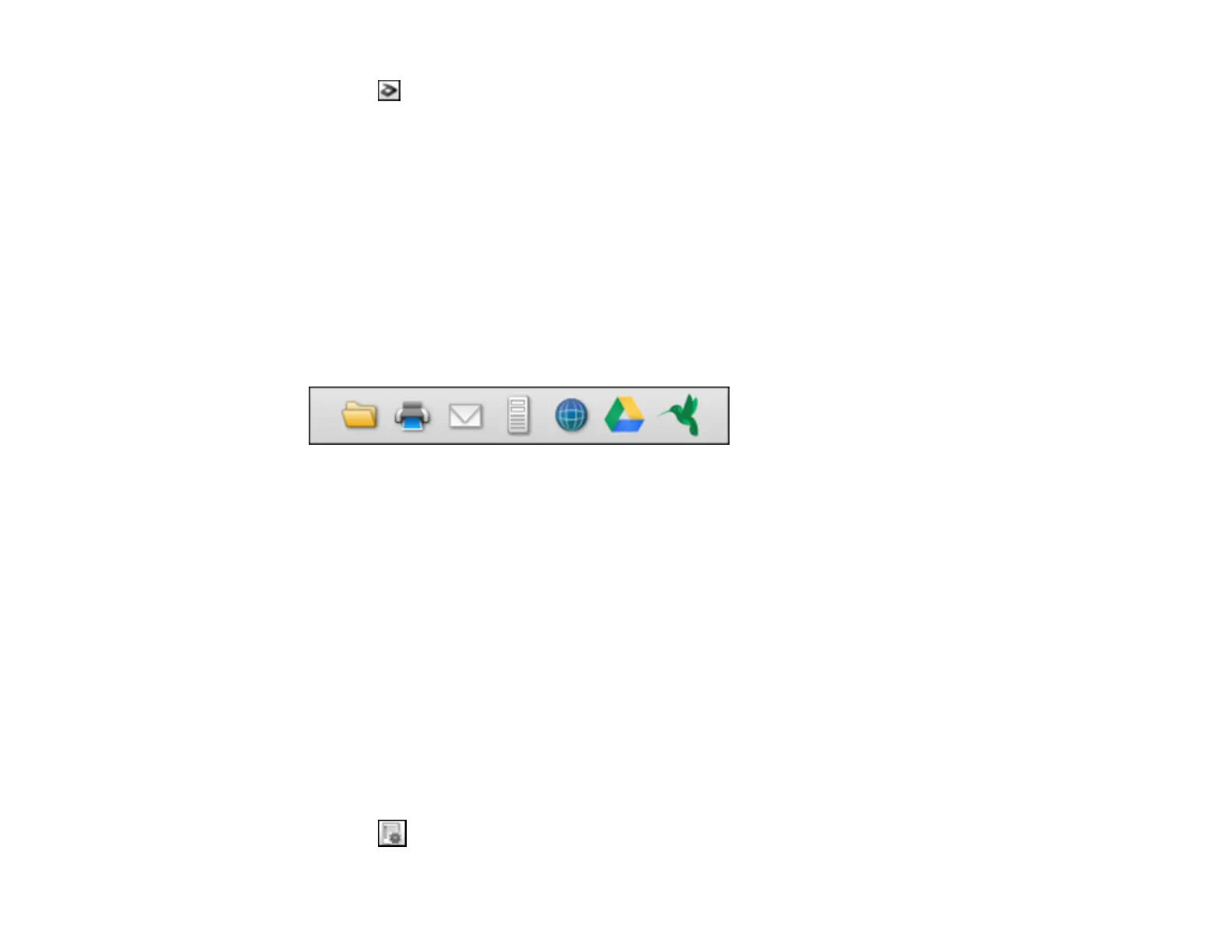
10. Click one of the destination icons to choose where to send your scanned files. (If you cannot see all
of the icons, click the arrow next to the icons.) Change any settings as necessary.
Note: If you are sending the scanned image to a server or cloud destination, you need to enter your
login information. If you want to use Evernote as the destination, download the Evernote application
from the Evernote Corporation website and install it before scanning.
11. Depending on the destination you chose, click OK or Send to complete the operation.
Adding and Assigning Scan Jobs with Document Capture - Mac
Parent topic: Scanning with Document Capture Pro or Document Capture
Adding and Assigning Scan Jobs with Document Capture - Mac
You can add scan jobs that contain specific scan settings and use the jobs when you scan from your
product control panel or Document Capture. You can save up to 30 scan jobs.
Note: Settings may vary depending on the software version you are using. See the Help menu in
Document Capture at any time for more information.
1. Start Document Capture on a computer connected to the product.
2. Click the Manage Job icon from the toolbar at the top of the window.



 To Next Page