151
Note: To specify the first page number, select Page Number from the position you want to print in the
header or footer, then select the number in Starting number.
• Text
You can also adjust the text settings for the printed information.
Note: The user name, computer name, date, and time come from the Windows Control Panel on your
computer.
Parent topic: Selecting Additional Print Options - Windows
Selecting a Printing Preset - Windows
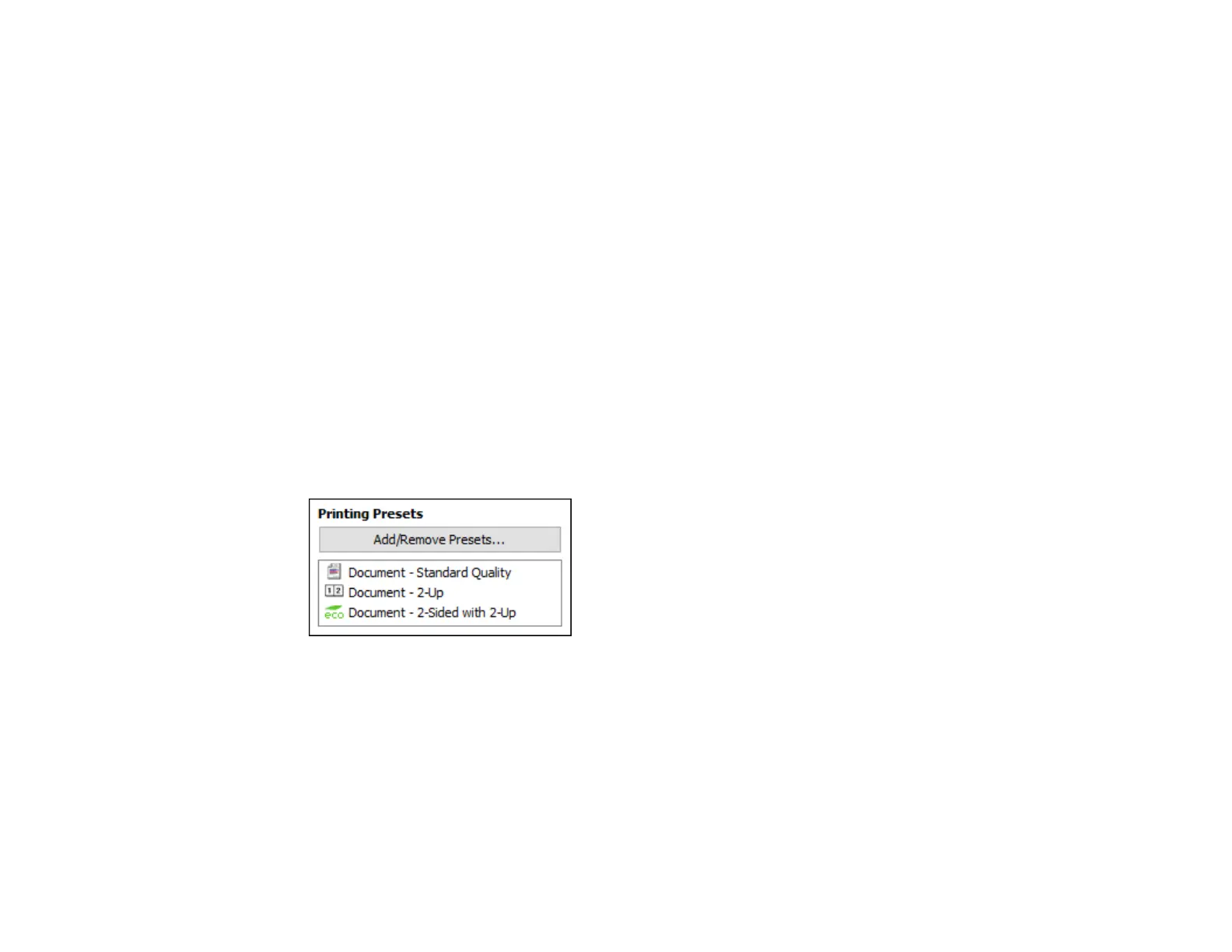
For quick access to common groups of print settings, you can select a printing preset on the Main or
More Options tab.
Note: You can create your own preset by clicking the Add/Remove Presets button.
1. Click the Main or More Options tab.
You see the available Printing Presets on the left:
2. Place your cursor over one of the Printing Presets to view its list of settings.
3. Click on a preset to change its settings or delete it, or use any of the available options on the screen
to control your printing presets.
4. To choose a preset for printing, select it.
5. Click OK.
Parent topic: Printing with the Standard Epson Printer Software - Windows



 To Next Page