306
1. Access Web Config as an administrator and select the Network Security tab.
2. Under IEEE802.1X, select Basic.
3. Select Enable as the IEEE802.1X (Wired LAN) setting.
4. To use the product on a Wi-Fi network, enable your product's Wi-Fi settings.
The status of the connection is shown as the IEEE802.1X (Wi-Fi) setting.
Note: You can share the network settings for Ethernet and Wi-Fi networking.
5. Select the IEEE 802.1X setting options you want to use.
6. Click Next.
You see a confirmation message.
7. Click OK.
Parent topic: Connecting the Product to an IEEE 802.1X Network
IEEE 802.1X Network Settings
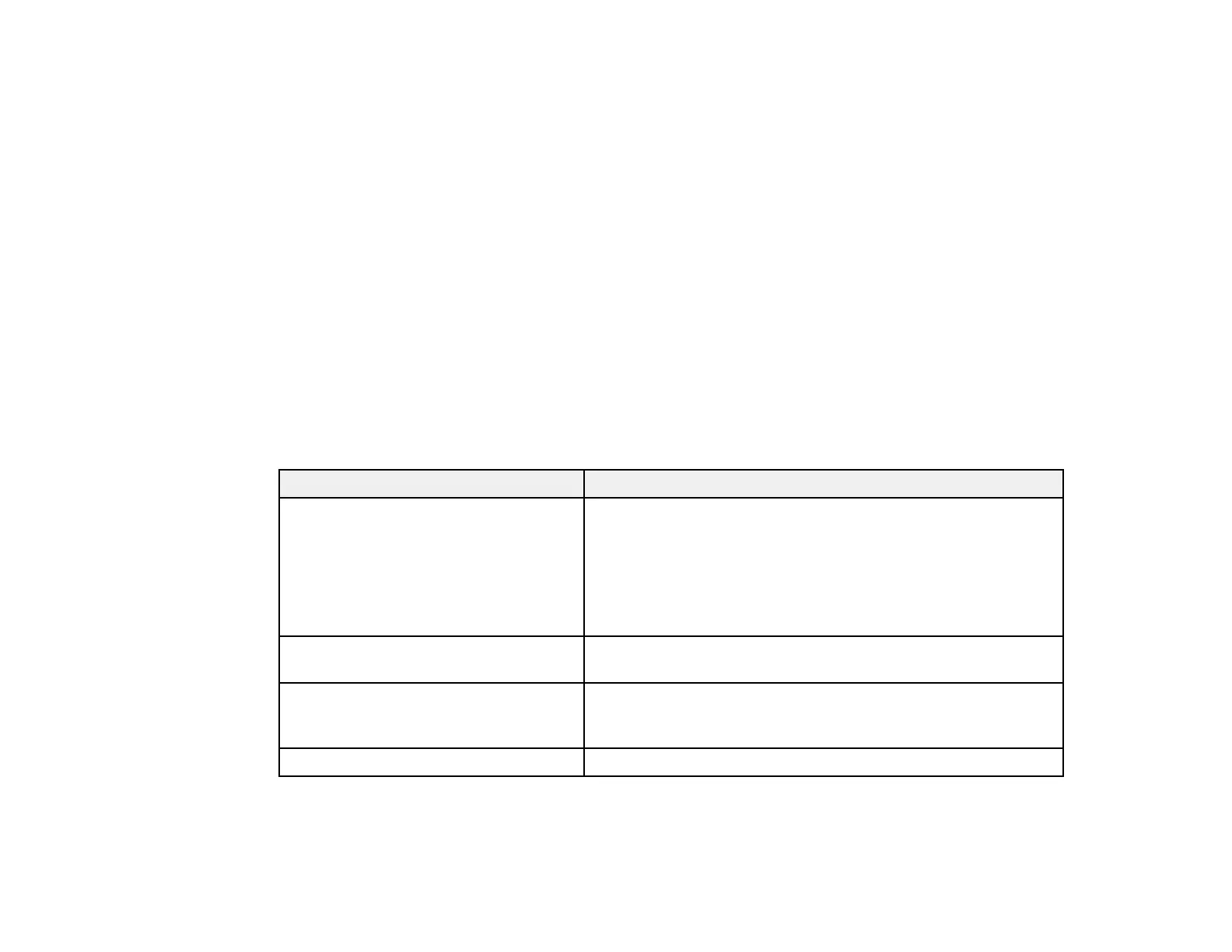
You can configure these IEEE 802.1X network settings in Web Config.
Setting Options/Description
EAP Type Select one of these authentication methods for connections
between the product and a RADIUS server:
EAP-TLS or PEAP-TLS: You must obtain and import a CA-
signed certificate
PEAP/MSCHAPv2 or EAP-TTLS: You must configure a
password
User ID Enter an ID between 1 and 128 ASCII characters for
authentication on a RADIUS server
Password Enter a password between 1 and 128 ASCII characters for
authentication of the product. If you are using Windows as a
RADIUS server, enter up to 127 ASCII characters.
Confirm Password Enter the authentication password again



 To Next Page