145
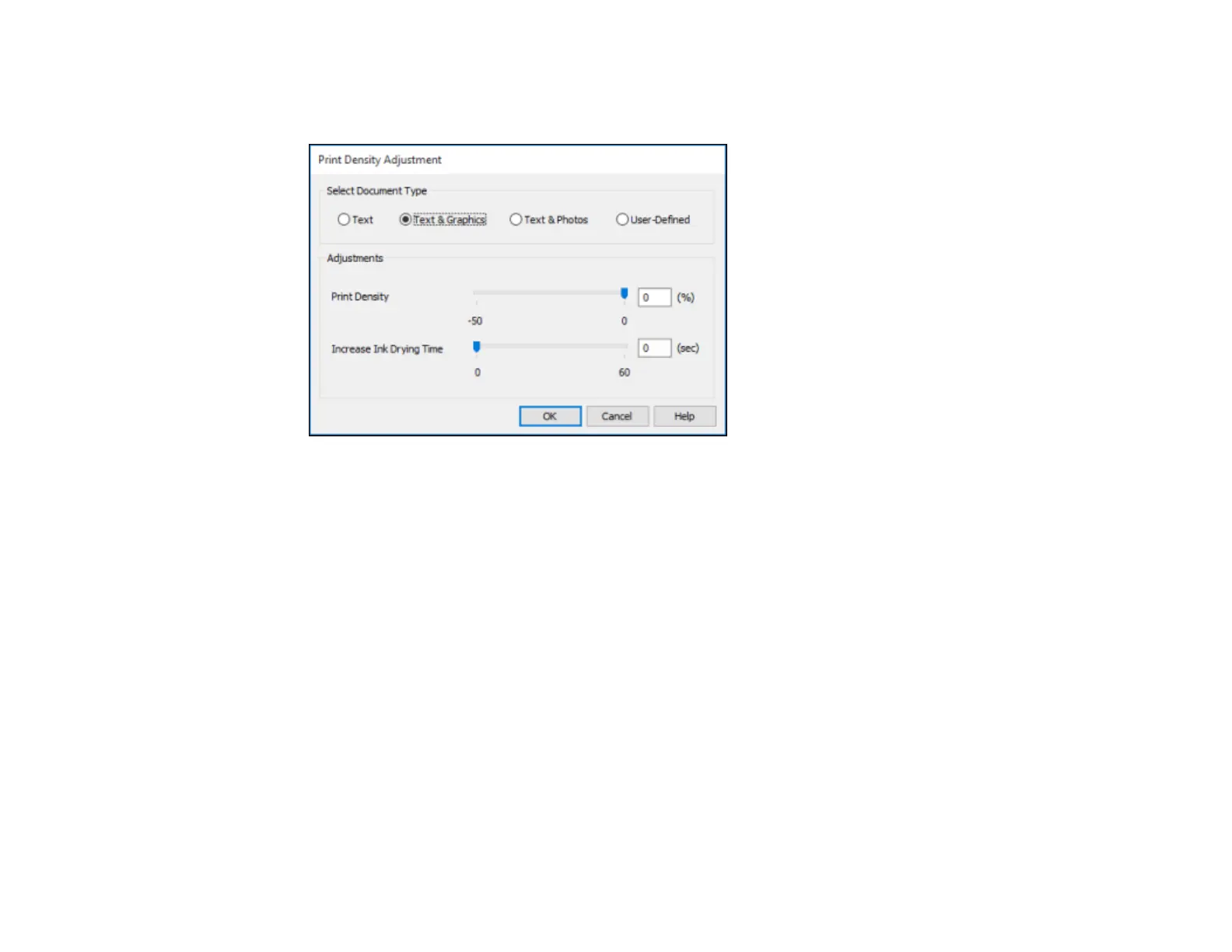
5. Click the Print Density button.
You see this window:
6. Select the type of document you are printing as the Document Type setting. The software
automatically sets the Adjustments options for that document type.
7. If necessary, select the Adjustments options you want to use.
8. Click OK to return to the Main tab.
9. Print a test copy of your double-sided document to test the selected settings.
10. Follow any instructions displayed on the screen during printing.
Double-sided Printing Options - Windows
Print Density Adjustments - Windows
Parent topic: Printing with the Standard Epson Printer Software - Windows
Double-sided Printing Options - Windows
You can select any of the available options on the Binding Settings window to set up your double-sided
print job.
You can right-click a setting in the dialog and select Help for additional information on each setting.
Binding Edge Options
Select a setting that orients double-sided print binding in the desired direction.



 To Next Page