258
Checking the Nozzles Using the Product Control Panel
Parent topic: Print Head Maintenance
Checking the Nozzles Using the Product Control Panel
You can check the print head nozzles using the control panel on your product.
1. Make sure there are no errors on the LCD screen.
2. Load a few sheets of plain paper in the product.
3. Press the home button, if necessary.
4. Select Maintenance > Print Head Nozzle Check.
5. Select Print and press the OK button.
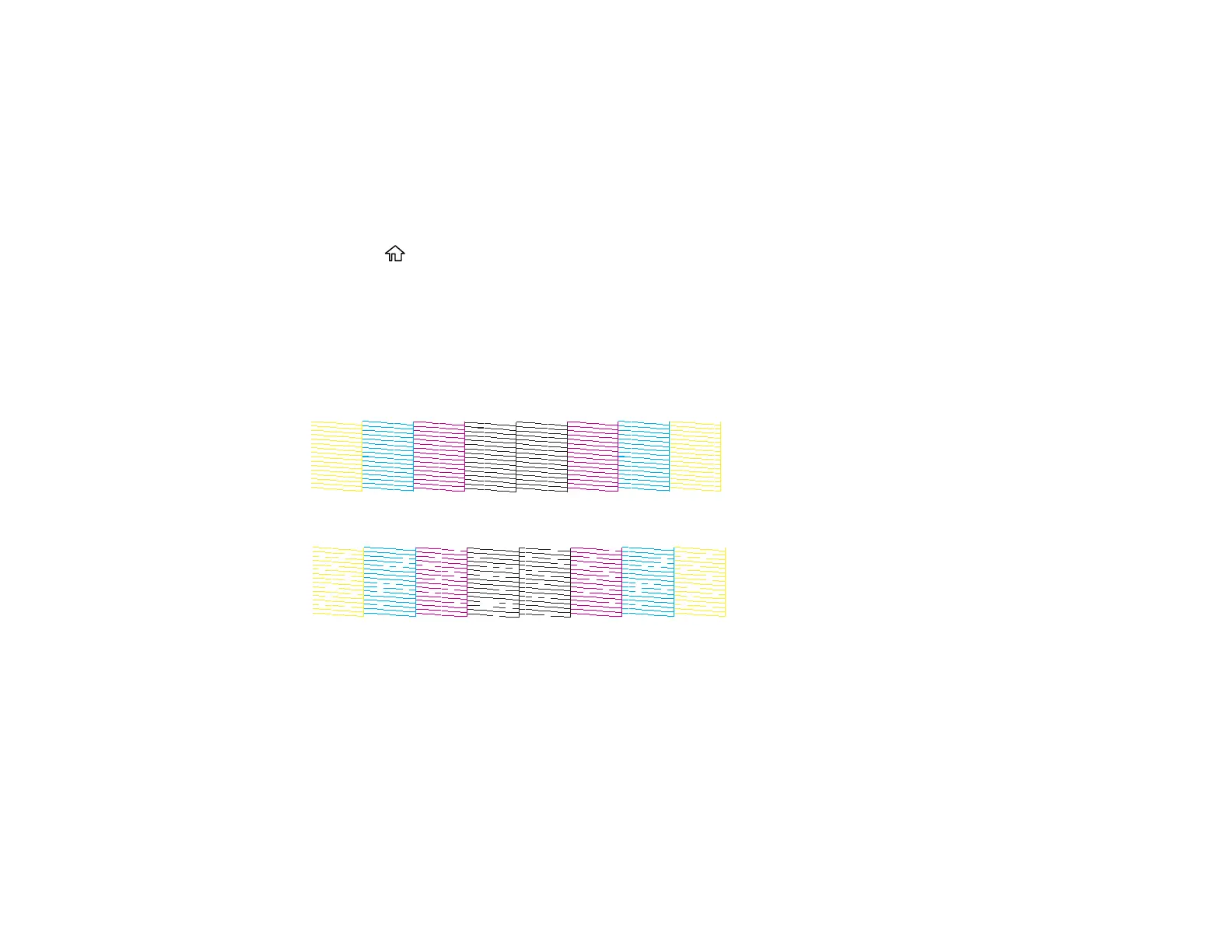
The nozzle pattern prints.
6. Check the printed pattern to see if there are gaps in the lines.
Print head is clean
Print head needs cleaning
7. Do one of the following:
• If there are no gaps, select O.
• If there are gaps or the pattern is faint, select X.
8. Follow the instructions on the screen to clean the print head, check the nozzles, and repeat the
process as necessary.
Caution: Never turn off the product or open the front cover during a cleaning cycle or you may not
be able to print.



 To Next Page