78
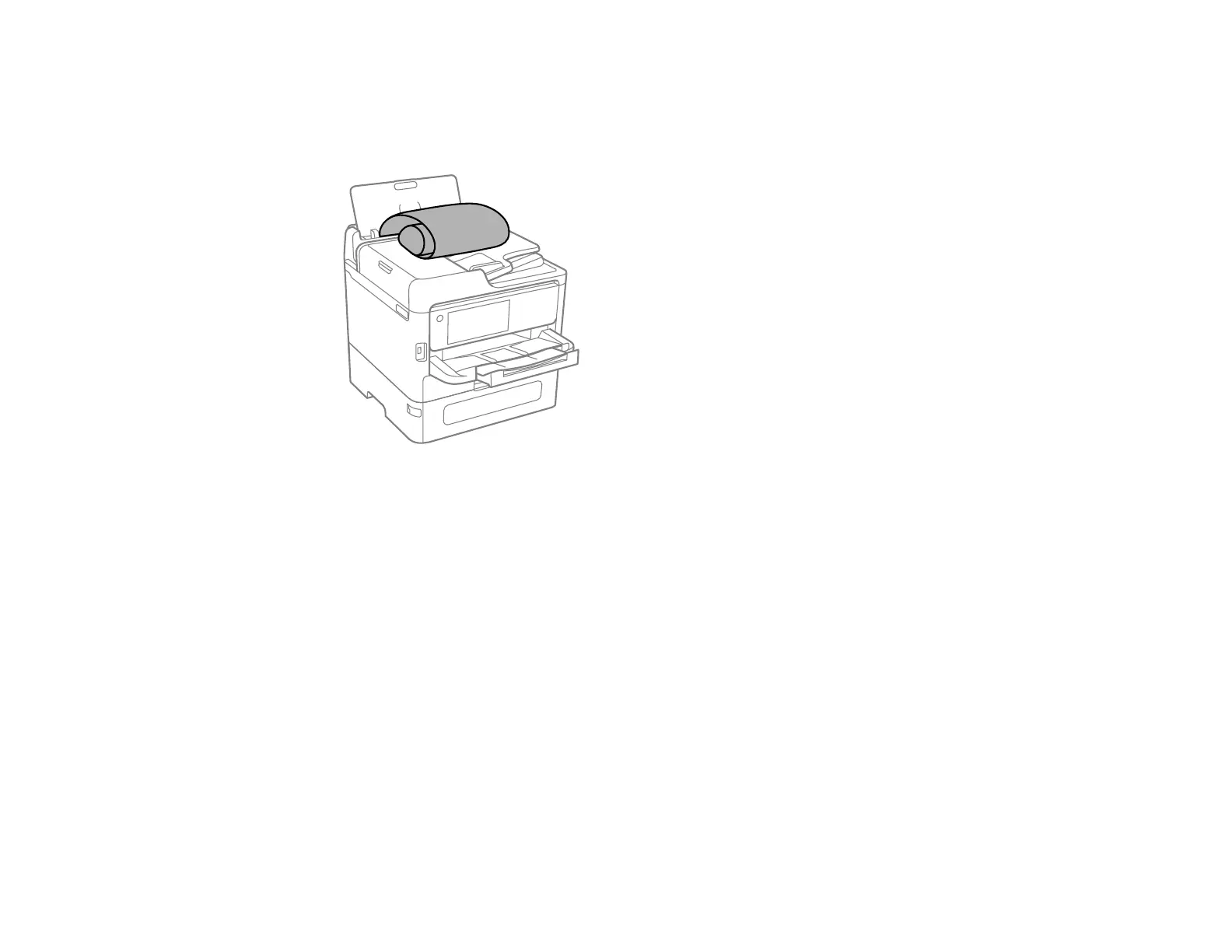
• Load long paper by allowing the paper to roll over as shown. Select the user-defined setting as the
paper size setting.
3. Set the paper size and type on the LCD.
Note: If you do not want to display the paper settings screen when you load paper, set the Settings
> General Settings > Printer Settings > Paper Source Settings > Paper Setup Auto Display
setting to Off.
Always follow these paper loading guidelines:
• Load only the recommended number of sheets.
• Load paper short edge first, no matter which way your document faces.
• Load letterhead or pre-printed paper top edge first.
• Do not load paper above the arrow mark inside the edge guides.
• Check the paper package for any additional loading instructions.
Caution: Do not load the following papers; they may cause paper jams, smears on the printout, or
damage to the printer.
• Papers that are wavy or damp



 To Next Page