IN1806 and IN1808 Series Scaling Presentation Switchers • Internal Web Pages 104
NOTE: Figure 47 on the previous page shows the web page for an IN1808 IPCP SA
model. The pages for the IN1806 and the other IN1808 Series models are identical
except for the product name in the Device Info panel, and the Inputs panel (the
IN1806 page does not contain DTP inputs).
Device Info Panel
The Device Info panel (see figure 47,
1
) displays device name, brief product description,
and part number, with the option to edit the device name. The panel also contains an
Extron link which opens www.extron.com in a new window.
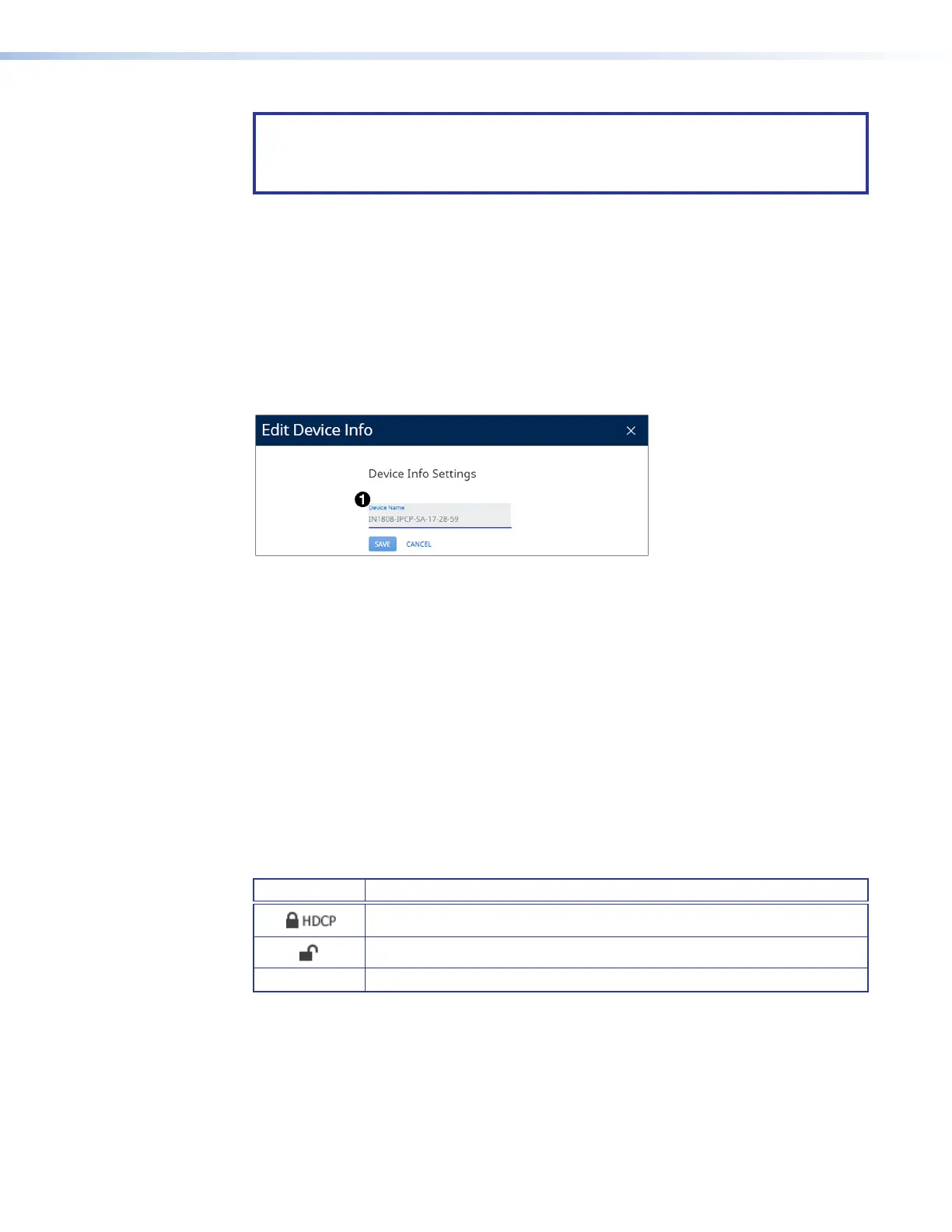
Setting the device name
To edit the device name (TCP/IP hostname), click the Edit button in the lower-left corner of
the Device Info panel. The Device Info Settings dialog box opens.
Figure 48. Device Info Settings Dialog Box
To change the name:
1. Click on the default name in the Device Name field (see figure 48,
1
). A cursor
appears. (The default name is the model name followed by -xx-xx-xx, where xx-xx-
xx are the last six characters of the unit MAC address.)
2. Enter a name for the IN1806 or IN1808.
3. Click Save to apply the new name and close the dialog box, or click Cancel to close
the dialog box without renaming the device.
Inputs Panel
The Inputs panel (see figure 47,
2
) displays the name and signal type of the active input
signal as well as its HDCP status.
The following HDCP status indicators may be displayed for a connected input:
Symbol Definition
The signal is HDCP encrypted.
The signal is not encrypted.
No Signal There is no signal detected.
To view the status and type of all inputs, click the link (named 5 More for IN1806 and 7 More
for the IN1808 Series) in the lower-left corner of the Inputs panel to view the Inputs dialog
box (see figure 49 on the next page for an example).
48













 To Next Page