IN1806 and IN1808 Series Scaling Presentation Switchers • Internal Web Pages 107
Device Status Panel
The Device Status panel (see figure 47,
4
, on page 103) displays the current date,
time, time zone, the amount of time the device has been running (Uptime), and internal
temperature in degrees Celsius.
Syncing the IN1806 and IN1808 Series to the PC
To set the IN1806 and IN1808 Series date and time to match that of your computer:
Click Sync to PC at the bottom of the Device Status panel. When the sync is completed,
the message shown in figure 51 appears in the upper-right corner of the screen.
Figure 51. Sync to PC Success Message
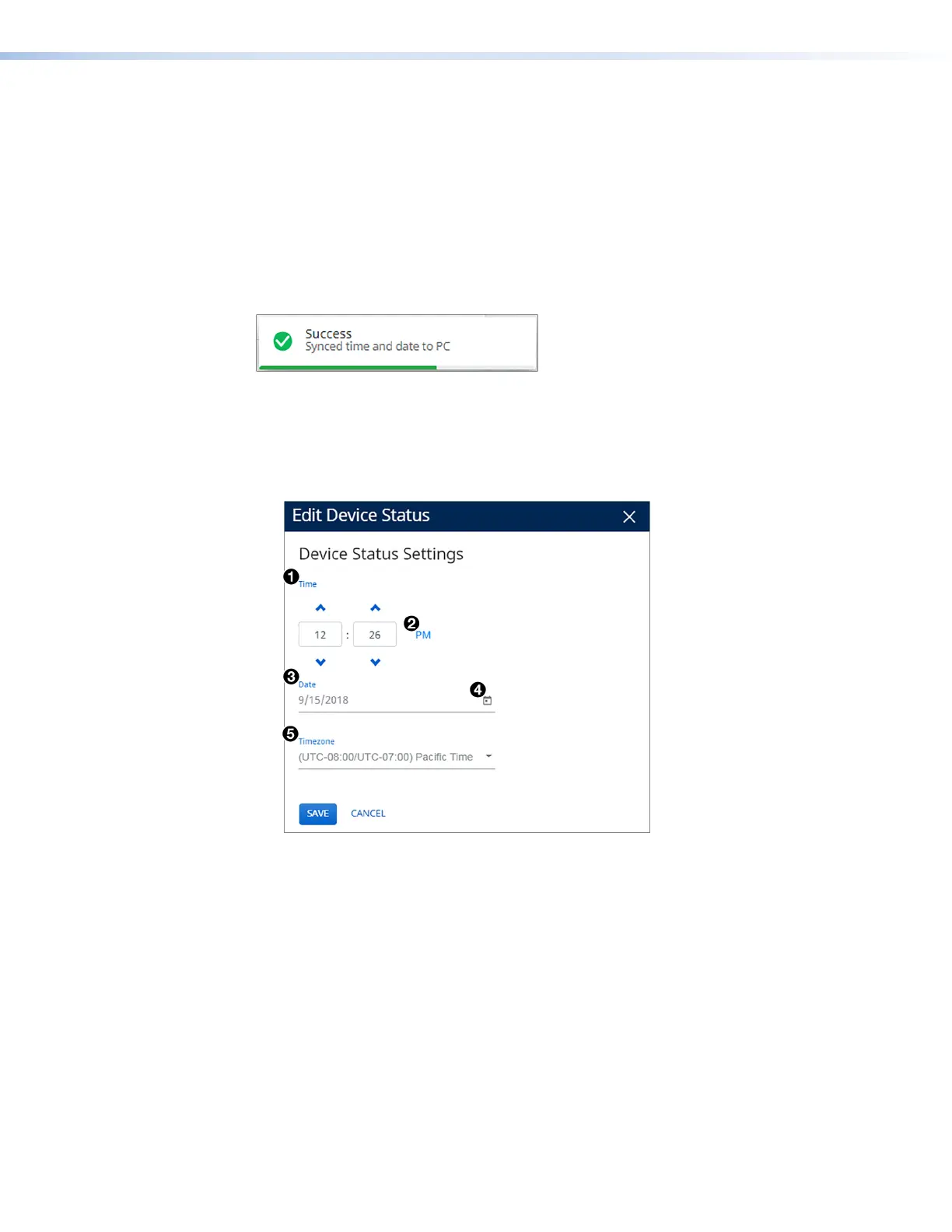
Editing the date, time, and time zone
1. Click the Edit link in the lower-left corner of the panel. The Edit Device Status dialog
box opens.
Figure 52. Edit Device Status Panel for Date and Time Setting
2. Set the time, date, and time zone as desired:
• Time — In the Time panel (see figure 52,
1
), either click in the hour and minute
text fields and enter the time, or click the up and down arrows to display the
desired values.
• AM or PM — Click the button (
2
) at the right of the time fields to toggle between
AM and PM.
• Date — In the Date field (
3
), either click in the text field and enter the date, or click
the calendar icon (
4
) and select the desired date in the pop-up calendar (current
month only).
• Time Zone — In the Timezone panel, select the desired time zone from the
drop-down menu (
5
).
3. When finished entering settings, click Save to confirm them, or Cancel to close the
dialog box without implementing the settings.
51
52













 To Next Page