IN1806 and IN1808 Series Scaling Presentation Switchers • Operation 31
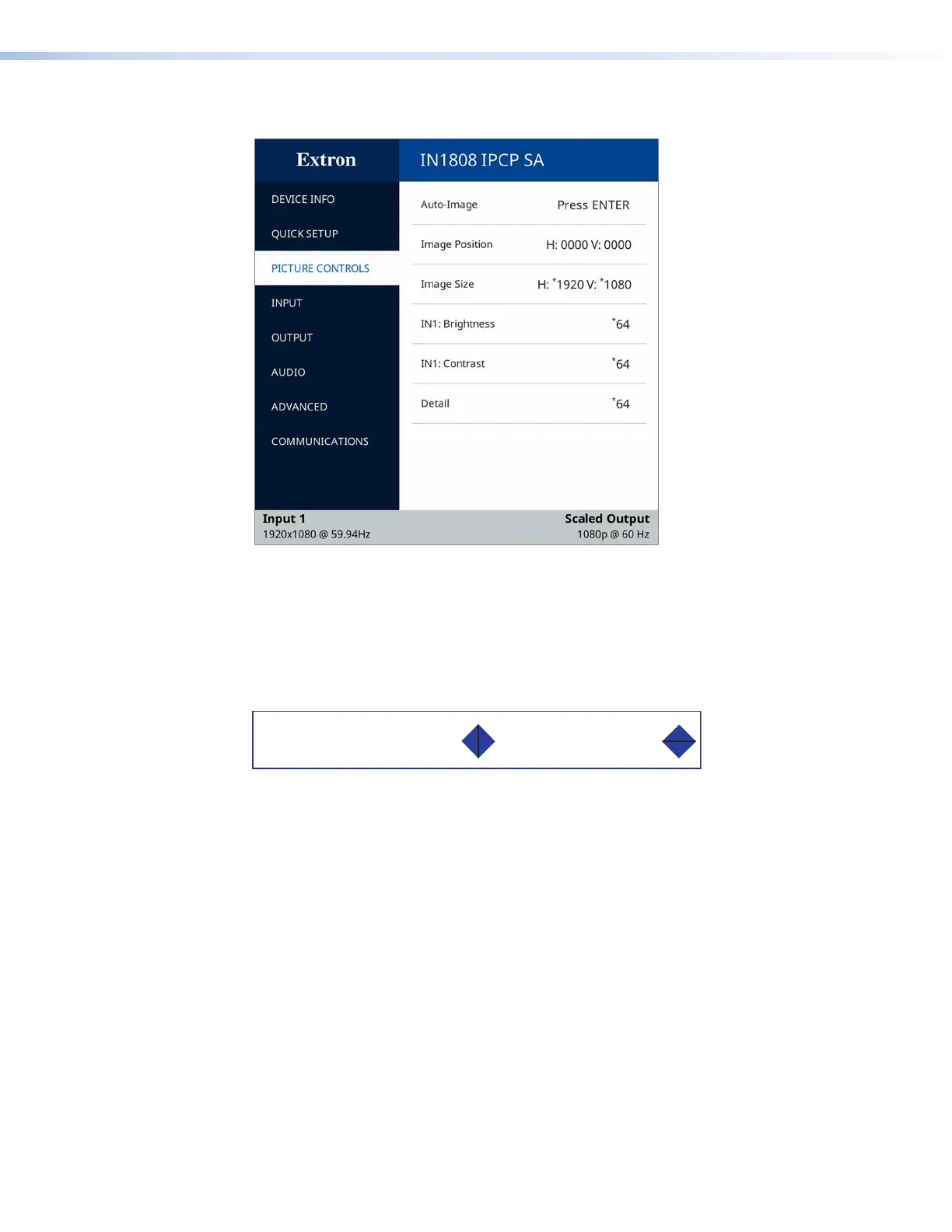
Picture Controls Submenu
Figure 19. Picture Controls Submenu
Adjusting the picture controls
When you select a Picture Controls submenu item, the OSD menu collapses so that the
item is displayed alone on the screen to facilitate adjustment (see figure 20). The separate
item field contains blue arrows that indicate which front panel arrow buttons to press to
adjust the item.
Image Size
H: *1920 V: *1080
Figure 20. Example of a Selected Picture Controls Submenu Item
After selecting the item to adjust, do the following:
1. With the separate item field displayed, use the navigation buttons to select and adjust
the desired settings as indicated by the blue arrows on the screen. To rapidly increment
or decrement the values, press and hold the arrow button.
Example: In figure 20, the blue right and left arrows before the H setting indicate that
you can press the and u buttons on the front panel to adjust the horizontal size. To adjust
the vertical size, press the
and buttons, as indicated by the blue up and down
arrows after the V setting.
2. When finished, press Enter to return to the OSD menu.
19
20













 To Next Page