FARO
®
Laser Scanner Manual
111
Chapter 7: Controller Software
Firmware Update
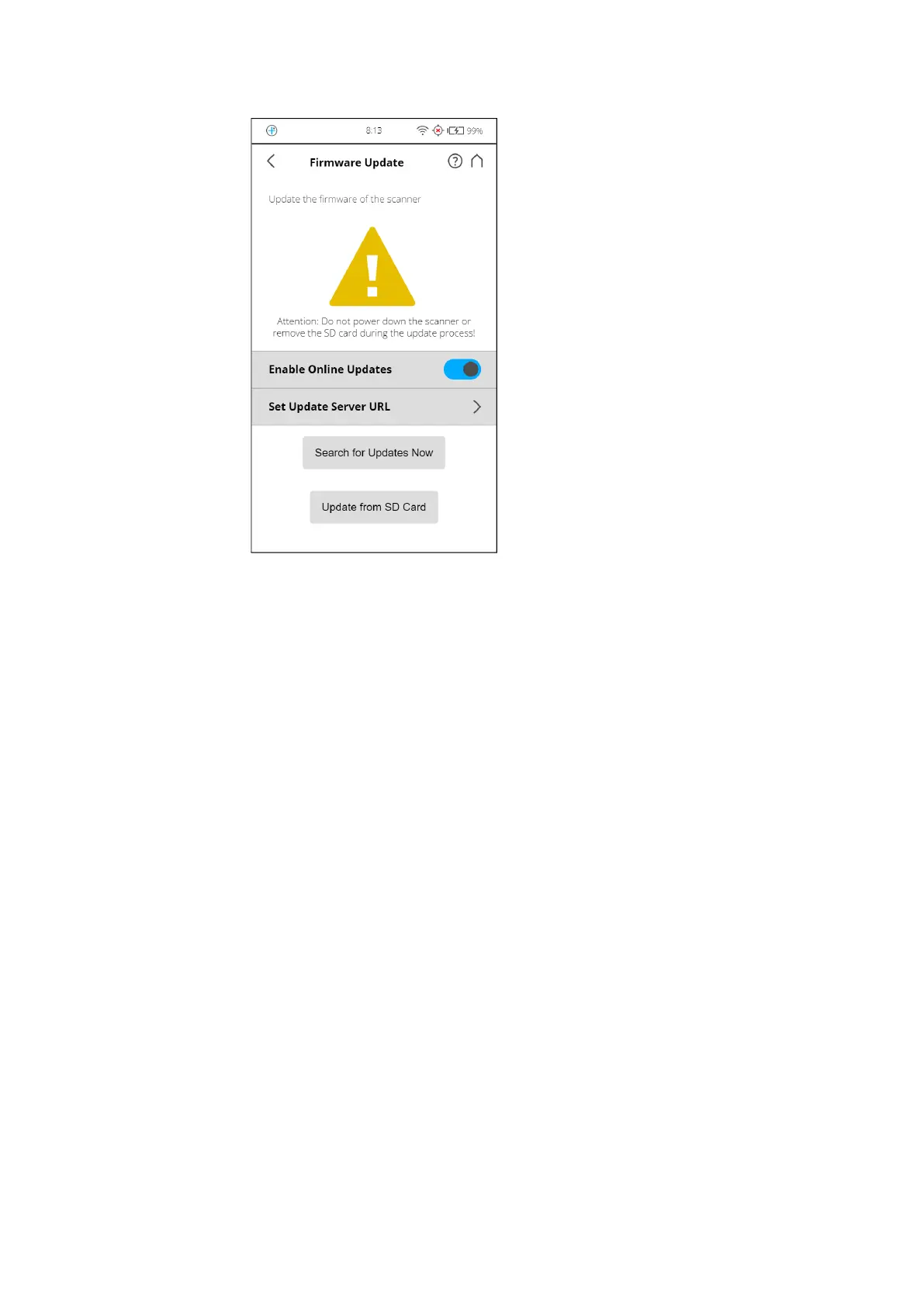
Figure 7-48: Service, Firmware Update
There are two ways to update the firmware of your FARO Laser Scanner:
• The scanner is online and can fetch the firmware from a server
• The firmware is transferred with the SD card
The update process can take up to 30 or 40 minutes depending on the extent
of the update. Note that the scanner must be connected to power and have a
fully-charged battery to begin the firmware update.
Online Updates
Enable Online Updates. Slide this button to turn ON or OFF
Select
Set Update Server URL to set the URL link of the server that provides
the online firmware updates.
Tap the
Search for Updates Now button to search for firmware updates online.
Update via SD card
If you have the firmware update file on your computer, you can use the SD
card to transfer it to the scanner. Copy the update file to the folder “Updates”
on your SD card first. If this folder does not exist, you must create it manually.



 To Next Page