FARO
®
Laser Scanner Manual
78
Chapter 7: Controller Software
To select a project, tap its button in the list. The selected project will be
highlighted. To view or change details of the selected project, tap its button
once more.
To display available clusters of a project, select it and the list will be expanded.
Proceed accordingly with further clusters.
If the list of projects exceeds the screen size, scroll the list up or down with the
buttons on the bottom.
Description of the icons on the project buttons:
7.4.2 Scan Profiles
Selecting scan profiles to use their parameters for the next scan has already
been described in See Setting the Scanning Parameters on page 44. This
chapter will describe how to add new and how to edit existing scan profiles.
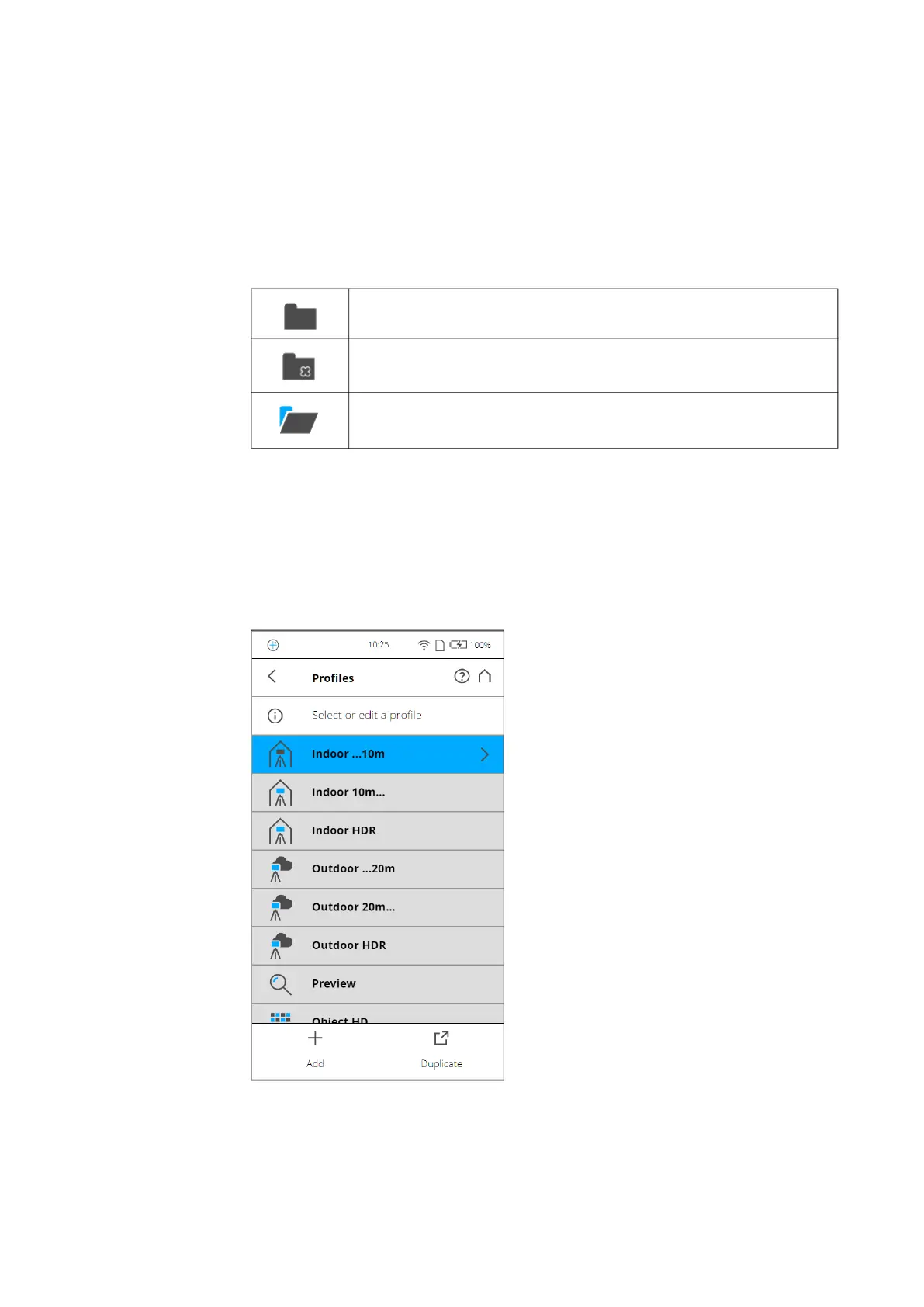
The Profiles page displays a context sensitive toolbar at the bottom to add,
duplicate, delete, or modify profiles
Figure 7-21: Profiles
As previously mentioned, the FARO Laser Scanner comes with factory
predefined scan profiles (see Factory Settings on page 112 for an overview of
the available factory predefined scan profiles). These scan profiles are read-
Project
Cluster
Project has clusters which are currently shown (list is expanded
accordingly)



 To Next Page