How to Perform a Scan (for Windows Users)
56
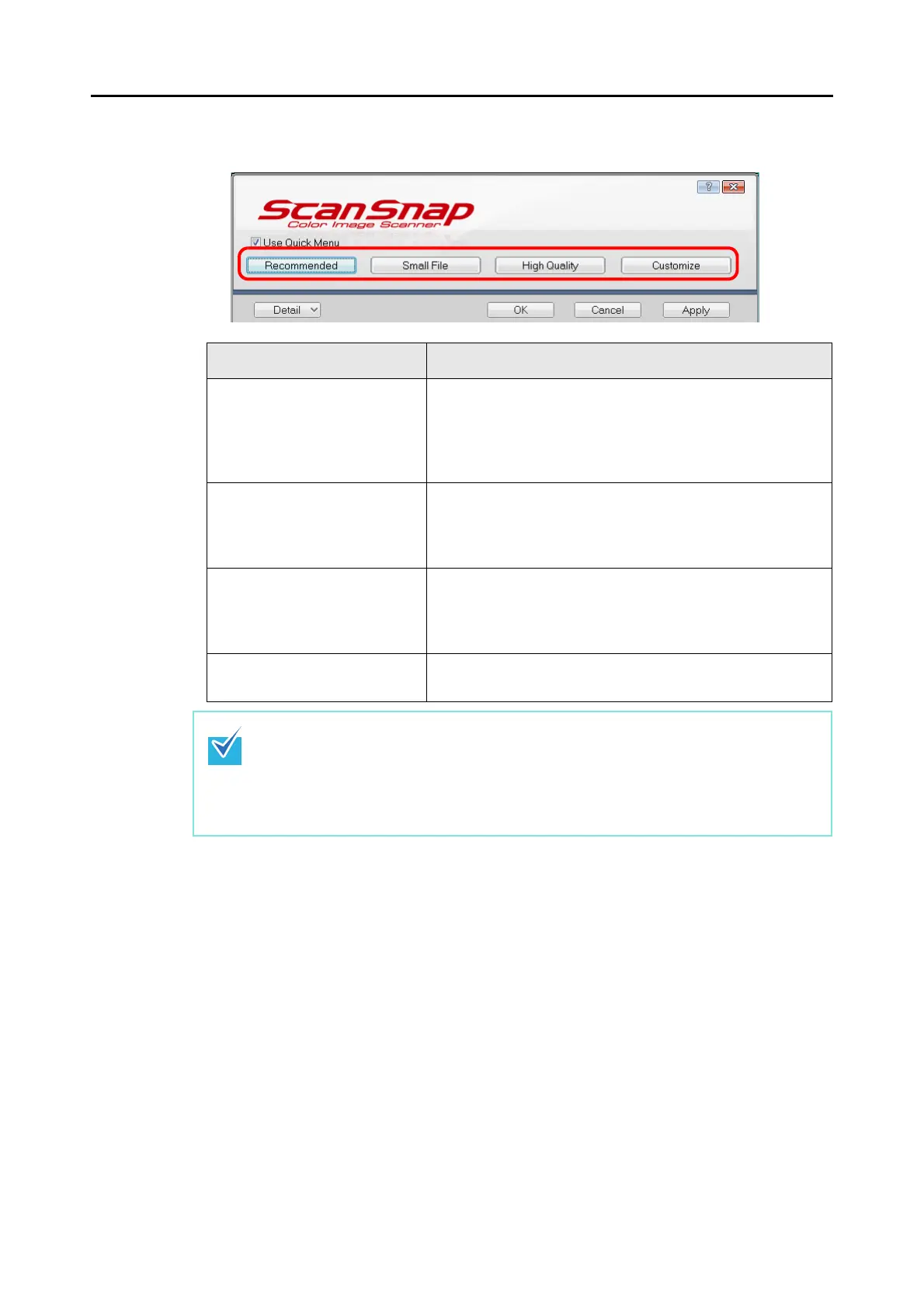
4. Click one of the profile buttons.
5. Click the [OK] button to close the ScanSnap setup dialog box.
6. Load the document into the ScanSnap.
For details about how to load a document into the ScanSnap, refer to "Loading Docu-
ments" (page 28).
Profile Buttons Description
[Recommended] button The settings are [Auto] for image quality and default for other
settings.
It is recommended to select this button when you want a high-
quality scan of standard documents, and a higher quality scan
of business cards, requiring a high level of text recognition.
[Small File] button The settings are [Normal] (color/gray: 150 dpi, black and
white: 300 dpi) for image quality and default for other settings.
It is recommended to select this button when you wish to
reduce the scanned file size.
[High Quality] button The settings are [Best] (color/gray: 300 dpi, black and white:
600 dpi) for image quality and default for other settings.
It is recommended to select this button when you want a high-
quality scan.
[Customize] button The default settings are same as the [Recommended] set-
tings. Settings can be changed at your choice.
• By default, the [Recommended] button is selected.
• You cannot change the settings for the [Recommended], [Small File], and [High Quality]
buttons. When you change the scanning settings, the button automatically switches to
the [Customize] button.
For details about how to change the scanning settings, file names, or save destinations,
refer to "Changing Scanning Settings" (page 64).



 To Next Page
 Loading...










