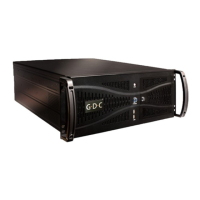
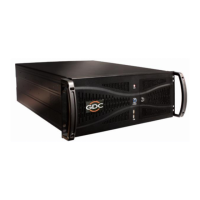
USER MANUAL FOR SR-1000 STANDALONE INTEGRATED MEDIA BLOCK™
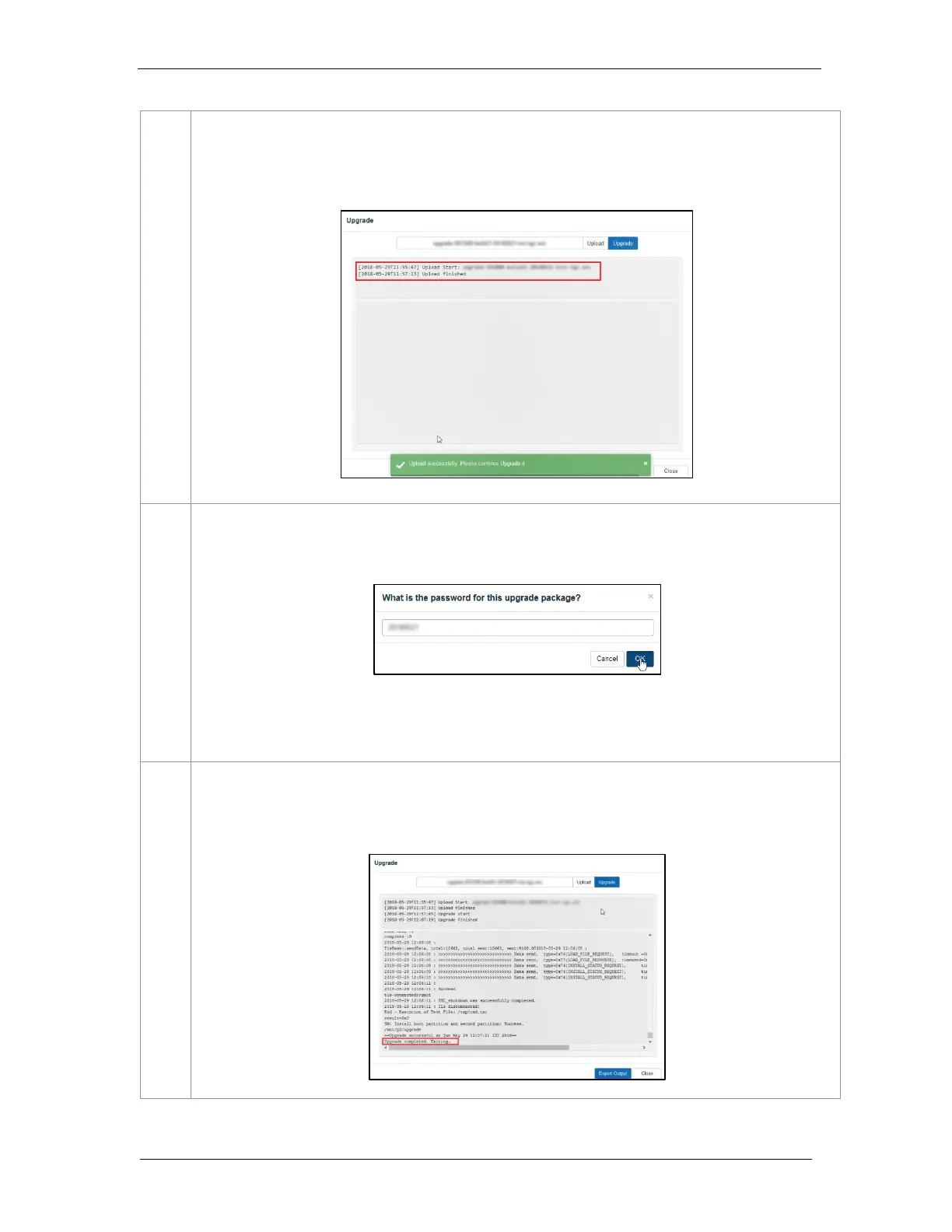
Once the upgrade file has been selected, the Upload button will be enabled. Click on the Upload button to upload
the file to the SR-1000. The console window will display the status of the file upload, as shown. An ‘Upload
Successful’ message will be shown after the file upload is complete.
After the upload is complete, click on the Upgrade button to begin the upgrade process. A pop-up window will be
shown asking for the password for the upgrade package.
Please contact GDC, in case you do not know the password for the upgrade file.
Click on OK button, after entering the correct password.
The Upgrade process will be initiated. The console window will display the progress of the upgrade process. Once
the upgrade is complete, the console window will display Upgrade completed message. The Export Output option
can be used to export and download the console logs in the form of a .txt file.


 To Next Page