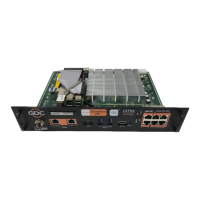
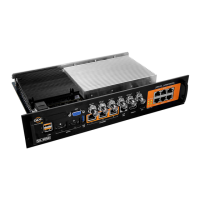
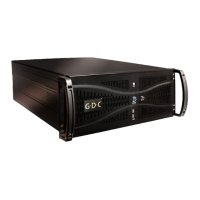
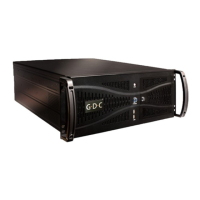
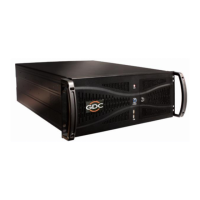
USER MANUAL FOR SR-1000 STANDALONE INTEGRATED MEDIA BLOCK™
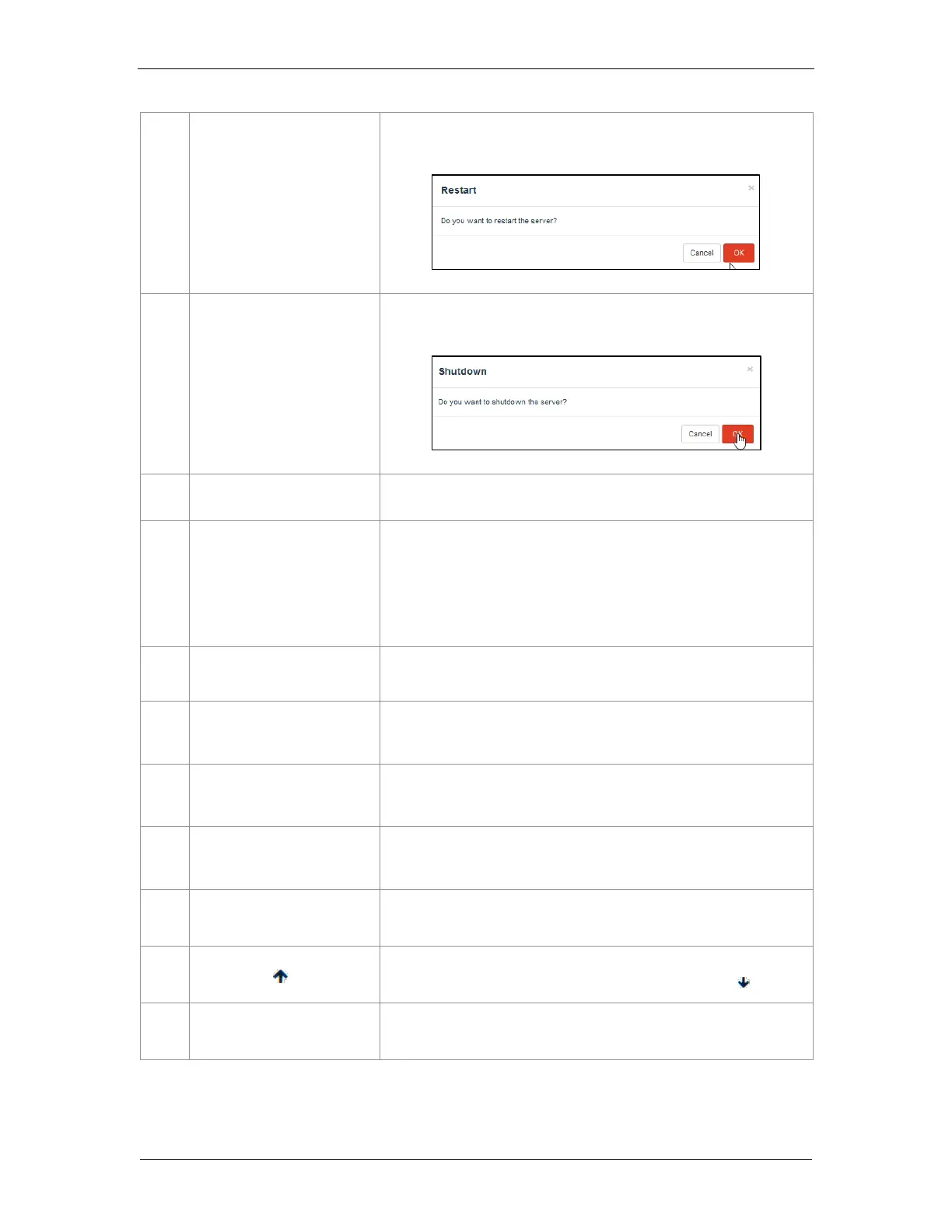
To restart the server, press Restart. A pop-up window will be displayed.
Click OK to confirm restart.
To shutdown the server, press Shutdown. A pop-up window will be
displayed. Click OK to confirm shutdown.
Displays the supported features or capabilities of the SR-1000.
Displays the connection status of the SM or Security Manager.
The SM should always be connected and the ‘SM CONNECTED’ status
should be highlighted in green color.
In case the SM is disconnected or the status appears in Red color, please
contact GDC Technical Support
Displays the auditorium number which has been set for the SR-1000.
[Playback, Ingest, and
Verify status]
These icons will start blinking individually in case content playback,
content ingest or content verification is in-progress. Otherwise, they
will remain greyed-out.
Indicates the access-level with which the current user is logged-in to the
SR-1000 Web UI. Place the mouse pointer over this icon to view the
access-level of the current user.
Indicates the current language in which the SR-1000 Web UI is displayed.
To change the language, click on this icon and select the desired language
from the list.
Indicates the system date and time as per the timezone set on
the SR-1000.
Moves the Status bar to the top of the Web UI screen.
To bring the Status bar back to its original position, click on the icon.
Logs out the current user from the SR-1000 Web UI.


 To Next Page