9Information Center Display
Hammond XK-2 Quick Features Guide
Select
EDIT PARAMETER
}2 DB REGIST1
UM 000000000
}3 DB REGIST2
LM 000000000
}4 DB REGIST3
PK 0 0
Ë Drawbar Registration
If, while you are editing, you want to verify the Drawbar Registrations for each section of the XK-2 (Upper Manual, Lower
Manual and Pedal Keyboard), you can use the Drawbar Registration feature of the Information Center Display. This makes
it easier to make all your changes during one editing session.
TRY THIS:
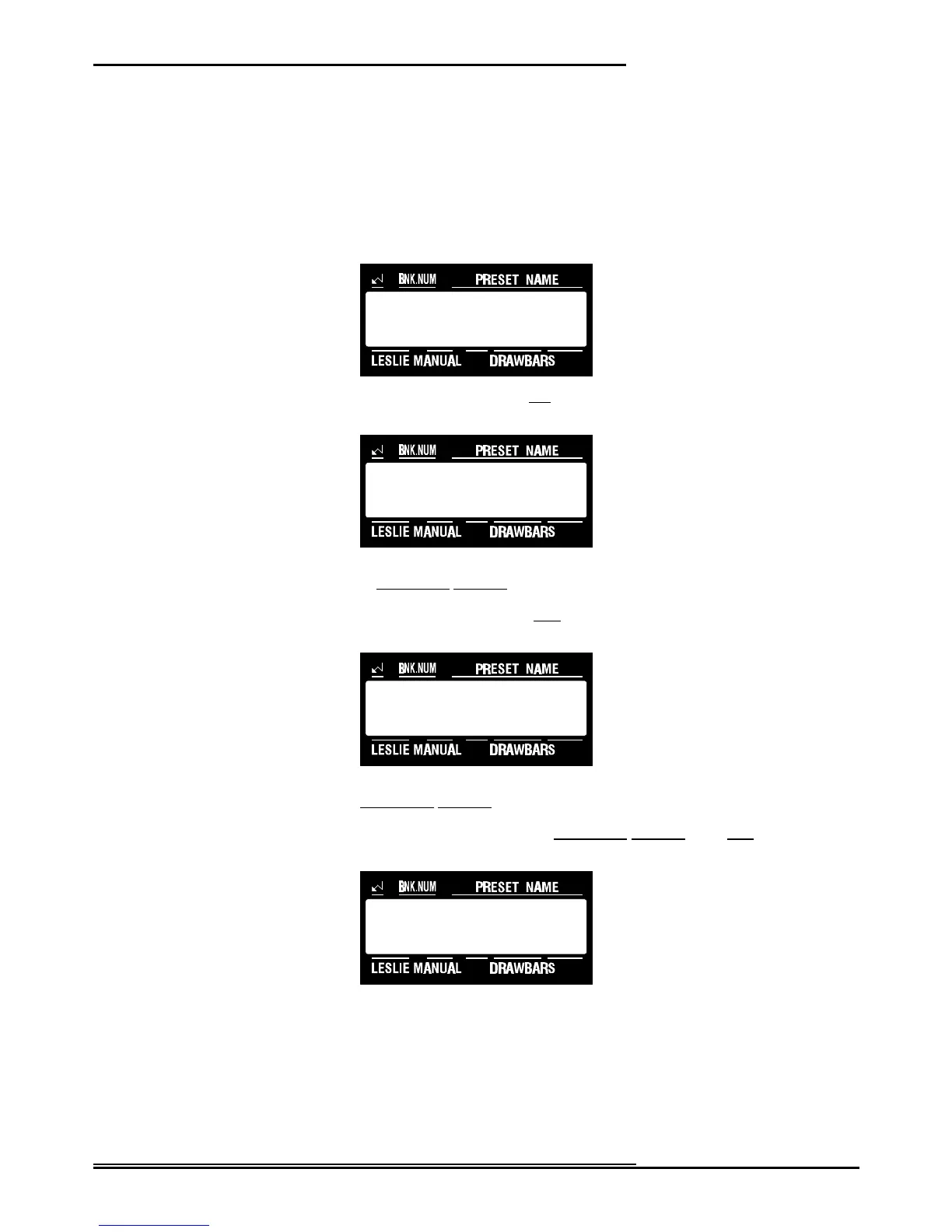
1. Touch the EDIT Select Touch Button. The red LED will light, and the Information Center Display
should look like this:
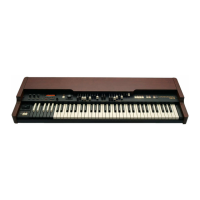
3. Touch the NAME/DRAWBAR Touch Button two times. The Information Center Display should look
similar to this:
You will now see the Upper Manual Drawbar Registration shown numerically. You will also see that the LED for
the UPPER Touch Tab in the DRAWBAR SELECT group is lit.
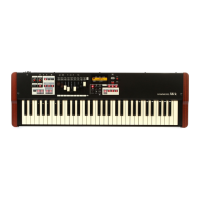
4. Now touch the PAGE “<” Select Touch Button once. The Information Center Display should look
similar to this:
You will now see the Lower Manual Drawbar Registration shown numerically. Notice that the LED for the
LOWER Touch Tab in the DRAWBAR SELECT group is lit.
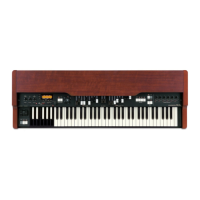
5. Now touch the PEDAL Select Touch Button in the DRAWBAR SELECT group once. The
Information Center Display should look similar to this:
You will now see the Pedal Drawbar Registration shown numerically.
In this mode, you can use either the PAGE Touch Buttons or the DRAWBAR SELECT Touch Buttons to see the current
Drawbar settings for both manuals and pedals.
NOTE: You can exit by touching the EDIT Select Touch Button.


 To Next Page