76 MIDI
Hammond XK-2 Quick Features Guide
Select
EDIT PARAMETER
}43 ZONE1-1
CHANNEL OFF
External Zones
In addition to Upper and Lower Manuals, the XK-2 has two additional “manuals” called External Zones. These can be
assigned MIDI Channel numbers, Program Numbers, “low” and “high” limits and other MIDI data. These Zones allow you
to control additional sounds from the XK-2 keyboard, thereby giving your XK-2 the ability to function as a MIDI Master
Controller for a sequencer, sound modules, or whatever you wish. For example, you could have Piano on one part of the
keyboard, Strings playing from another part of the keyboard, Wood Bass from another area of the keyboard and Trumpet
from still another portion of the keyboard.
Ë External Zone MIDI Channels
This Advanced Feature allows you to assign MIDI channels for the External Zones. You can select MIDI Channels from 1
through 16 as well as “OFF” (no MIDI transmission or reception) for both External Zones.
TRY THIS:
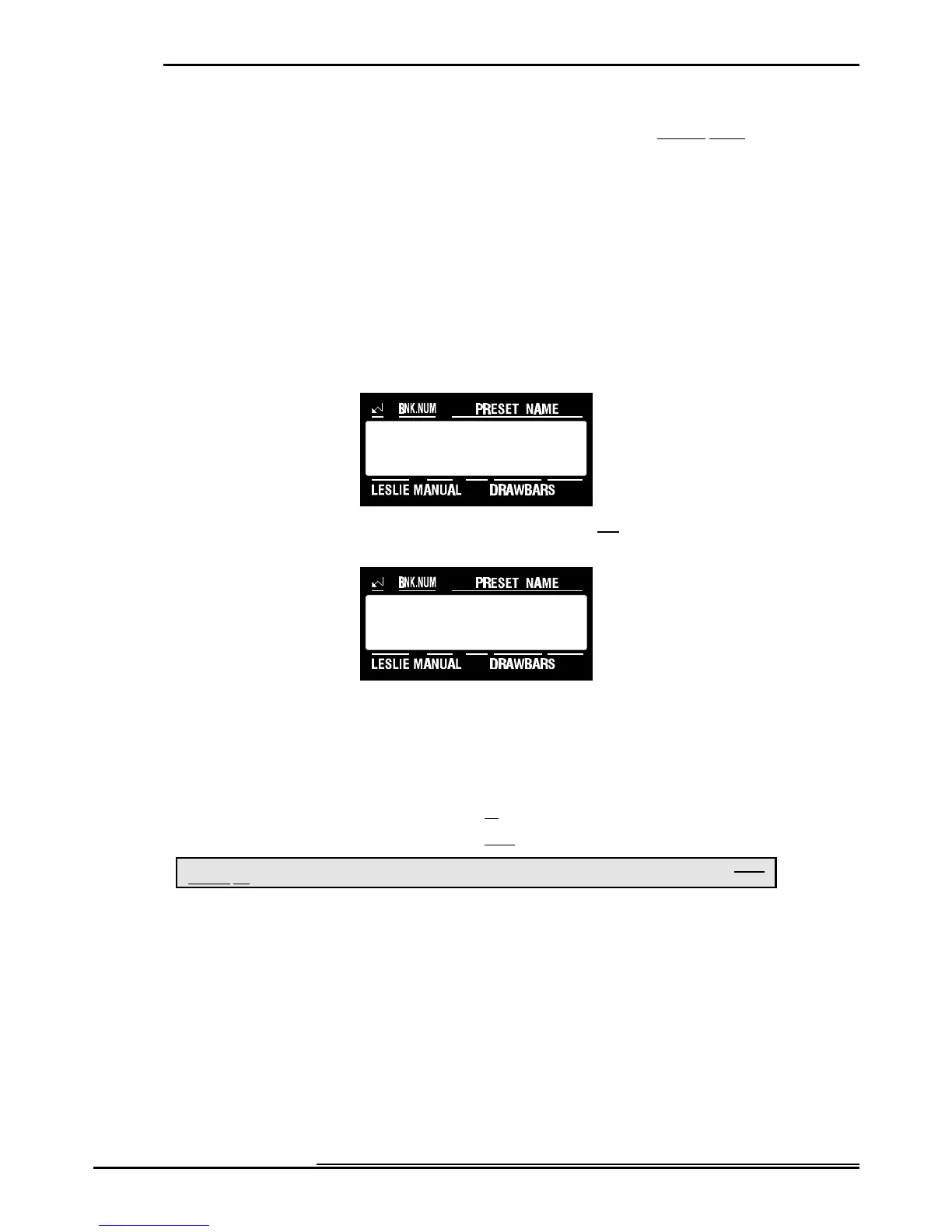
1. Touch the EDIT Select Touch Button. The red LED will light, and the Information Center Display
should look like this:
2. Touch the INT.CONT./EXT.ZONE Select Touch Button two times. The Information Center Display
should look like this:
3. Now select the option you wish by doing the following:
Use the INT.CONT./EXT ZONE Select Touch Button to select EXT. ZONE 1 or EXT. ZONE 2.
NOTE: When you touch the INT.CONT./EXT.ZONE Select Touch Button repeatedly, you are actually toggling
between the INT.CON T. and EXT.ZONE Menus. As a result, you will also see the SPLIT Menu display along with
EXT.ZONE 1 and EXT.ZONE 2.
Use the VALUE ">" Select Touch Button to scroll up through the MIDI Channel numbers.
Use the VALUE "?" Select Touch Button to scroll down through the MIDI Channel numbers.
This is a System Parameter, and this data CAN NOT be stored to a Preset. To see a total listing of all System Parameters, see the System
Parameter List.
NOTE: You can exit by touching the EDIT Select Touch Button.


 To Next Page