103
1
DIRECTING SCENES EFFECTIVELY (EFFECT – FADE)
You can add fading to the beginning and/or end of scene.
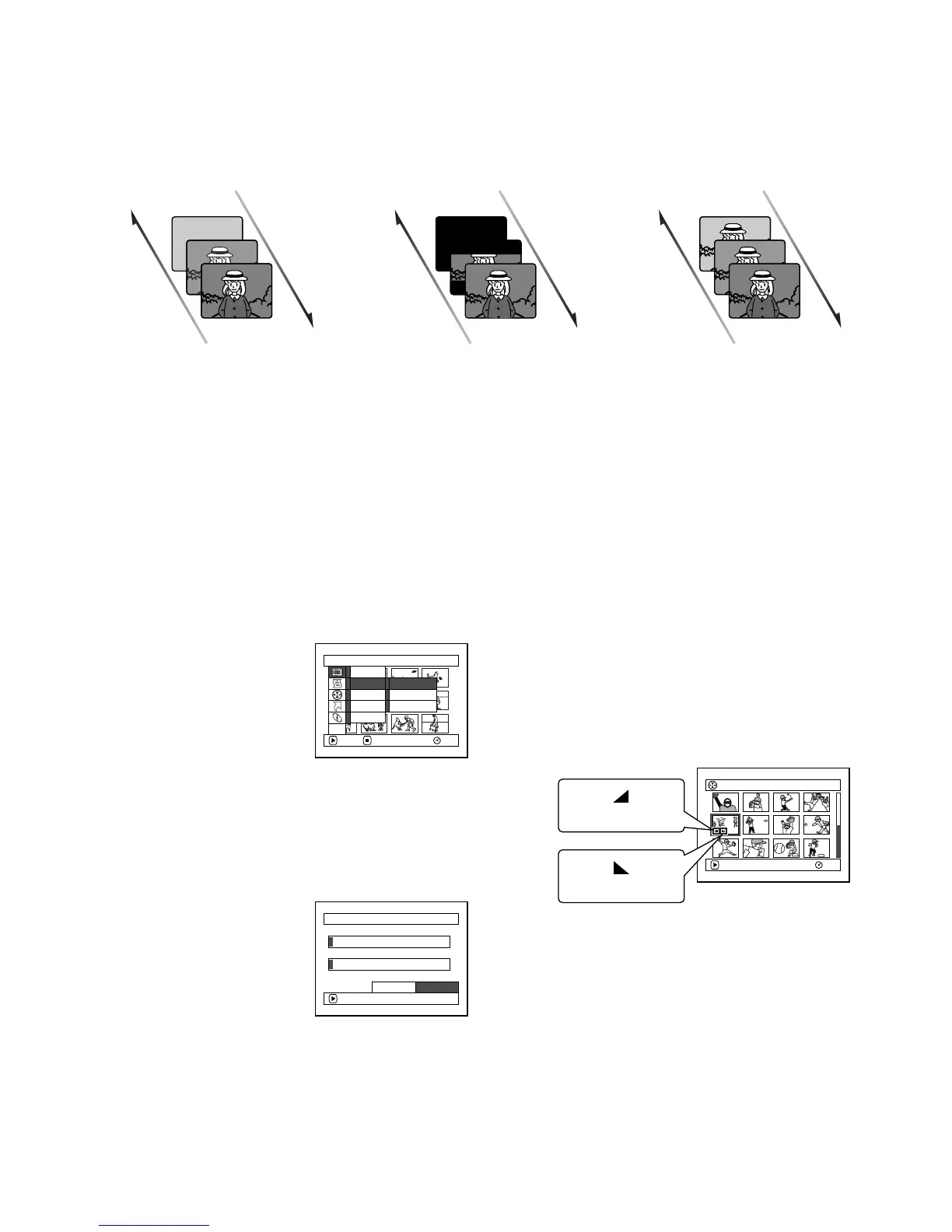
There are three types of special effects:
1 Press the DISC NAVIGATION button.
2 Select the scene for adding special effects.
3 Press the MENU button.
4 Choose, “Scene”,
“Effect”, “Fade” and
then press the A
button.
5 The “Fade Set” screen
will appear: If you are
sure you want to add the fade effect to the
scene, press the A button.
If you want to change the scene to which fade
is added, you can change it on this screen.
6 Select the special effects
for “IN” and/or
“OUT”, choose “Enter”,
and then press the A
button.
You can use f/e to
move the cursor to “IN”, “OUT”, “Enter” or
“Cancel”.
Use d/c to choose the effect to be added,
and then press A to set the effect.
To cancel setting, choose “Cancel”.
If you choose “Enter” and press A, the
“Fade Set” screen will be restored after a
message appears.
Repeat steps 5 and 6 to add fade to other
scenes.
7 Press the C button to quit.
The “[” and/or “]” icon(s) will appear in
the scenes for which fade in and/or fade out
have been set.
Fade Out Fade Out Fade Out
White:
Fades in from white screen
Fades out to white screen
Wipe:
Fades in from black screen
to vertical direction of screen
Fades out from vertical
direction of screen to black
screen
B/W:
Fades in from Black and
White screen to colour
screen
Fades out from colour screen
to Black and White screen
Fade InFade InFade In
Scene
RAM
ENTER RETURN
Ed i t
Ef fect
Copy
Sel ect
De t a i l
Sk i p
Thumbnai l
Fade
ETC
Fade
IN
OUT
Ent er
None
W
hi te
W
ipe B/W
ENTER
None
W
hi te
W
ipe B/W
Cance l
005/ 013All Progra
m
s
PLAY
RAM
“In” effect
“Out” effect













 To Next Page