121
Disc or Card Management
13
INITIALISING DISC OR CARD (FORMAT DISC. FORMAT CARD)
Initialising DVD-RAM disc or card will allow you to delete any recorded contents.
1 Press the DISC NAVIGATION button.
2 Press the MENU button.
3 Use the f/e/d/c/A buttons to
choose “Format Disc” or “Format Card” on
the “Disc” or “Card” menu screen, and then
press the A button.
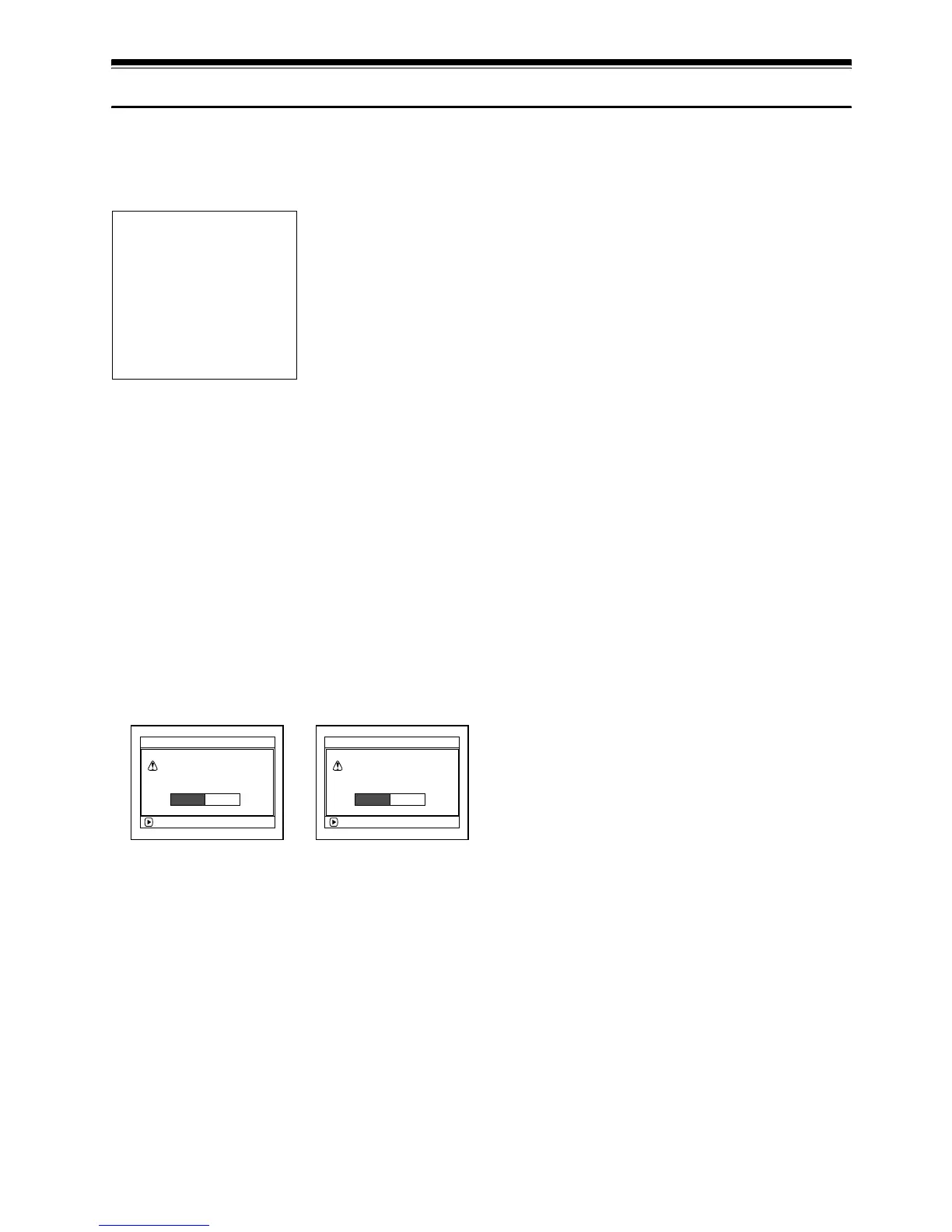
The screen for verifying “Format Disc” or
“Format Card” will appear.
4 Choose “YES”, and then press the A
button.
Choose “NO” to cancel initialisation.
Note:
• If you wish to delete all recorded contents, it is
recommended that you use initialisation, which will
delete all the scenes in much less time than using the
scene delete function.
• Initialisation will delete all the recorded contents on
disc or card: Be careful not to delete data by mistake.
• It may not be possible to initialise a disc with many
scratches or dirt: Such a disc cannot be used (p. 25).
• This DVD video camera/recorder may not recognise
some discs or cards that have been initialised on PC
or a device other than this DVD video camera/
recorder.
Before You Begin
• Be sure to use the AC adapter/charger to power the DVD video camera/
recorder for initialisation. If the DVD video camera/recorder is turned off
during initialisation and the initialisation is interrupted, incorrect
initialisation will result and the incorrectly initialised disc will be
unusable.
• If you use a brand-new DVD-R disc, message “Disc is not formatted”
will appear: Initialise the disc, following the subsequent messages
(p. 42).
ENTER
A l l data
w
i l l be deleted.
For
m
at the disc no
w
?
For
m
at Disc
YES NO
ENTER
A l l data
w
i l l be deleted.
For
m
at the card no
w
?
For
m
at Card
YES NO
(When using card)(When using
DVD-RAM disc)







 To Next Page