104
1
PLAYING BACK BY SKIPPING SCENES (EFFECT – SKIP)
You can specify “Skip” for scenes you do not want to play back: The selected scenes will be skipped.
1 Press the DISC NAVIGATION button.
2 Select the scene to be skipped.
3 Press the MENU button.
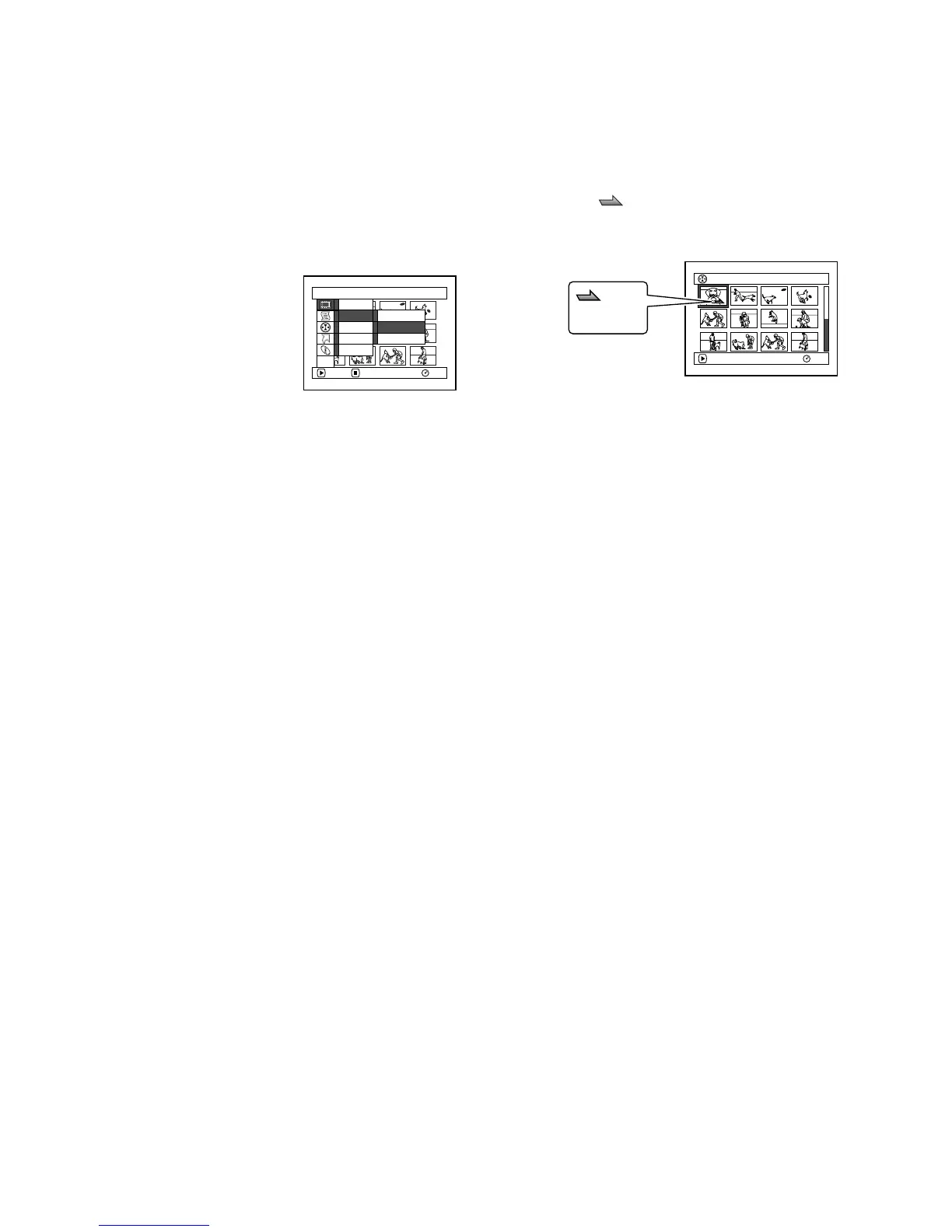
4 Choose “Scene”,
“Effect”, “Skip”, and
then press the A
button.
5 The “Set Skip” screen
will appear: If you are
sure you want to skip the selected scene,
press the A button.
If you want to change the scene to be
skipped, you can change it on this screen.
After skip setting, the “Set Skip” screen will
be restored.
Repeat step 5 to set skipping of other scenes.
6 Press the C button to quit.
A skip icon “ ” will appear in the
thumbnail of any scene for which skipping
has been set.
●Releasing Skip
Perform the same procedure as setting skip: The
skip icon will disappear and skipping of the
scene will be released.
Note:
• Multiple scenes can be selected for skipping (p. 95).
• If you press the MENU button before pressing the
A button in step 5, the submenu screen will appear
(p. 100).
Scene
RAM
ENTER RETURN
Ed i t
Ef fect
Copy
Sel ect
De t a i l
Sk i p
Thumbnai l
Fade
ETC
001/ 013All Progra
m
s
PLAY
RAM
Skip icon












 To Next Page