108
123
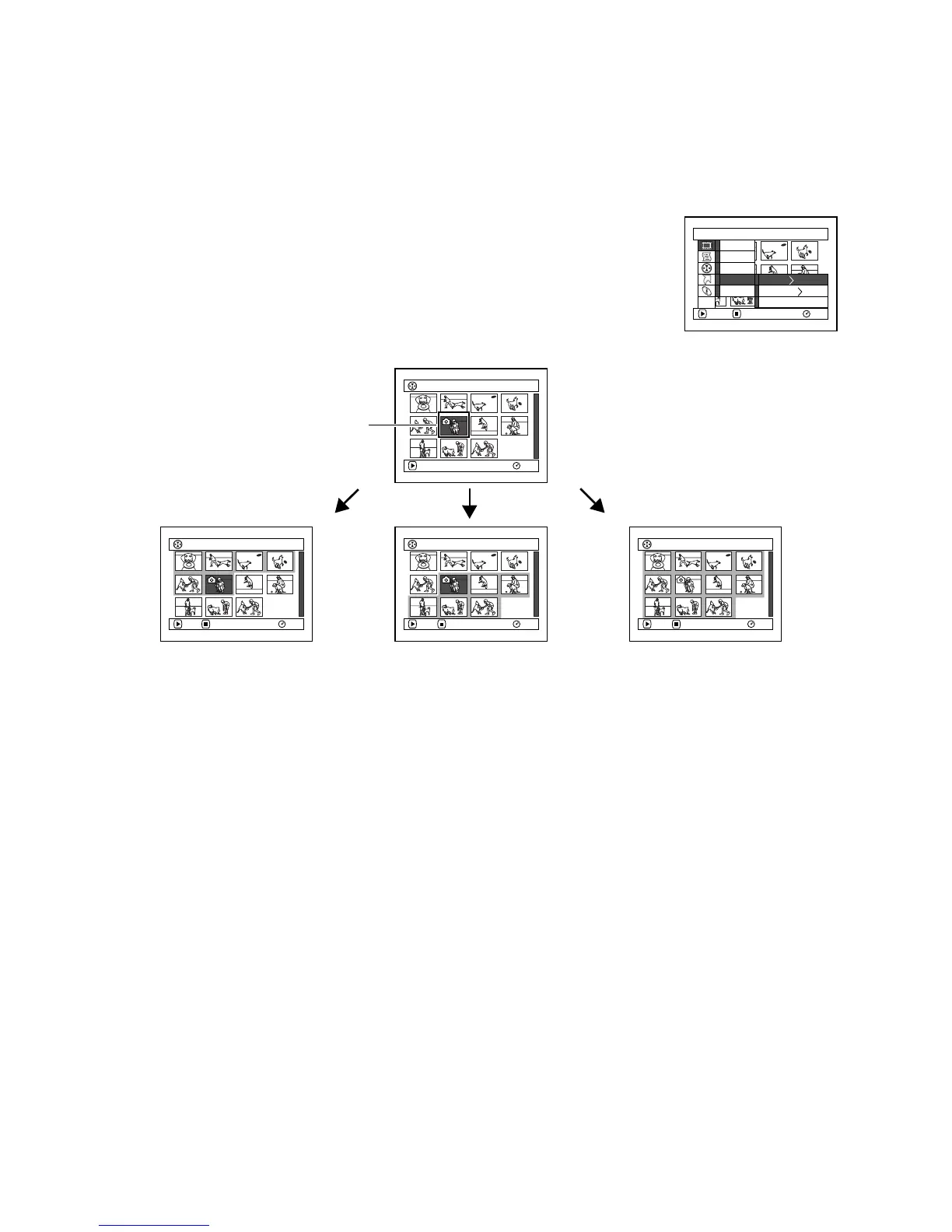
SELECTING SCENES USING MENU SCREEN (SELECT)
You can use this “Select” function to select consecutive scenes at one time.
This function is useful when there are numerous scenes.
1 Press the DISC NAVIGATION button.
2 Point the cursor at the first or last scene to be
selected: When selecting all scenes, simply
proceed with step 3.
3 Press the MENU button.
4 Choose “Select” on the “Scene” menu screen.
5 Choose “Start →
Current”, “Current →
End” or “All” and then
press the A button.
●Deselecting selected scenes
Deselecting scenes one by one:
While you are displaying the “All Programs”
screen on which scenes have been selected,
choose the scene to be deselected and then press
the SELECT button.
Note:
Up to 999 scenes can be selected.
Deselecting all the selected scenes at once:
While you are displaying the “All Programs”
screen on which scenes have been selected, press
the C button.
Scene
RAM
ENTER RETURN
Ed i t
Ef f ec t
Copy
Sel ect
Detail
ETC
Start– Current
Cu r r ent – End
All
006 / 011All Progra
m
s
PLAY
RAM
006 / 011All Progra
m
s
PLAY
RAM
DESELECT ALL
006 / 011All Progra
m
s
PLAY
RAM
DESELECT ALL
006 / 011All Progra
m
s
PLAY
RAM
DESELECT ALL
Current scene
“Start → Current” is specified:
The scenes from the first to
current will be selected.
“Current → End” is specified:
The scenes from the current to
end will be selected.
“All” is specified:
All scenes from the first to end
will be selected.













 To Next Page