82
Setting Up Record Functions
12
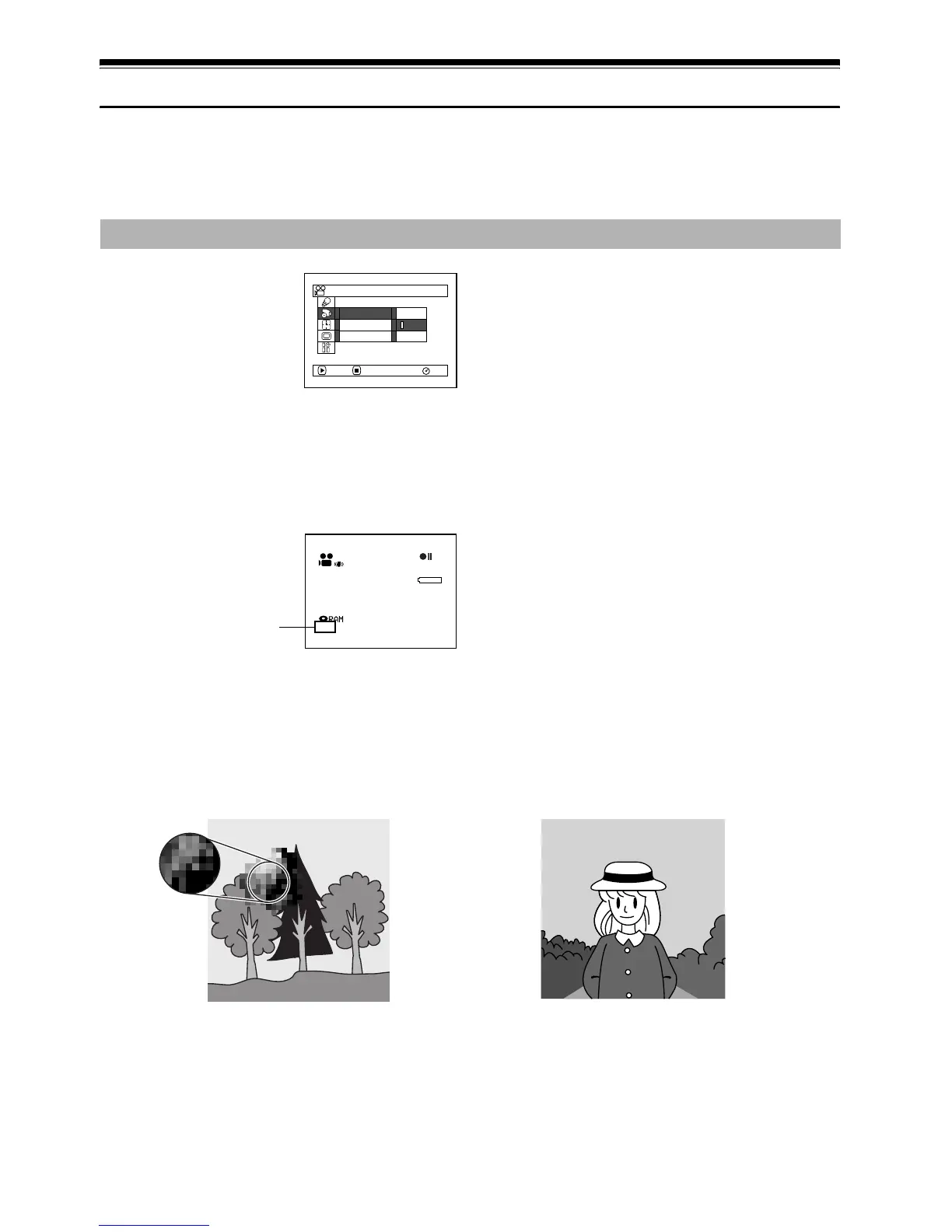
SWITCHING MOVIE QUALITY (VIDEO MODE)
Choose the movie quality from “XTRA”, “FINE”, “STD”.
1 Press the MENU
button, use the f/
e/d/c/A
buttons to choose
“VIDEO Mode” on the
“Record Functions
Setup” menu screen,
and then press the A button.
2 Choose the desired quality mode, and then
press the A button.
3 Press the MENU button to end the setting.
Note:
• The movie quality setting will be stored in memory
even when the DVD video camera/recorder is turned
off.
• The “VIDEO Mode” setting will not change even if the
disc is replaced.
• When using DVD-R disc, you cannot switch the
setting on movie quality or wide-screen mode while
recording on the disc: The DVD video camera/
recorder will be automatically set to the movie quality
or wide-screen mode first used with the disc for
recording.
• The movie quality setting is effective only during
movie recording: The setting will not be displayed
during recording of stills.
Block-like noise may appear in recorded image, or the outline of subject image is distorted under the
recording conditions listed below: Pan the DVD video camera/recorder as slowly as possible. (Block
noise is likely to appear in the “STD” mode):
• If there is a complicated pattern in background (as in following figure on left)
• If the DVD video camera/recorder is moved excessively or quickly
• If subject is moving rapidly even when the DVD video camera/recorder is not moving
It is recommended that you record critical subjects in the “XTRA” or “FINE” mode. (p. 27)
FINE
STD
RAM
XTRA
V I DEO Mode
O
SD
O
utput
16:9
ENTER RETURN
Record Funct i ons Setup
3 0 MIN
0:00:00
REM
FINE
8:00
30/ 9 /2006
Movie quality
(Image when block-like noise occurs) (Image without block-like noise)










 To Next Page